Every paid invoice under an Invoice Setting with GST e-invoicing turned on has an e-invoice status. You see it at the top of the invoice in your dashboard. Your customer never sees these statuses; they only see the e-invoice once it is created.
The statuses
- Created: the e-invoice is registered. The IRN, Ack No, Ack Date and QR code are on the invoice.
- Waiting: the invoice was just paid and is being sent. This usually takes a few seconds.
- Retrying: GSTZen or the e-invoice portal was temporarily unavailable. It is tried again automatically after 1, 5, 15, 60, 180 and 360 minutes. You don't need to do anything.
- Failed: something needs your attention. The reason is shown in red. Fix it, then click Retry.
- Untaxed: the customer has a GSTIN, but no GST was charged on the invoice, so there is nothing to report. This is not an error.
- Skipped: the invoice does not need an e-invoice. The reason is shown, for example the customer has no GSTIN. This is not an error.
Invoices paid before you turned e-invoicing on have no status. You can still create an e-invoice for them (see Create a GST e-invoice later).
Find invoices by e-invoice status
- Go to Invoice and click Filter.
- Set E-invoice to the status you want, for example Failed.
- Click Apply Filter.
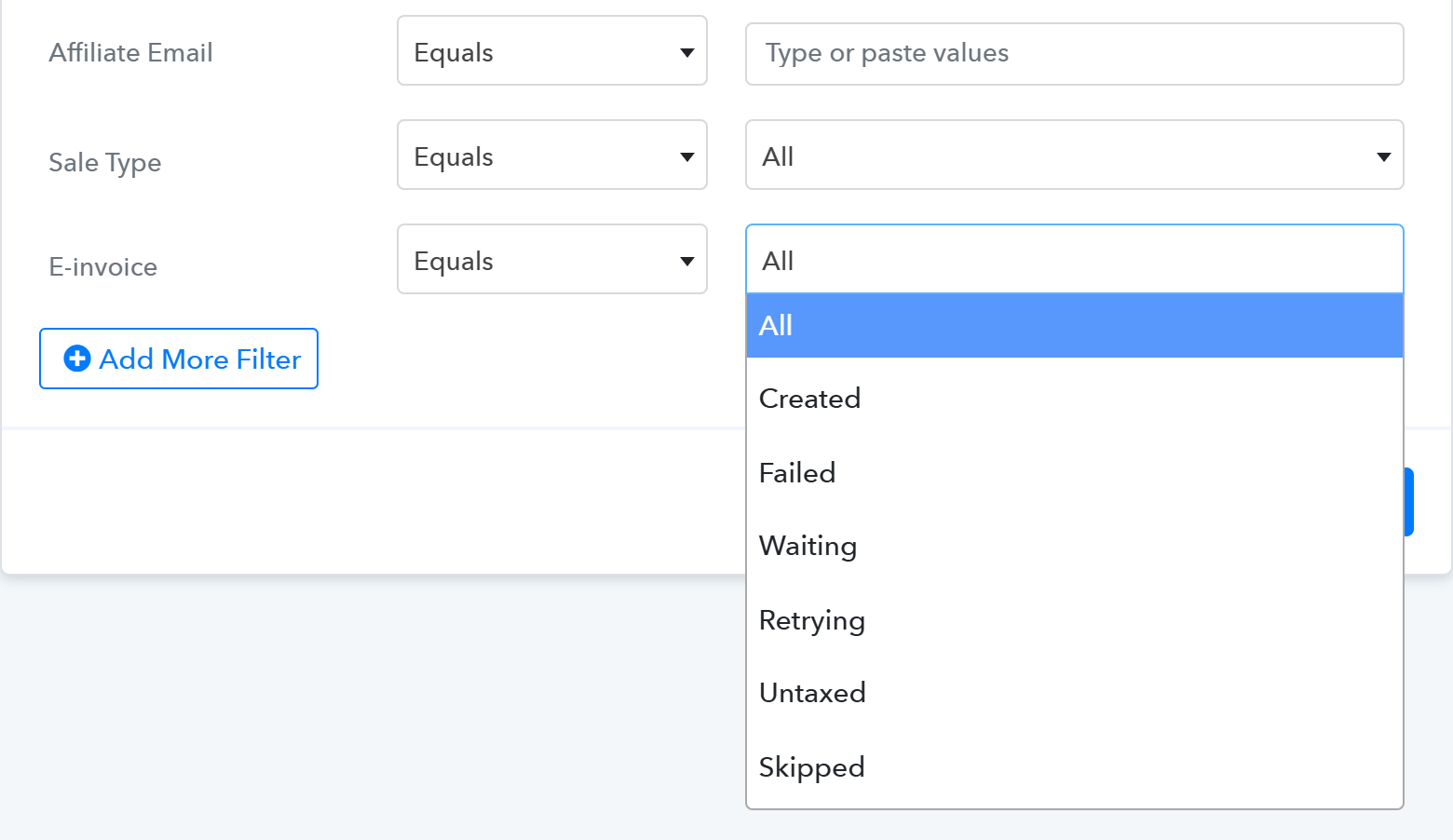
The E-invoice filter is shown only after e-invoicing is turned on in at least one Invoice Setting.
Fix a failed e-invoice
- Open the invoice. The reason is shown at the top, in red.
- Fix the problem, using the list below.
- Click Retry.
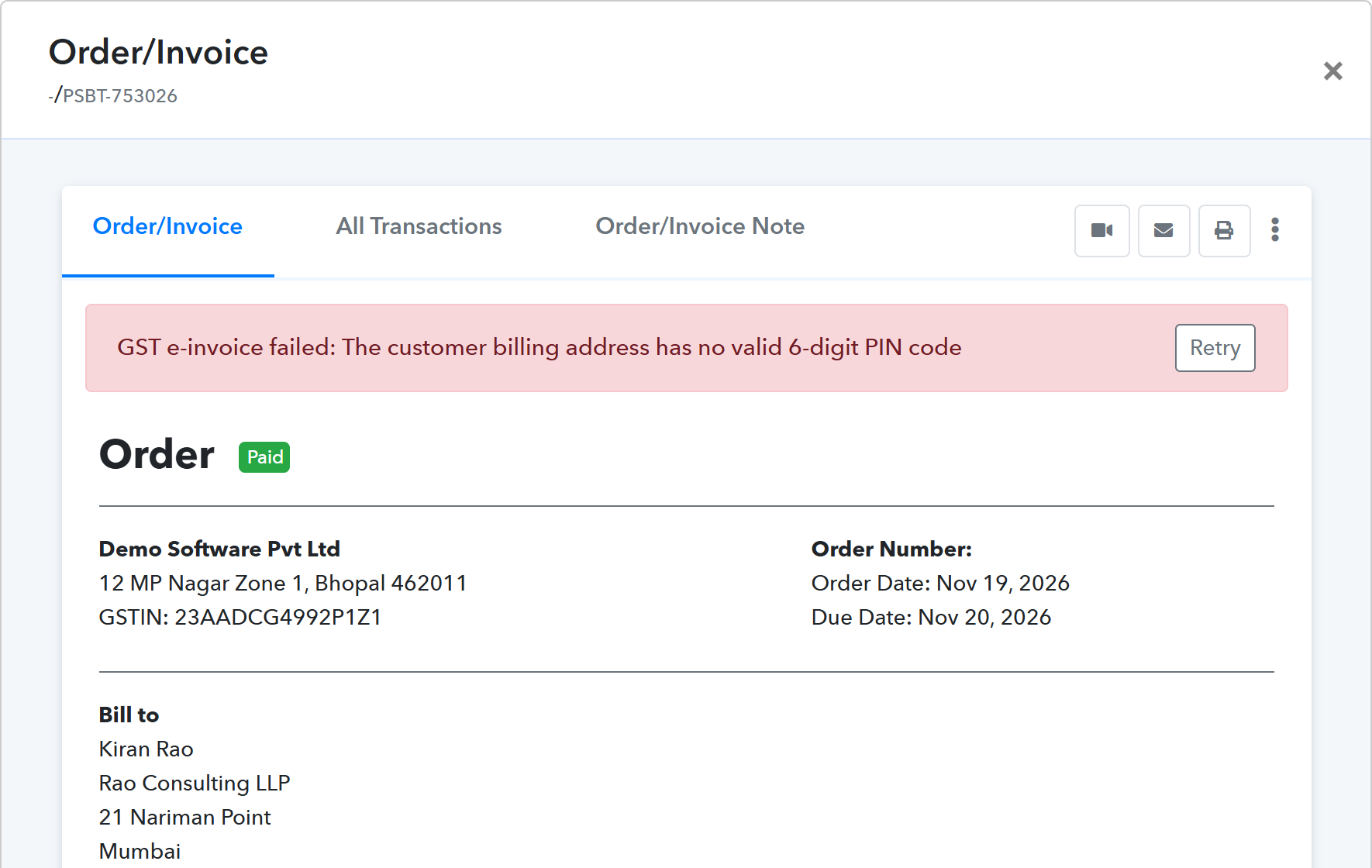
Retry uses the customer's current details. If you fixed the customer's billing address or GSTIN on the customer, Retry copies them onto the invoice first. Your company details come from the current Invoice Setting.
Failure reasons and what to do
- "The customer billing address has no valid 6-digit PIN code" or "has no city": go to Customers, edit the customer, add the city and PIN code to the billing address and save. Then click Retry. To avoid this, keep City and Zip turned on in your checkout page's billing address.
- "The customer has no name or company name": add the customer's name or company name, then Retry.
- "The customer GSTIN is not valid": correct the customer's Tax ID, then Retry.
- "The GSTZen API token is not valid" or "is missing": enter a valid token in the Invoice Setting, save, then Retry.
- "GST e-invoicing is turned off in the invoice setting": turn it on again in the Invoice Setting, then Retry.
- "Invoice number ... cannot be used for an e-invoice": the invoice number has more than 16 characters or other characters than letters, numbers, / and -. An existing invoice number can't be changed, but you can shorten the prefix in the Invoice Setting for new invoices.
- A message from the e-invoice portal: the portal's own reason is shown as it was received. For example, the PIN code must belong to the state of the GSTIN, and HSN/SAC codes must be valid. Fix the customer's address, your company address or the codes in the Invoice Setting, then Retry.
- "Gave up after 7 attempts": GSTZen or the portal was unavailable for several hours. Click Retry.
Untaxed: no GST was charged
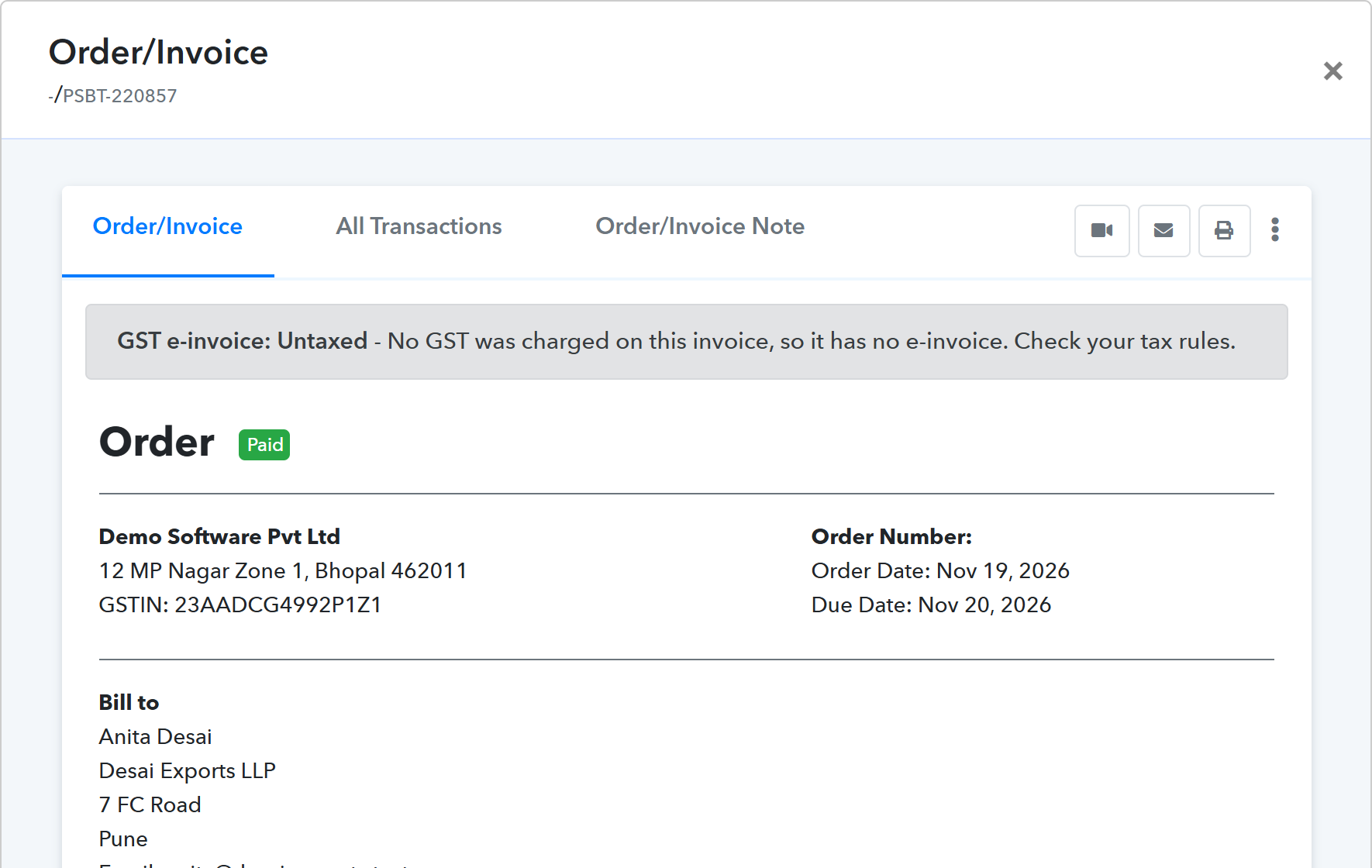
The customer has a GSTIN, but the invoice has no GST, so an e-invoice can't be created. The usual reasons are:
- no tax rule matched the customer's state, product or plan; or
- the supply is exempt from GST.
Retry is not shown, because it wouldn't help: the invoice itself has no GST. If GST should have been charged, check your tax rules so future invoices charge it.
Skipped: the reasons
- The customer has no valid GSTIN: usually a customer who bought as an individual. If they give you their GSTIN later, you can create the e-invoice (see Create a GST e-invoice later).
- The customer billing country is not India: e-invoices are created only for customers in India. If the address was wrong, fix it on the customer and create the e-invoice later.
- E-invoices are only for INR invoices: invoices in other currencies are not e-invoiced.
- The customer GSTIN is your own GSTIN: an invoice to yourself is not e-invoiced.
- The invoice amount is zero.
Refunds and credit notes
- When you refund an invoice that has an e-invoice, a credit note e-invoice is created for the refund, with its own IRN and QR code. It appears on the refund invoice.
- If the original invoice was Skipped, Untaxed or Failed, no credit note e-invoice is created.
Deleting an invoice
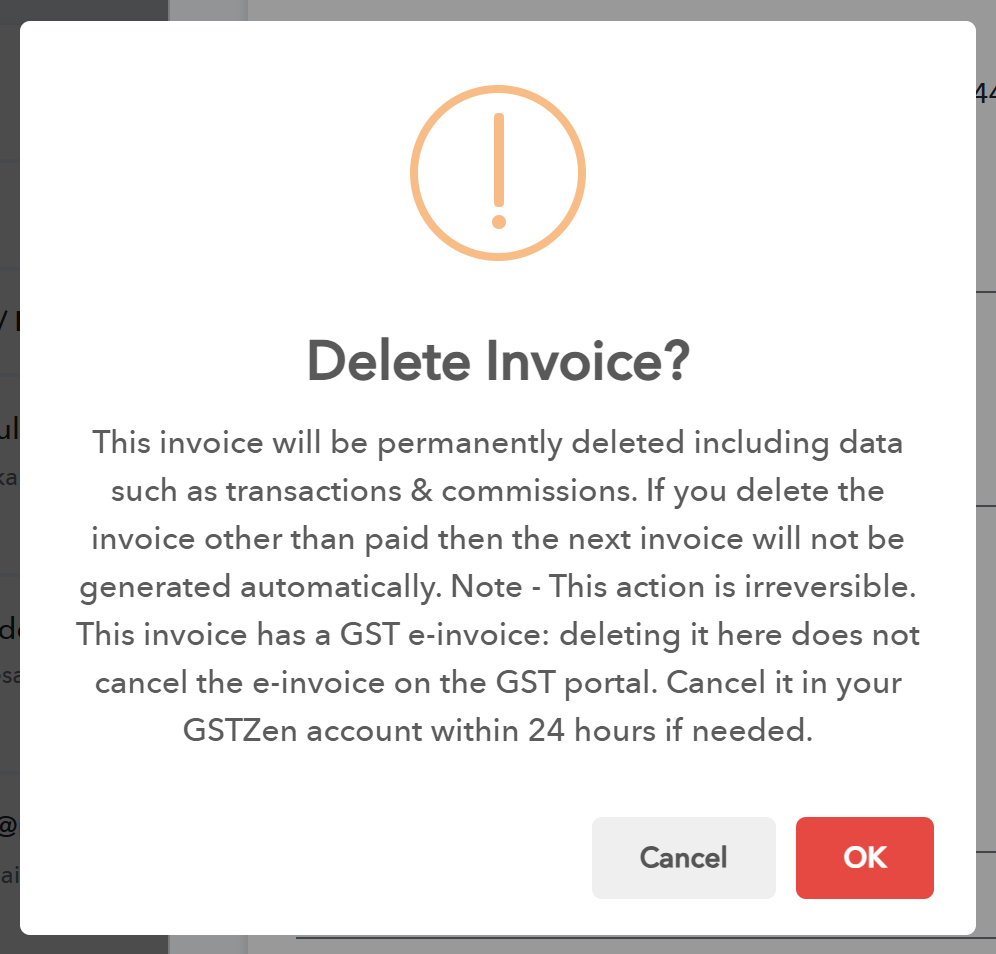
Deleting an invoice in Pabbly Subscription Billing does not cancel its e-invoice on the GST portal. When you delete an invoice that has an e-invoice, you are warned about this. To cancel an e-invoice, use your GSTZen account; the portal allows cancelling only within 24 hours of creation.
 Pabbly Subscription Billing Team•Updated Nov 21, 2026•4 min read
