Building Your App
 Pabbly Studio Team•Updated Oct 1, 2026•2 min read
Sometimes it is easier to show what you want than to describe it. You can attach images and PDFs to any message. For example, you can attach a screenshot of what you want changed, a sketch of a page, your logo, a menu or price list, or a brief written in a document.
Pabbly Studio reads the files and uses them for the change you ask for.
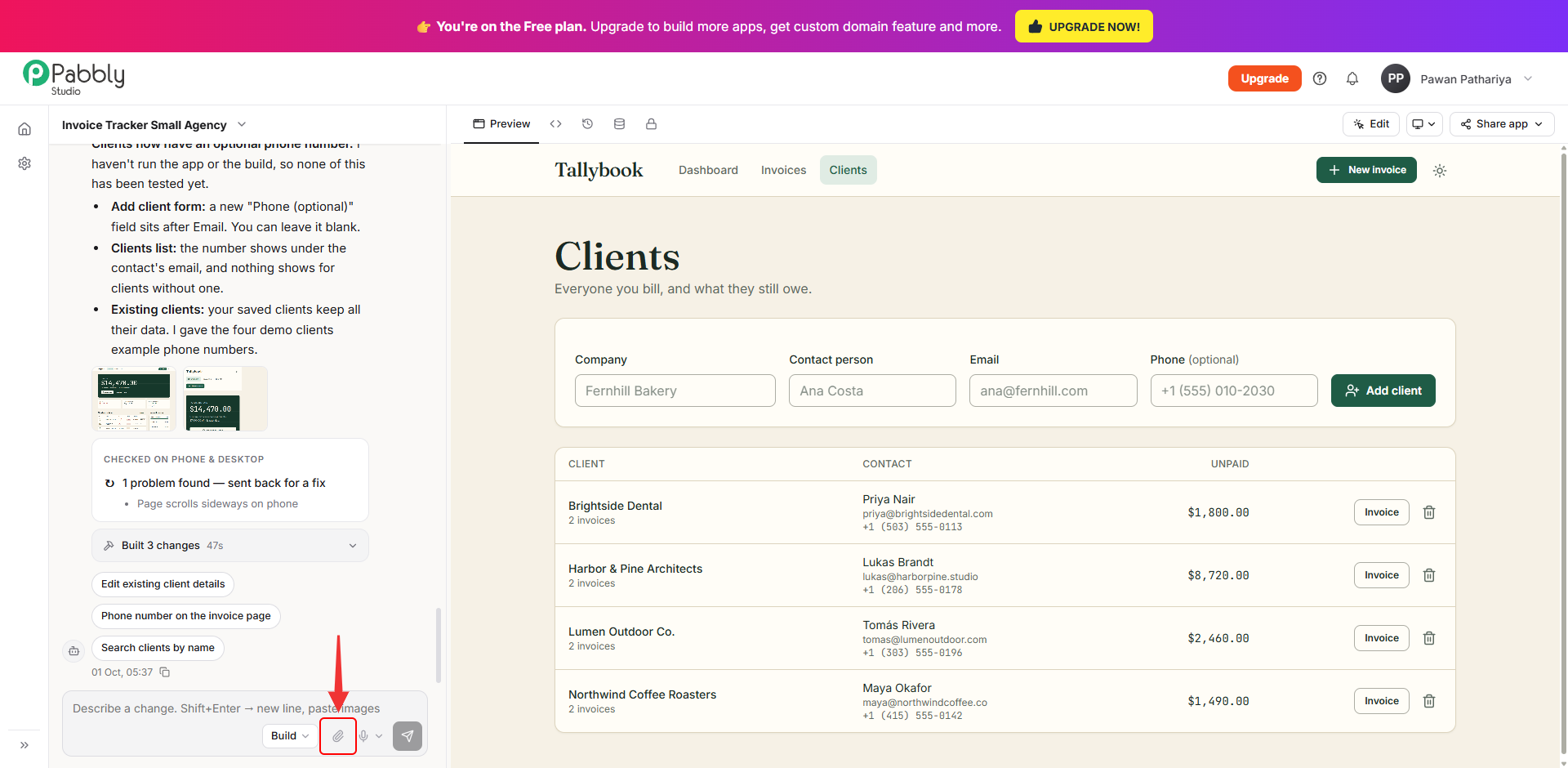
1. Click the paperclip. In the message box at the bottom of the chat, click the paperclip icon and choose one or more images or PDFs from your computer. You can also paste an image directly into the message box.
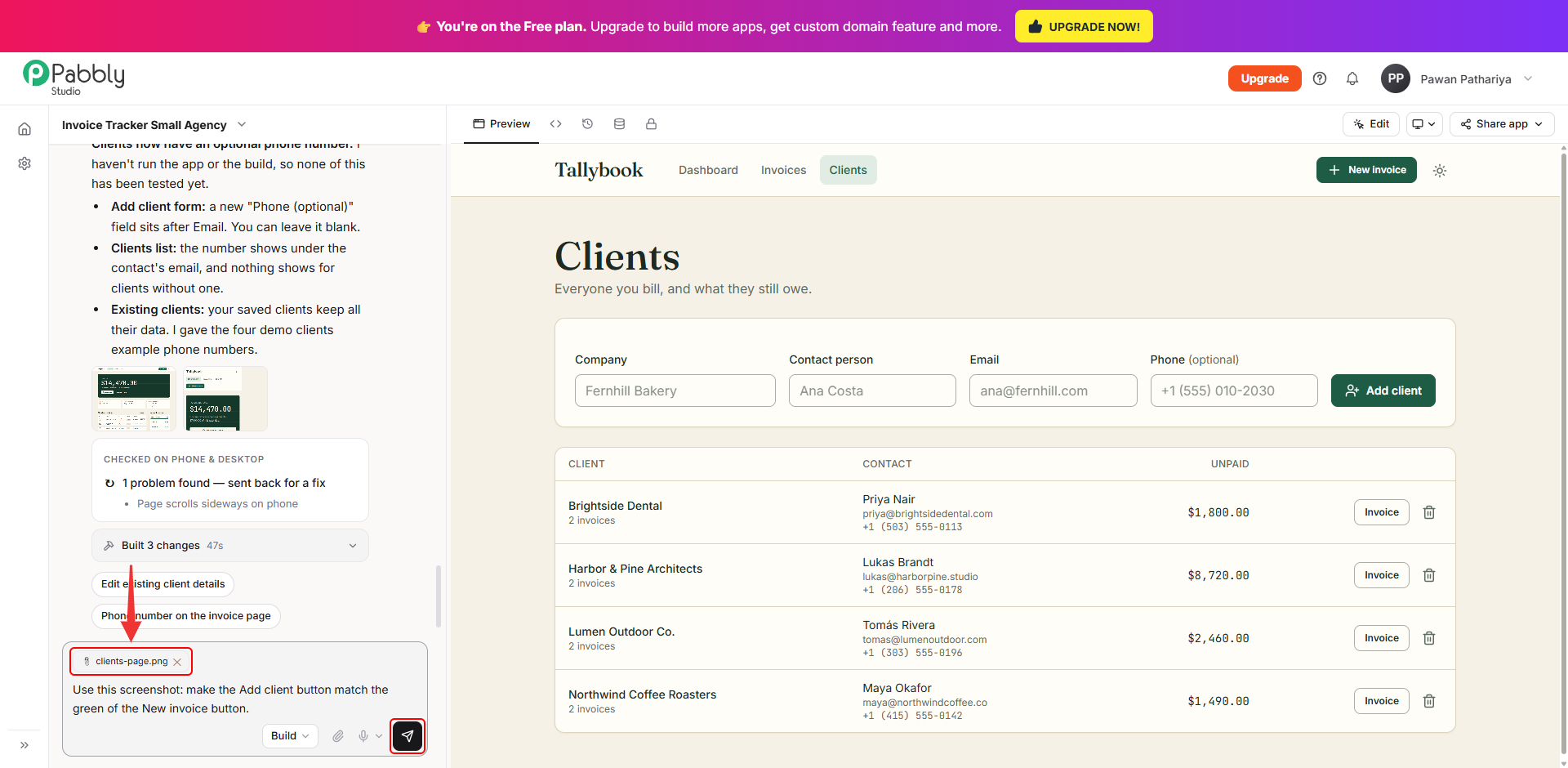
2. Describe what to do with it and send. Each file appears above the message box as a 📎 tag. Type what Pabbly Studio should do with it, for example "Use this screenshot: make the Add client button match the green of the New invoice button", and click Send. To remove a file before sending, click the ✕ on its tag.
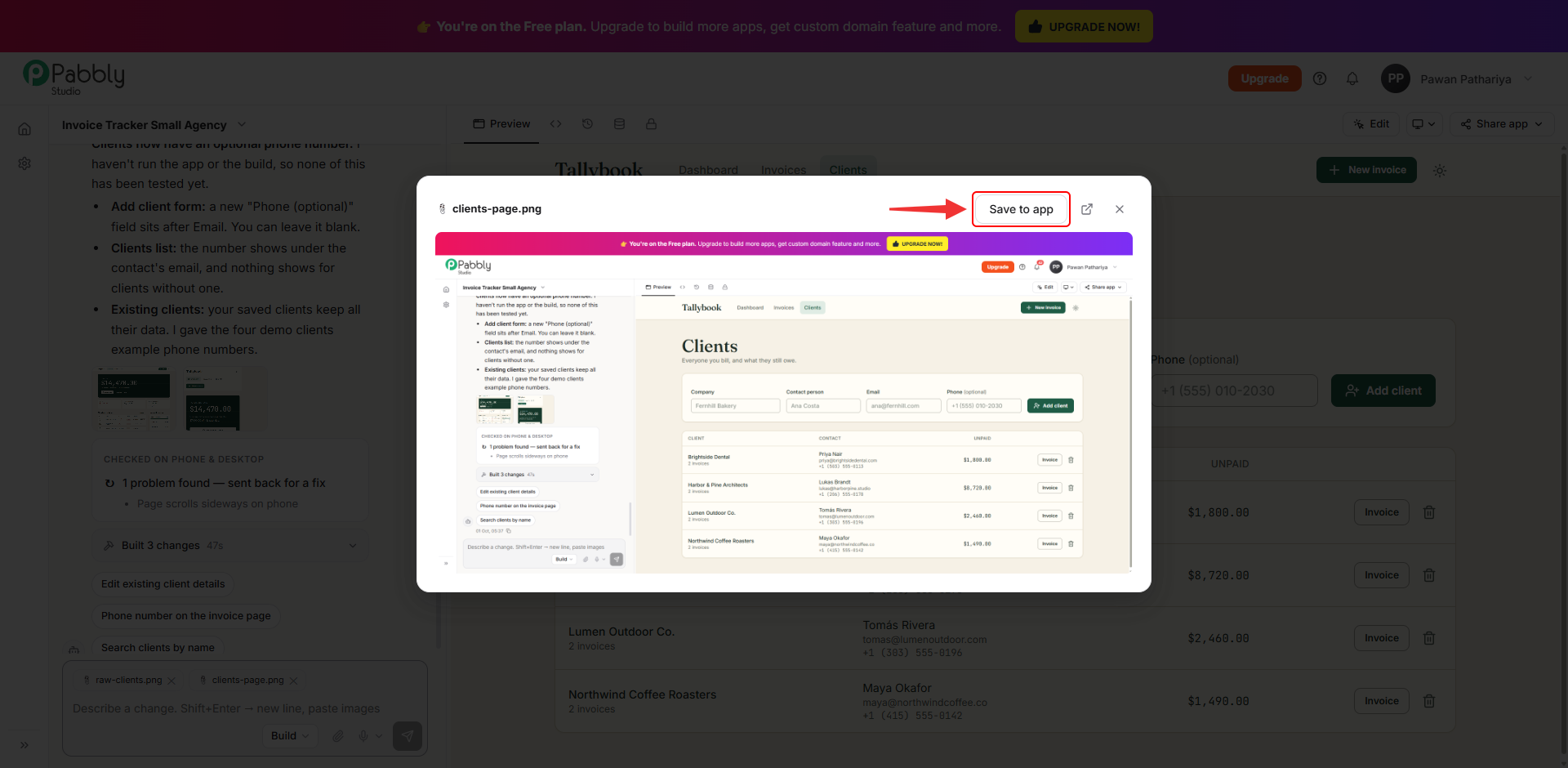
3. Preview a file, or save it into your app. Click a file's tag to open a preview. If the file should appear in your app, such as your logo or a photo, click Save to app. This copies the file into your app so its pages can use it.
Then tell Pabbly Studio where to show it, for example "Put this logo at the top left of every page".
Things to know about attachments
This is how you can attach images and PDFs to your message in Pabbly Studio. If you still have any questions, feel free to reach out to us.
