Building Your App
 Pabbly Studio Team•Updated Oct 1, 2026•2 min read
If it is easier to explain what you want out loud, you can speak your message. Pabbly Studio types what you say into the message box, so you can check and edit it before you send it.
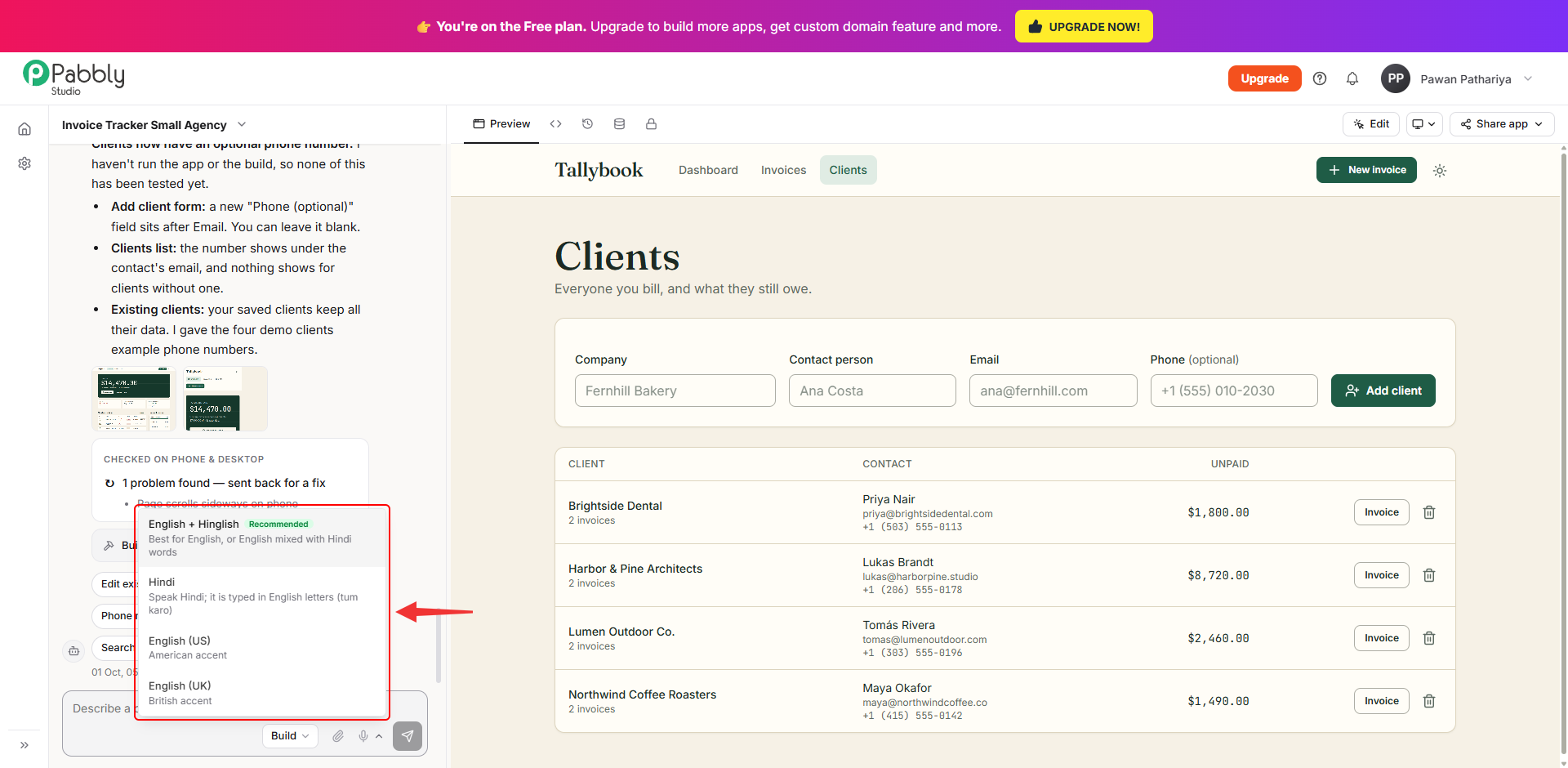
1. Choose your language (first time only). Click the small arrow next to the microphone in the message box and choose the language you will speak:
2. Click the microphone and speak. Click the microphone icon. The first time you do this, your browser asks for permission to use your microphone. Click Allow. Then speak your message. Your words appear in the message box as you talk.
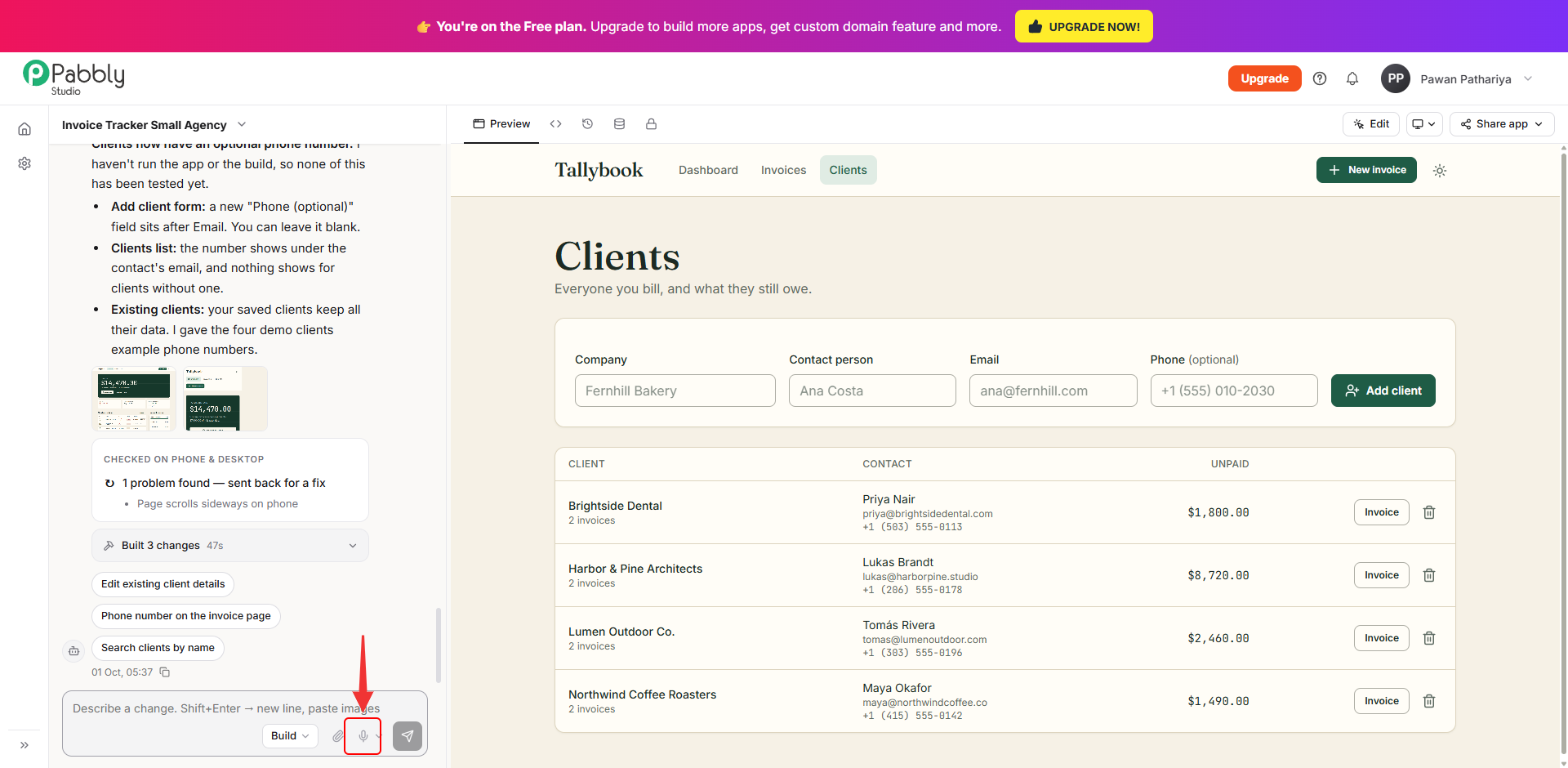
3. Check the text and send. Click the microphone again to stop. Read the text, fix anything that was heard wrongly, and click Send.
Things to know about voice input
This is how you can speak your message instead of typing in Pabbly Studio. If you still have any questions, feel free to reach out to us.
