Managing Your App
 Pabbly Studio Team•Updated Oct 1, 2026•2 min read
Every time Pabbly Studio builds or changes your app, it saves a new version. The Versions tab lists all of them, newest first, along with the message that created each one. If a change goes wrong, you can roll back to any earlier version in one click.
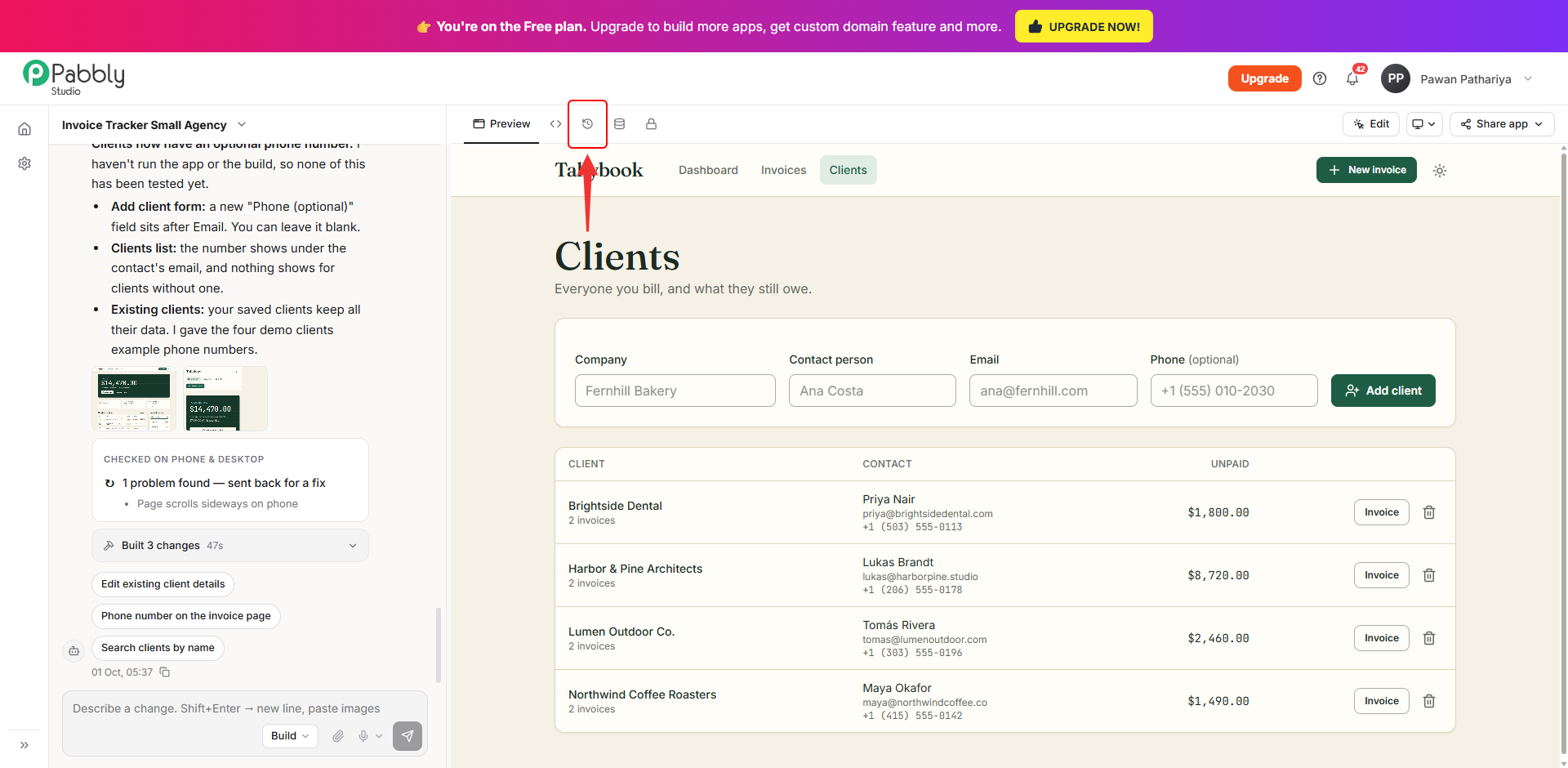
1. Open the Versions tab. Open your app in the builder and click the Versions tab (the clock icon) above your app.
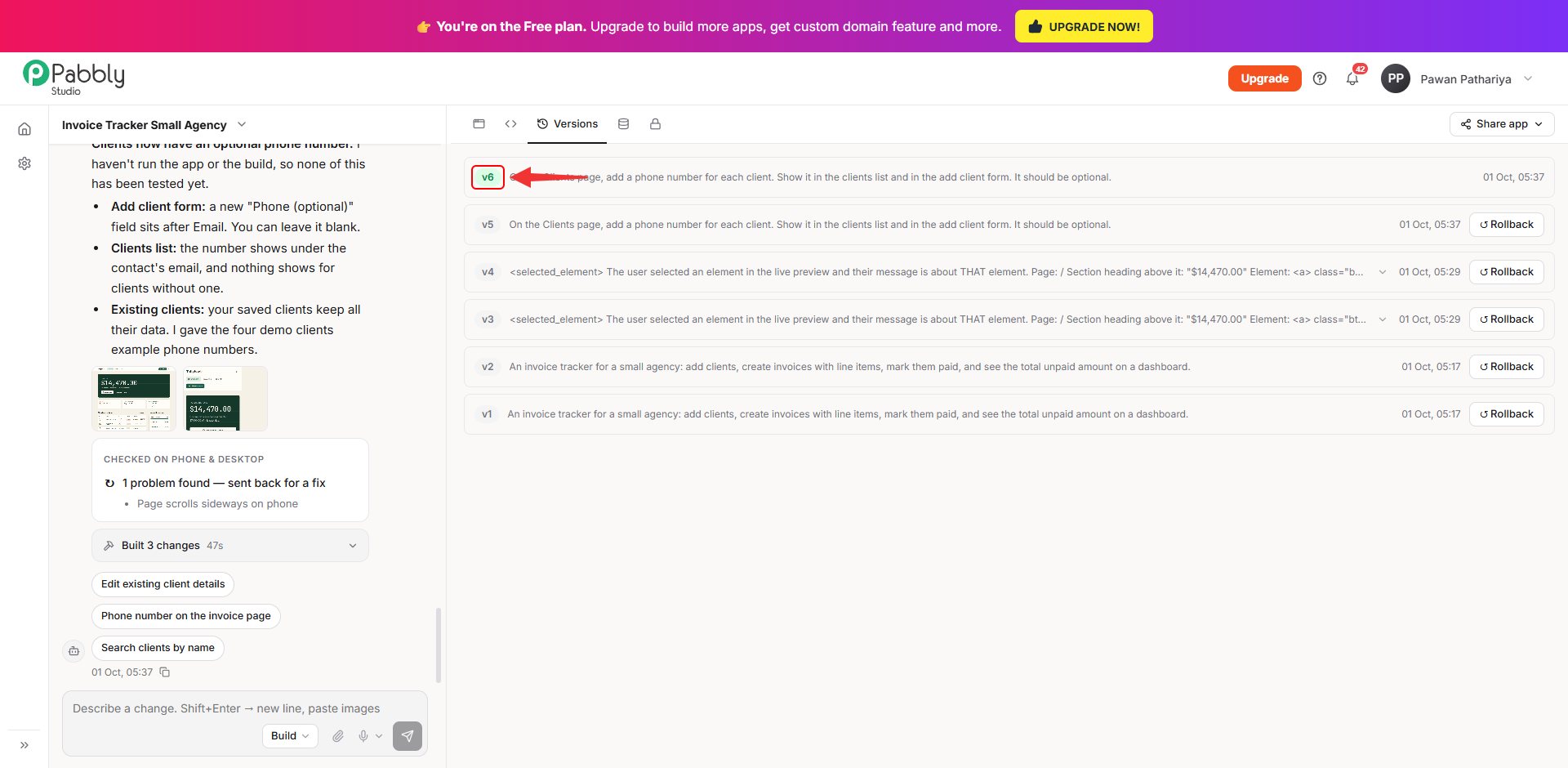
2. Find the version you want. Each row shows the version number (v1, v2 and so on), the message that created it, and when it was made. The version marked in green at the top is the one that is live right now.
You may see two versions for one message. This is normal. After a change, Pabbly Studio checks the app on phone and desktop. If it finds a problem, it fixes it and saves the fix as a separate version.
If a message is too long to read in the row, click the small arrow at the end of it to see the full text.
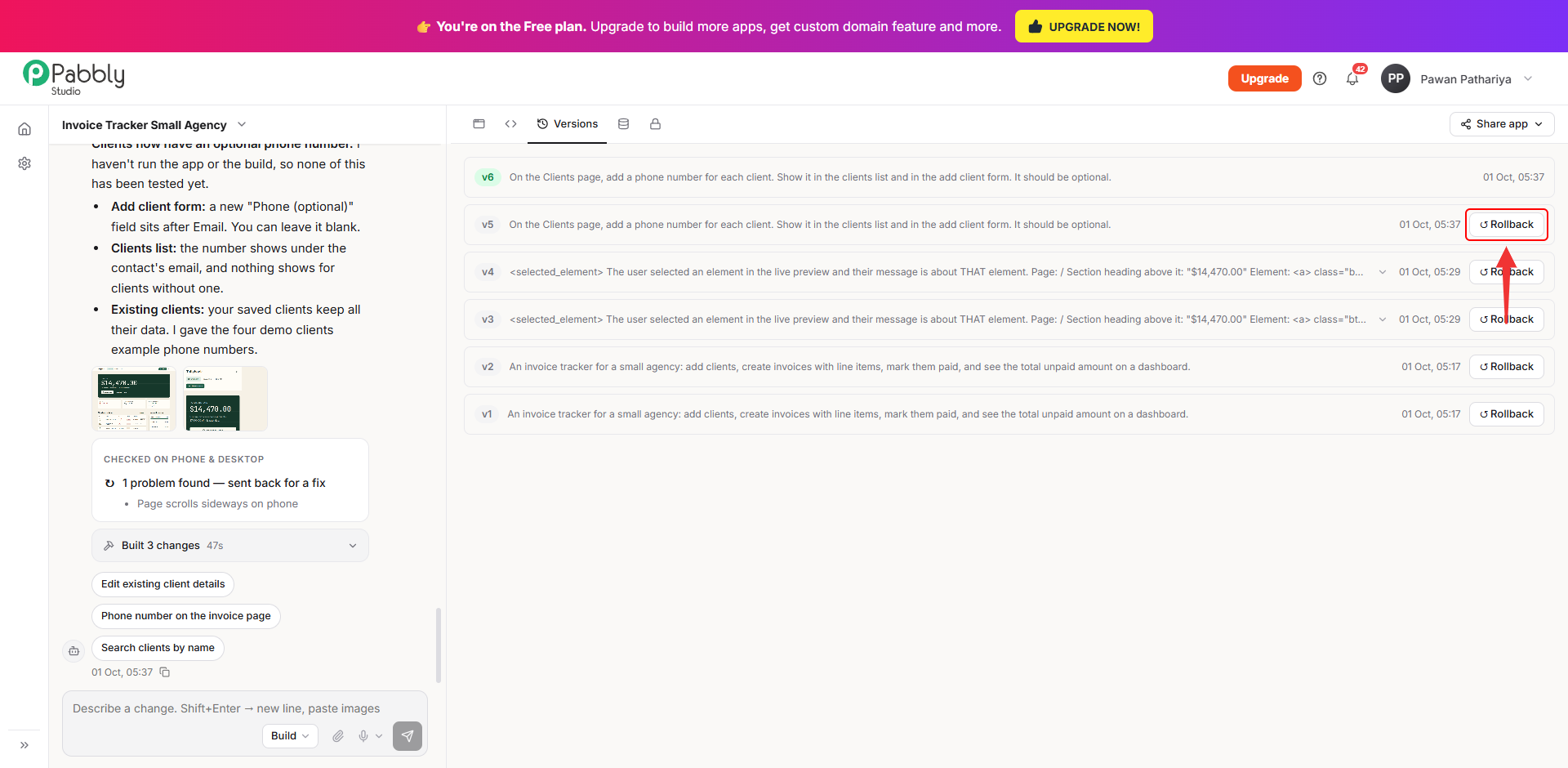
3. Click Rollback. Click Rollback on the version you want to go back to.
4. Confirm. Your browser asks Restore vN as a new version and redeploy?. Click OK to continue, or Cancel to keep the current version.
Pabbly Studio then puts that version live again. Nothing is deleted. The restored version is saved as a new version at the top of the list, so every later version is still there and you can roll forward again at any time.
Things to know about rollback
This is how you can use versions and rollback in Pabbly Studio. If you still have any questions, feel free to reach out to us.
