Managing Your App
 Pabbly Studio Team•Updated Oct 1, 2026•2 min read
Everything your app saves, such as clients, orders, bookings or form entries, is stored in your app's own database. The Data tab lets you see this data directly, live from your app, without opening the app itself. You can also see any files your visitors have uploaded.
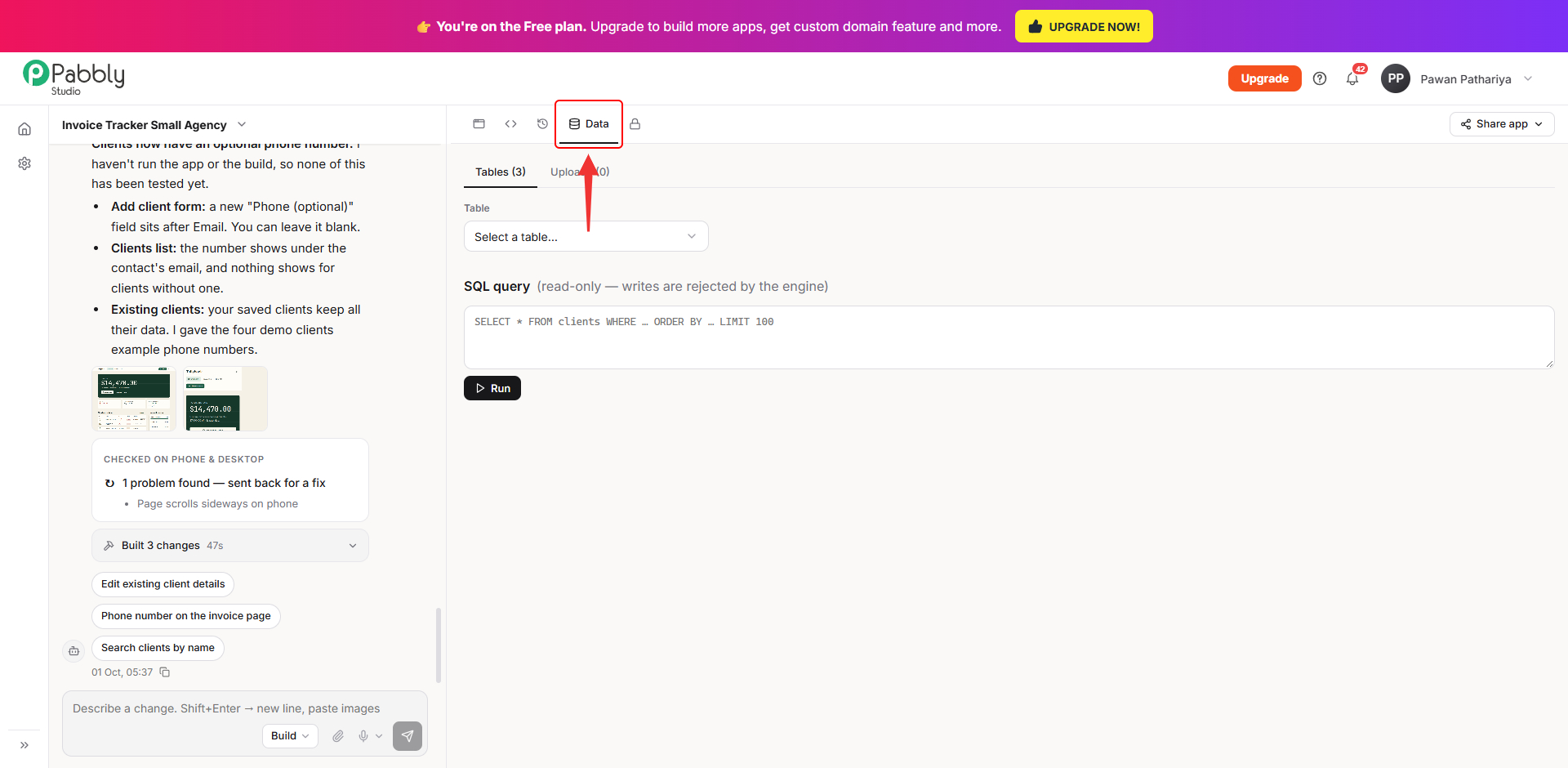
1. Open the Data tab. Open your app in the builder and click the Data tab (the database icon) above your app.
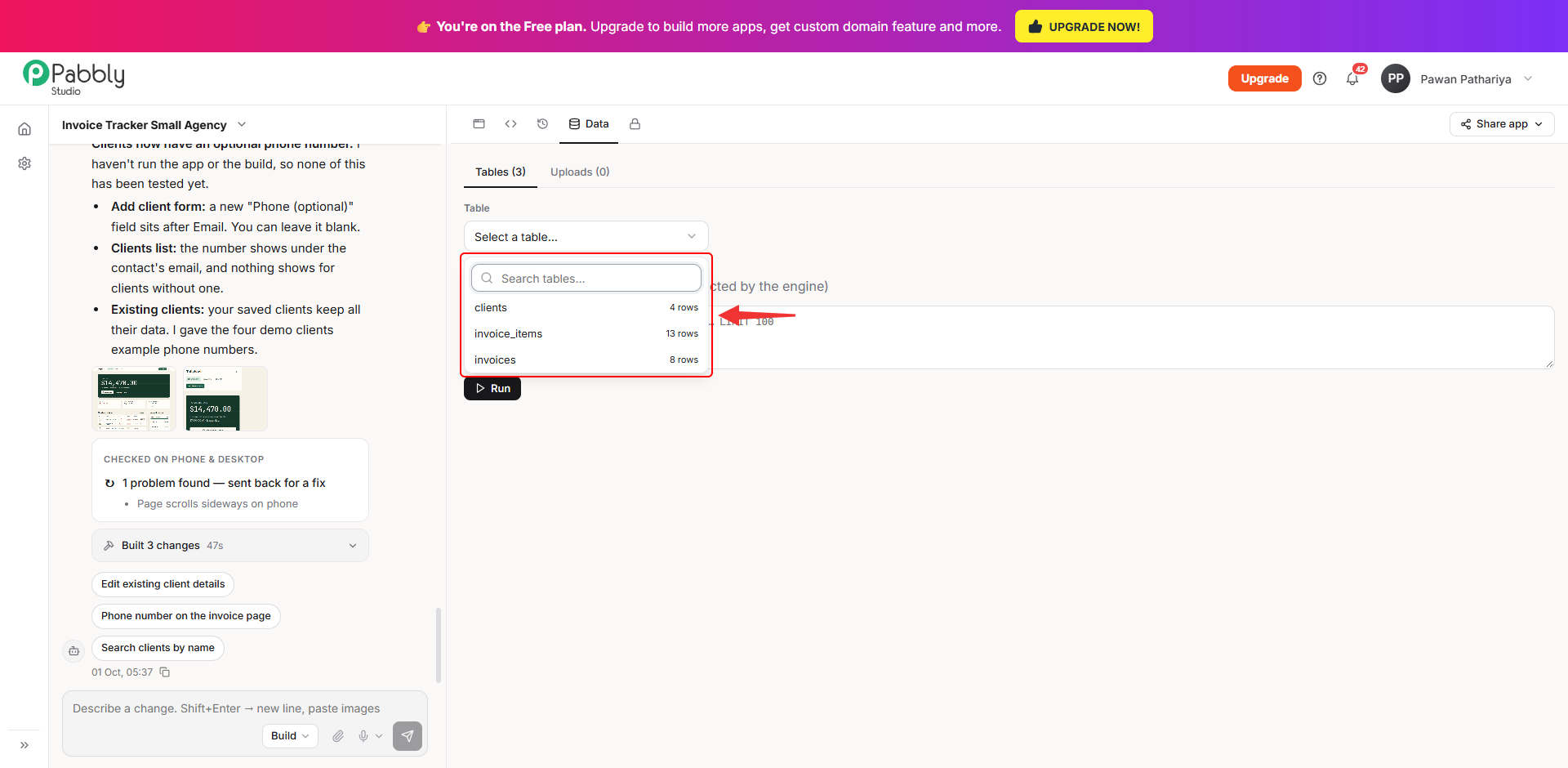
2. Pick a table. Under Tables, click Select a table…. The list shows every table in your app and how many rows each one has. Click the table you want to see.
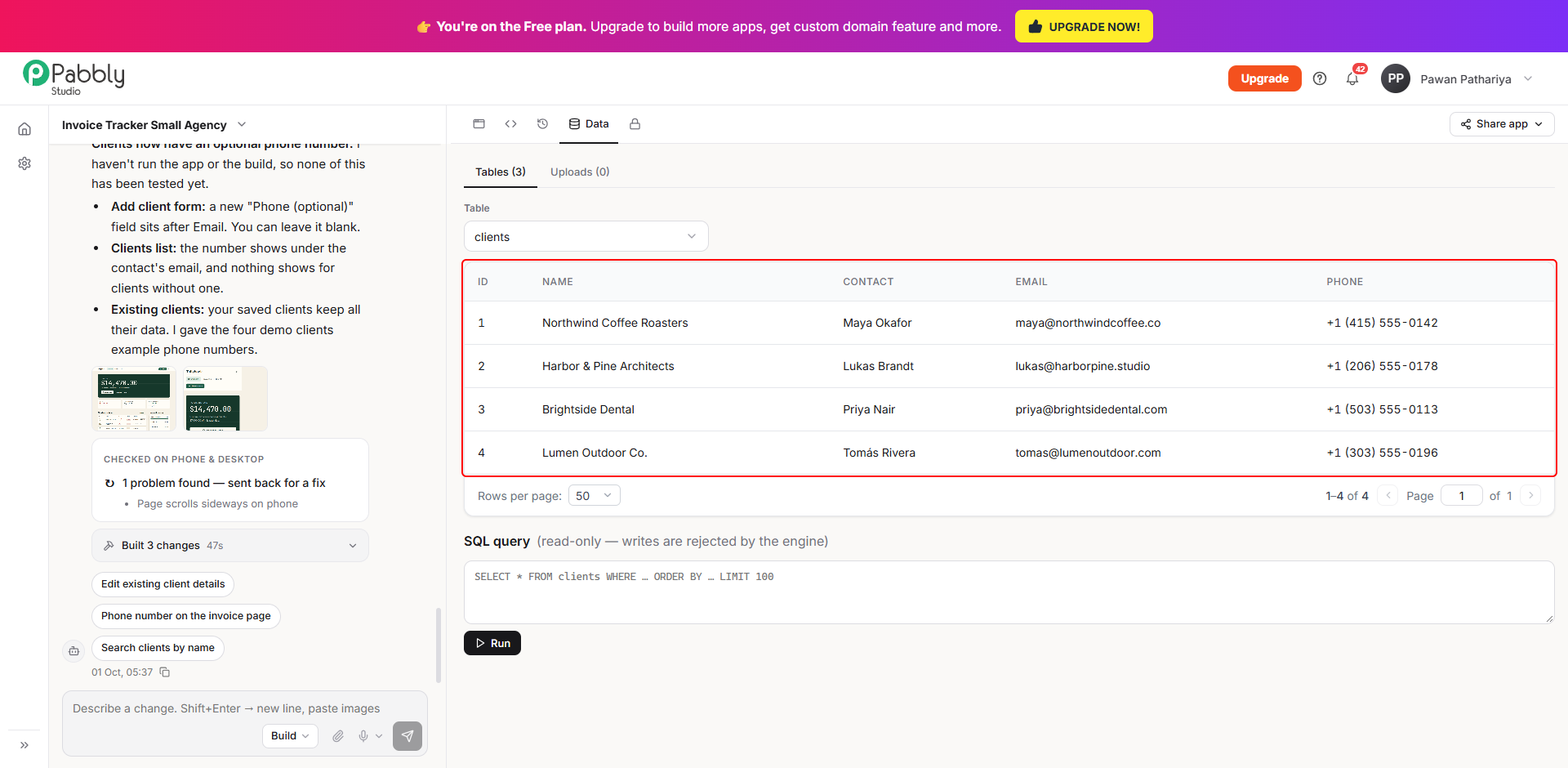
3. Browse the rows. The table opens with one row for each record and one column for each field. For large tables, use Rows per page and the page controls at the bottom to move through the rows.
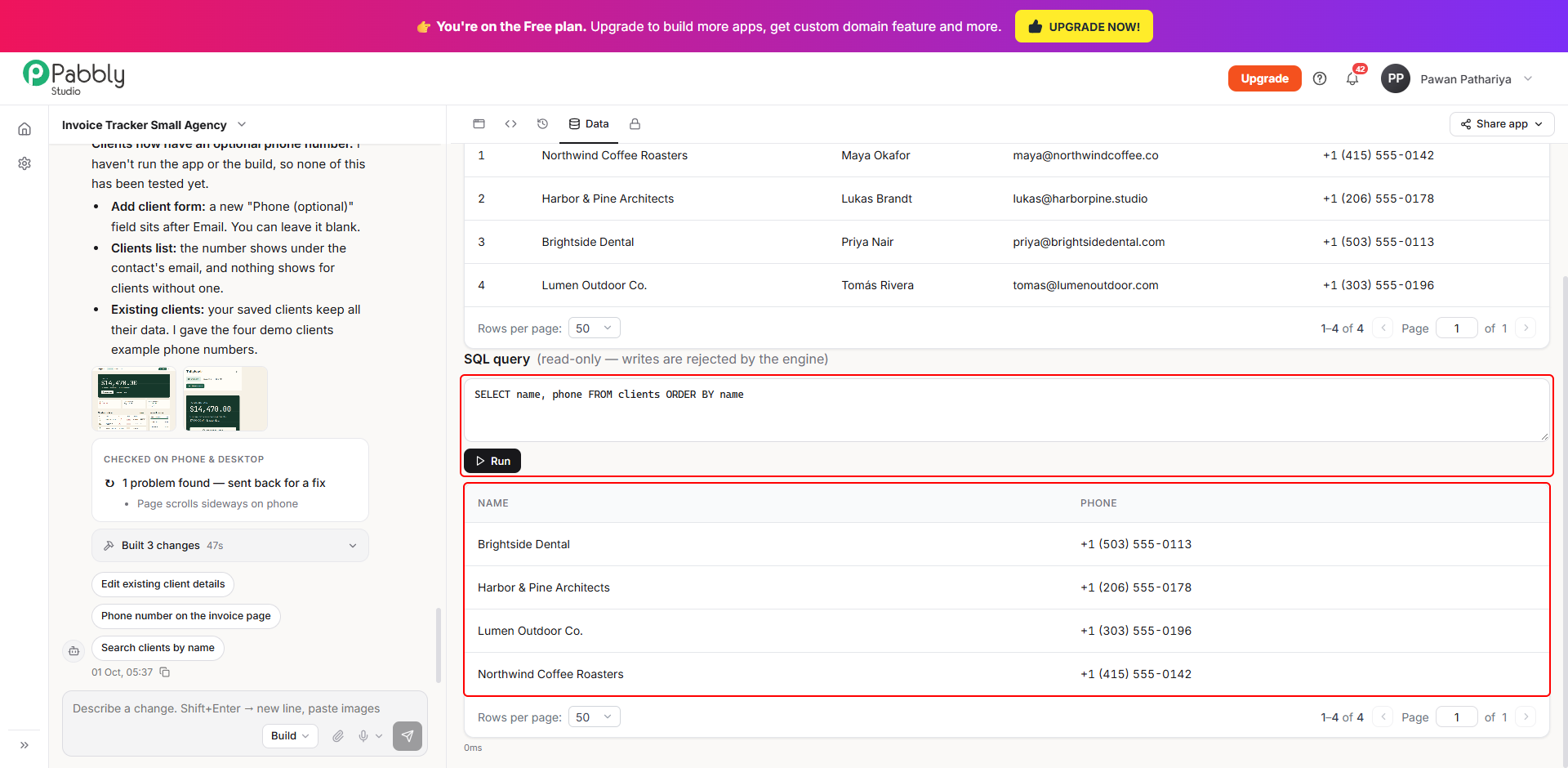
4. Run a query (optional). If you know SQL (a language for asking questions about data), you can type a query in the SQL query box and click Run. For example:
SELECT name, phone FROM clients ORDER BY name
The results appear below the box. Queries here are read-only. They can look at your data, but they can never change or delete it. This means you cannot break anything by trying things out.
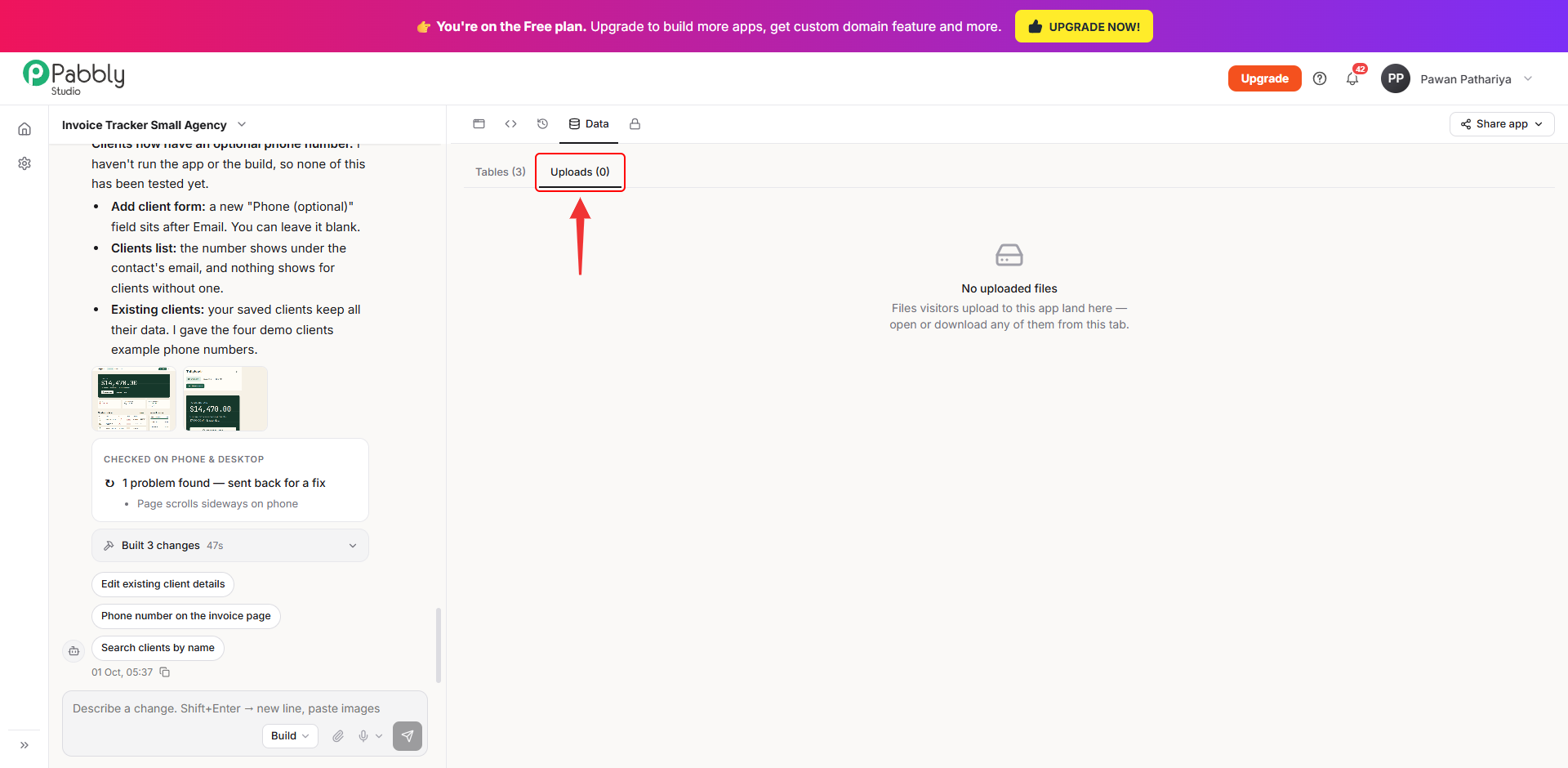
5. See uploaded files. Click Uploads to see the files visitors have uploaded through your app, such as photos or documents attached to a form. Click any file to open or download it.
Note: The Data tab is only for viewing your data. To add, edit or delete records, use your app itself (for example, the Clients page). You can also ask Pabbly Studio in the chat to add the feature you need.
This is how you can view your app's data in Pabbly Studio. If you still have any questions, feel free to reach out to us.
