Managing Your App
 Pabbly Studio Team•Updated Oct 1, 2026•2 min read
Pabbly Studio writes real code for your app. The Files tab lets you browse every file in your app, just like a developer would. This is useful when you want to see how something was built, or when you want to share a part of the code with someone who can help you.
You do not need to read or edit code to use Pabbly Studio. To change your app, simply describe the change in the chat.
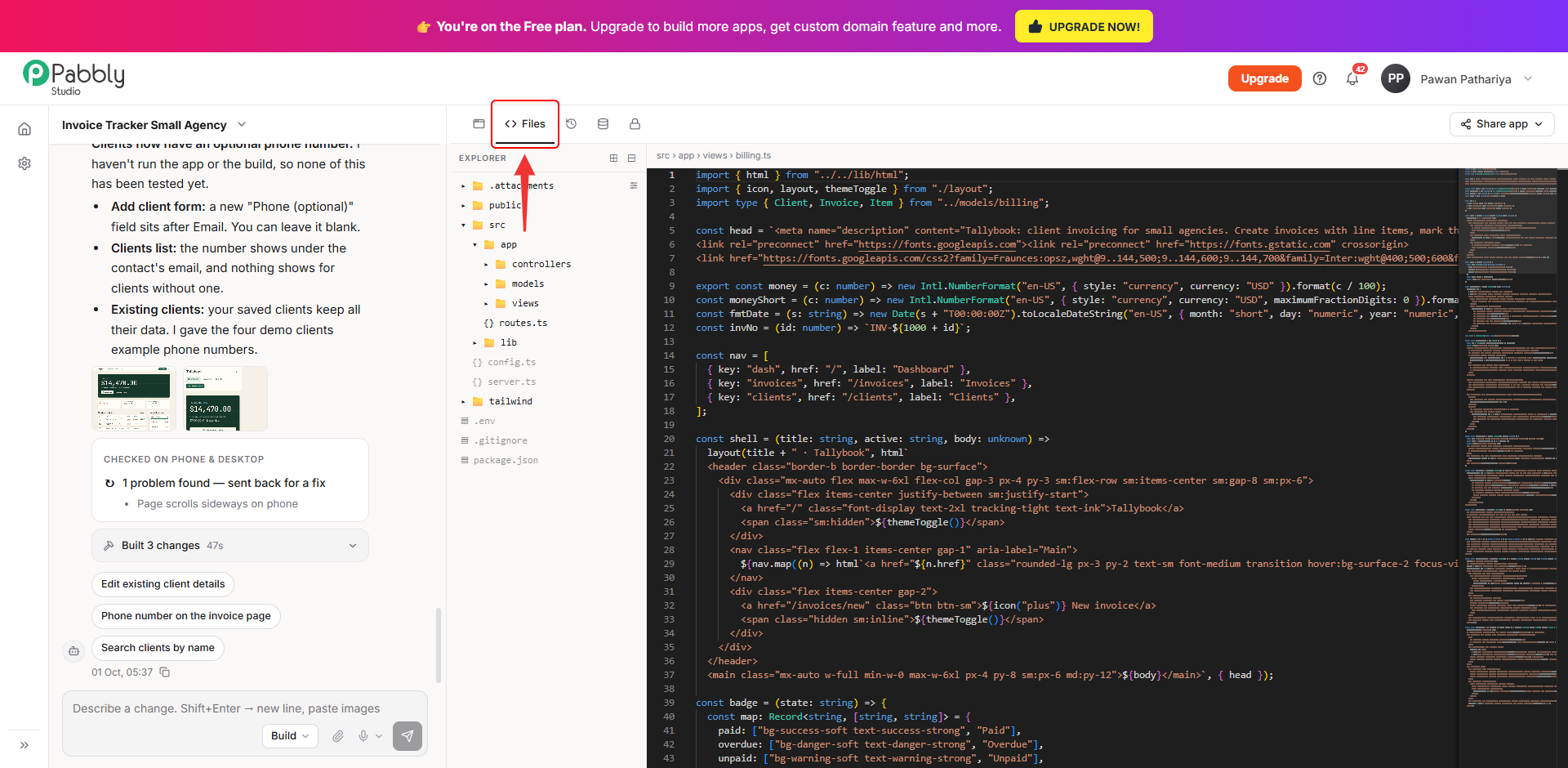
1. Open the Files tab. Open your app in the builder and click the Files tab (the < > icon) above your app.
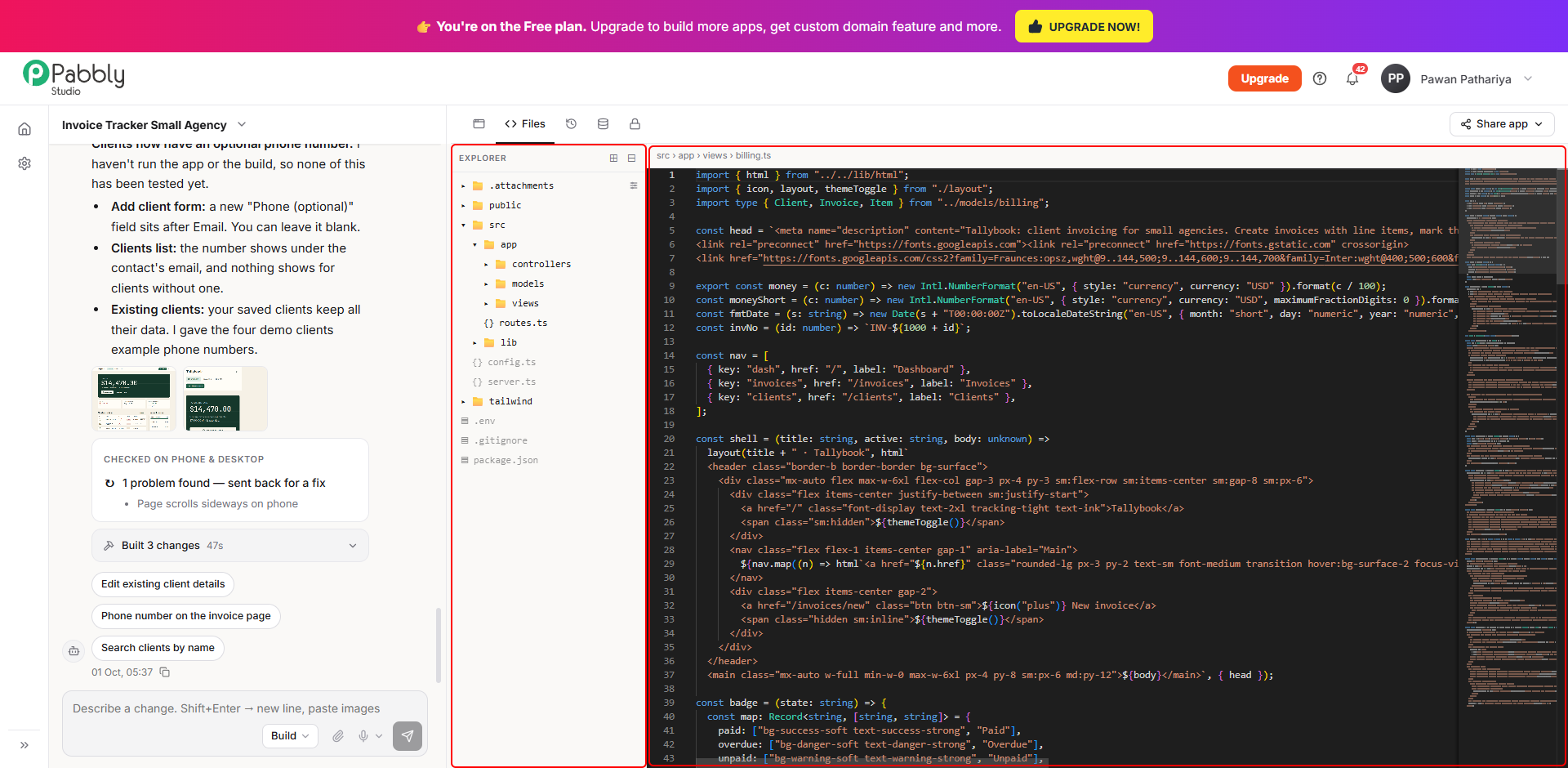
2. Browse the folders and open a file. The Explorer on the left shows your app's folders. Click a folder to open it. You can also use the two buttons at the top of the Explorer to expand or collapse all folders at once. Click any file to see its contents on the right.
Your app's own pages, data and logic are in the src › app folder. It contains views (the pages), models (the data), controllers and routes.ts.
The code viewer is read-only, so you cannot edit files here. To change anything, ask Pabbly Studio in the chat.
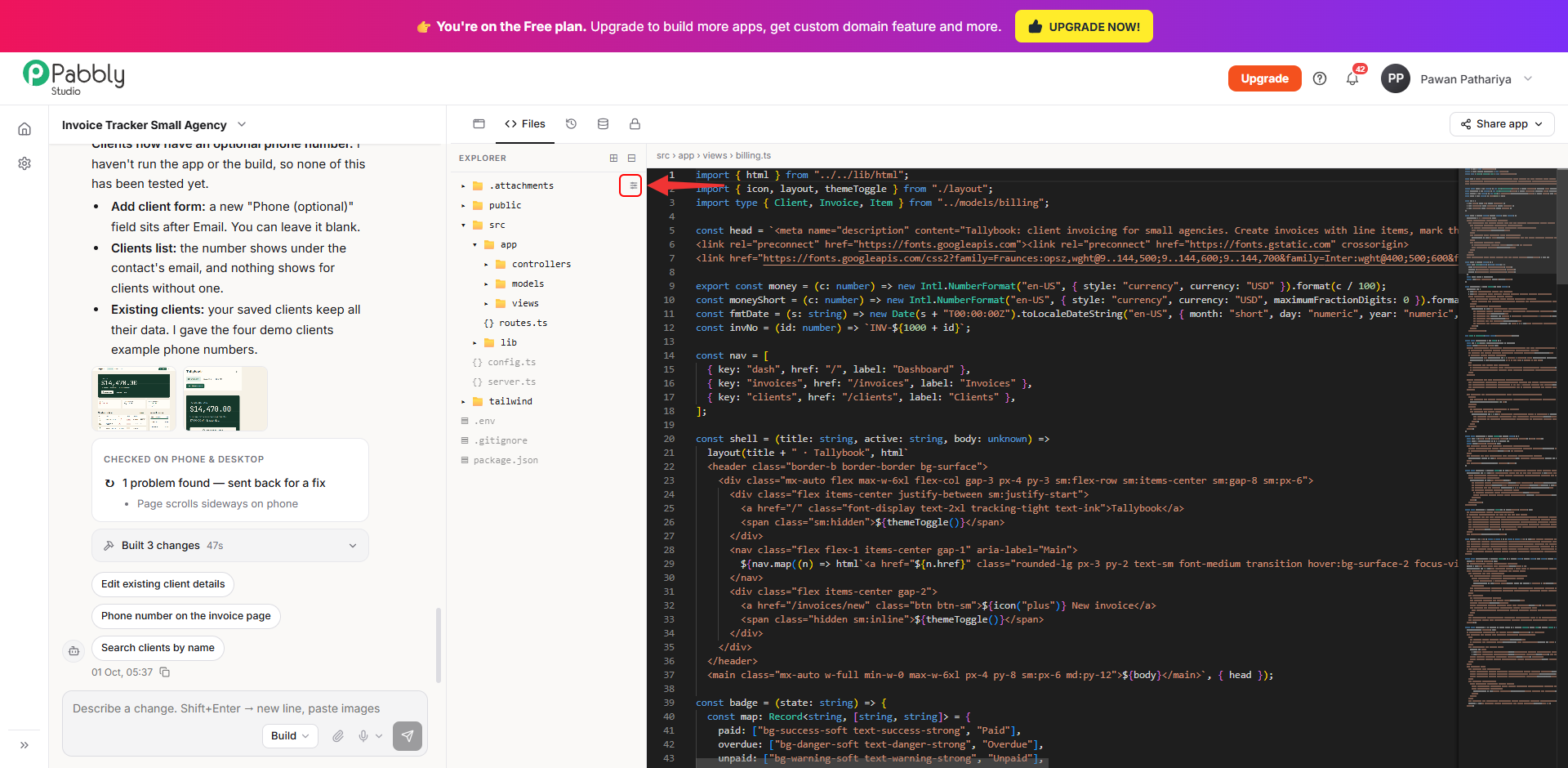
3. Manage your attachments (optional). The .attachments folder holds the files you attached to your messages. It also holds the screenshots Pabbly Studio took while checking your app. Click the button at the end of the .attachments row to open the Attachments panel.
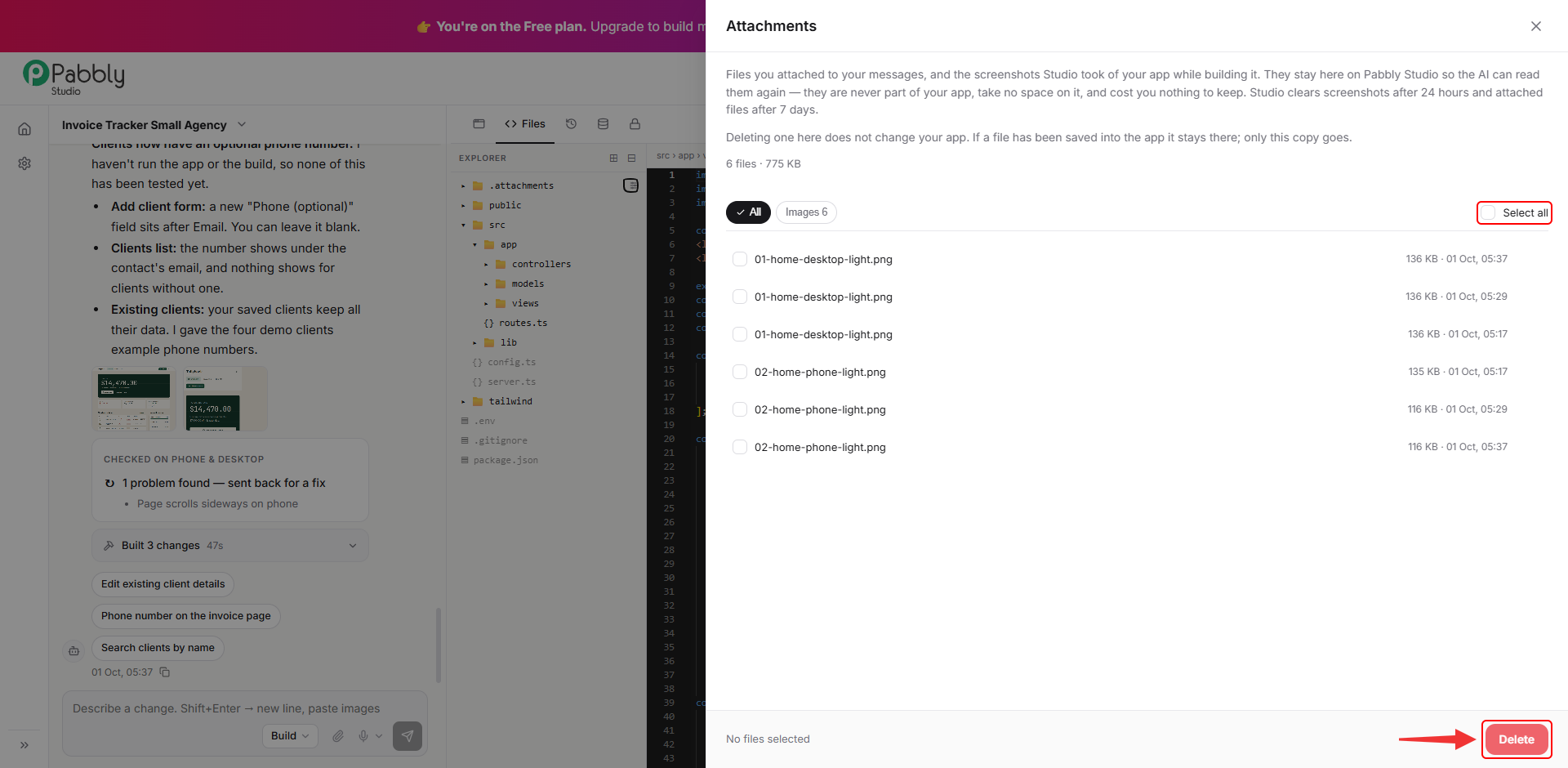
4. Delete attachments you no longer need. The Attachments panel lists every file with its size and date. Tick the files you want to remove, or use Select all, and then click Delete.
Attachments are never part of your app. They take up no space in it and cost you nothing to keep, so deleting them here does not change your app. Pabbly Studio also clears them automatically: screenshots after 24 hours and attached files after 7 days.
Tip: To download all of your app's code as a .zip file, go to the Pabbly Studio dashboard, click the ⋮ button on your app's row and choose Download code.
This is how you can view your app's files in Pabbly Studio. If you still have any questions, feel free to reach out to us.
