Building Your App
 Pabbly Studio Team•Updated Oct 1, 2026•2 min read
Your app does not have to stay the same after the first build. You can keep improving it by sending messages in the chat, the same way you described it the first time.
Every change is saved as a new version and goes live automatically, so you can always go back if you do not like it.
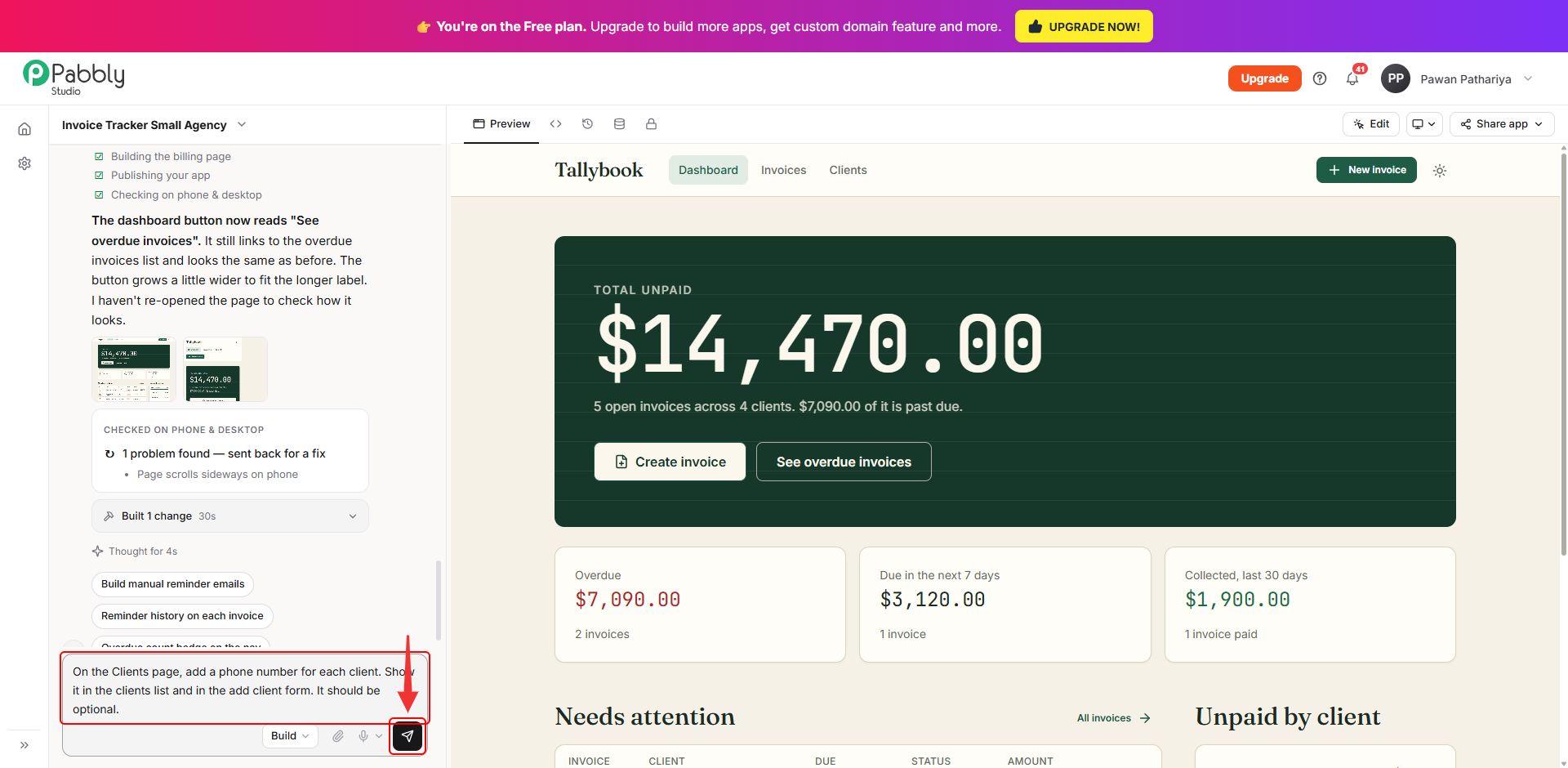
1. Describe the change in the message box. Open your app in the builder. Make sure the button in the message box says Build, then type the change you want in plain words. Be clear about where the change goes and what it should do, for example:
On the Clients page, add a phone number for each client. Show it in the clients list and in the add client form. It should be optional.
Then click Send.
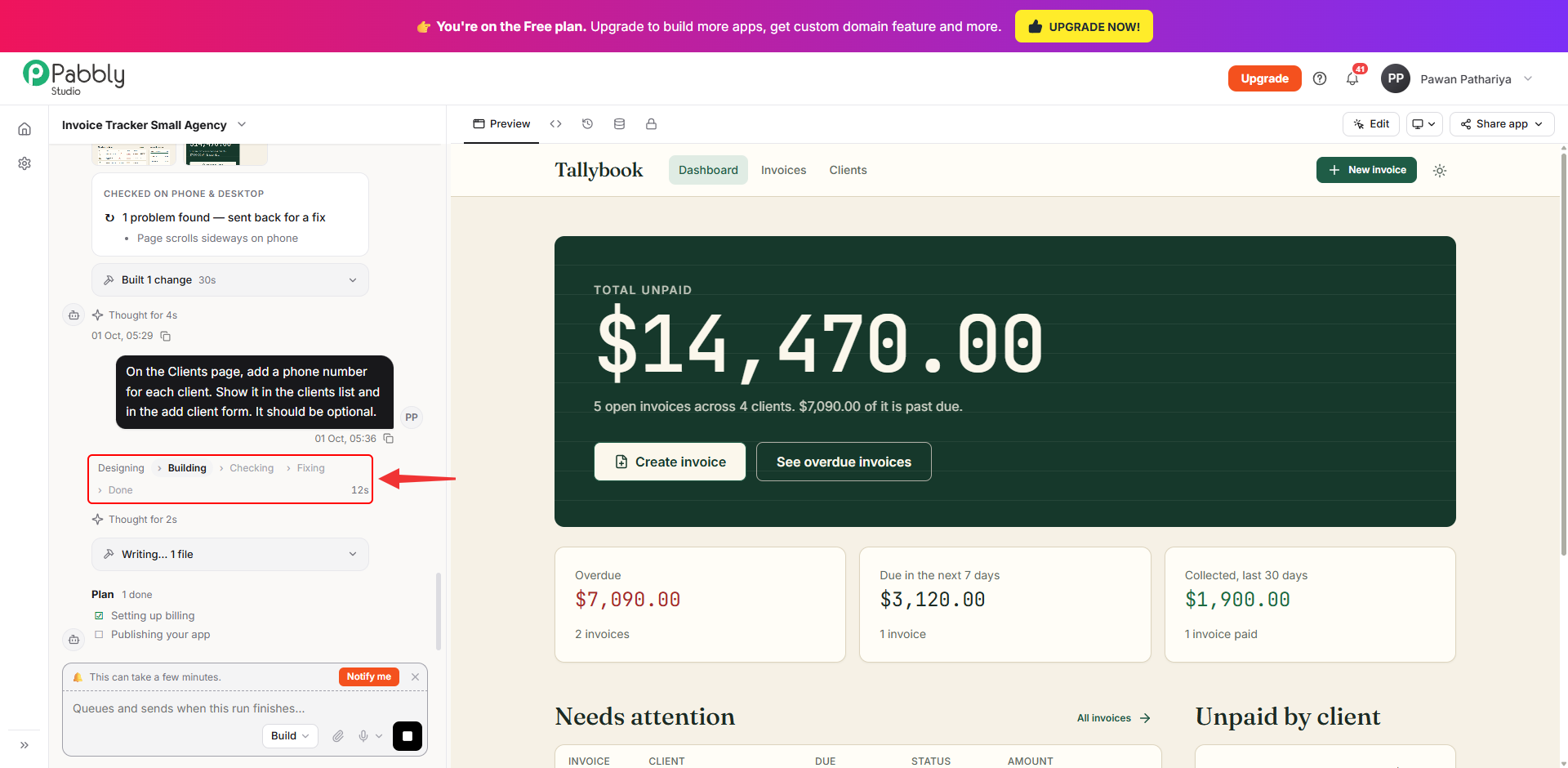
2. Wait while the change is built. The progress bar under your message shows each stage: Designing, Building, Checking, Fixing and Done. Below it, you can see which files are being written and the plan being followed. Small changes usually take less than a minute, while bigger ones can take a few minutes.
While a change is building:
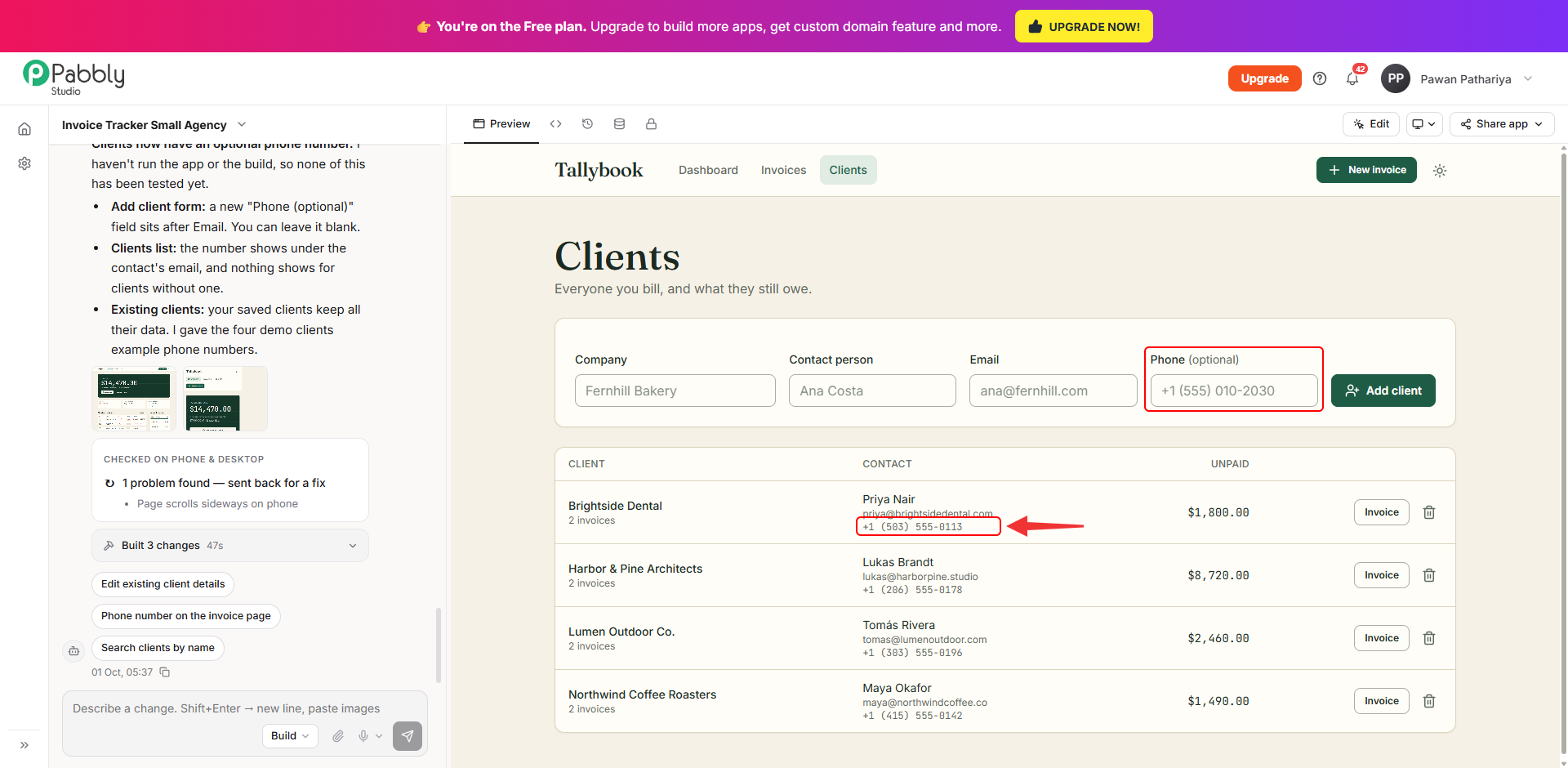
3. Check the result. When the change is done, the reply tells you exactly what changed, and the preview updates. Click around in the preview to try it, just as your users would. In this example, the Clients page now has a Phone (optional) field in the add client form, and each client's number shows under their email.
If something is not quite right, just send another message describing what to fix.
Each change uses credits. Hover over the timestamp under a reply to see how many credits that change used. This example used 20 credits.
This is how you can make changes to your app in Pabbly Studio. If you still have any questions, feel free to reach out to us.
