Building Your App
 Pabbly Studio Team•Updated Oct 1, 2026•2 min read
Sometimes it is hard to describe exactly which button, heading or section you want to change. With Point and edit, you simply click that part of your app in the preview and then type what you want. Pabbly Studio knows exactly which part you picked, so you do not need to describe where it is.
1. Click Edit and point at the part you want to change. Open your app in the builder and click Edit at the top right of the preview. The button turns green and the preview gets a coloured outline. This means you are in point-and-edit mode.
Move your mouse over your app. The part under your pointer is outlined, so you can see what you are about to pick.
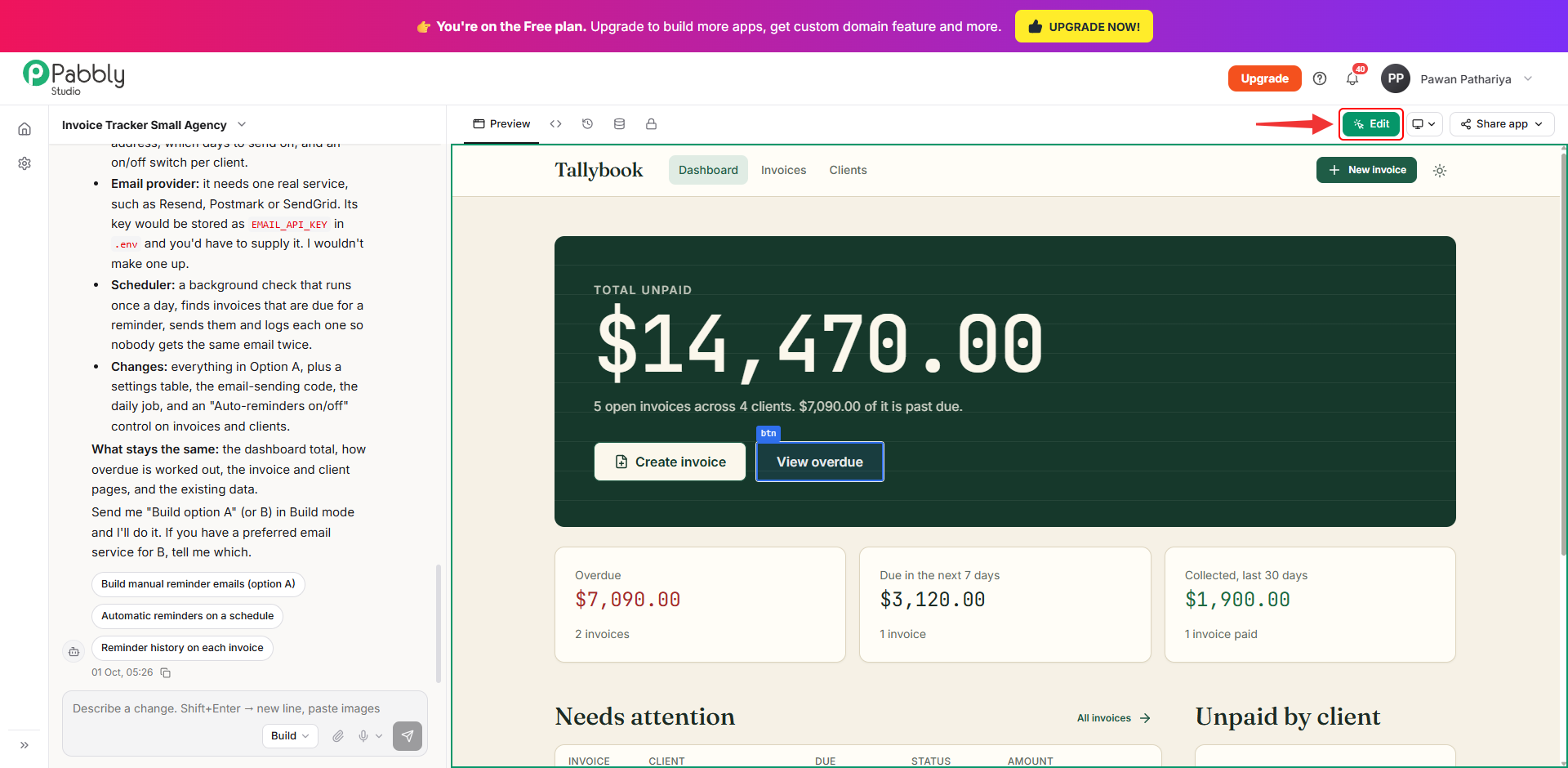
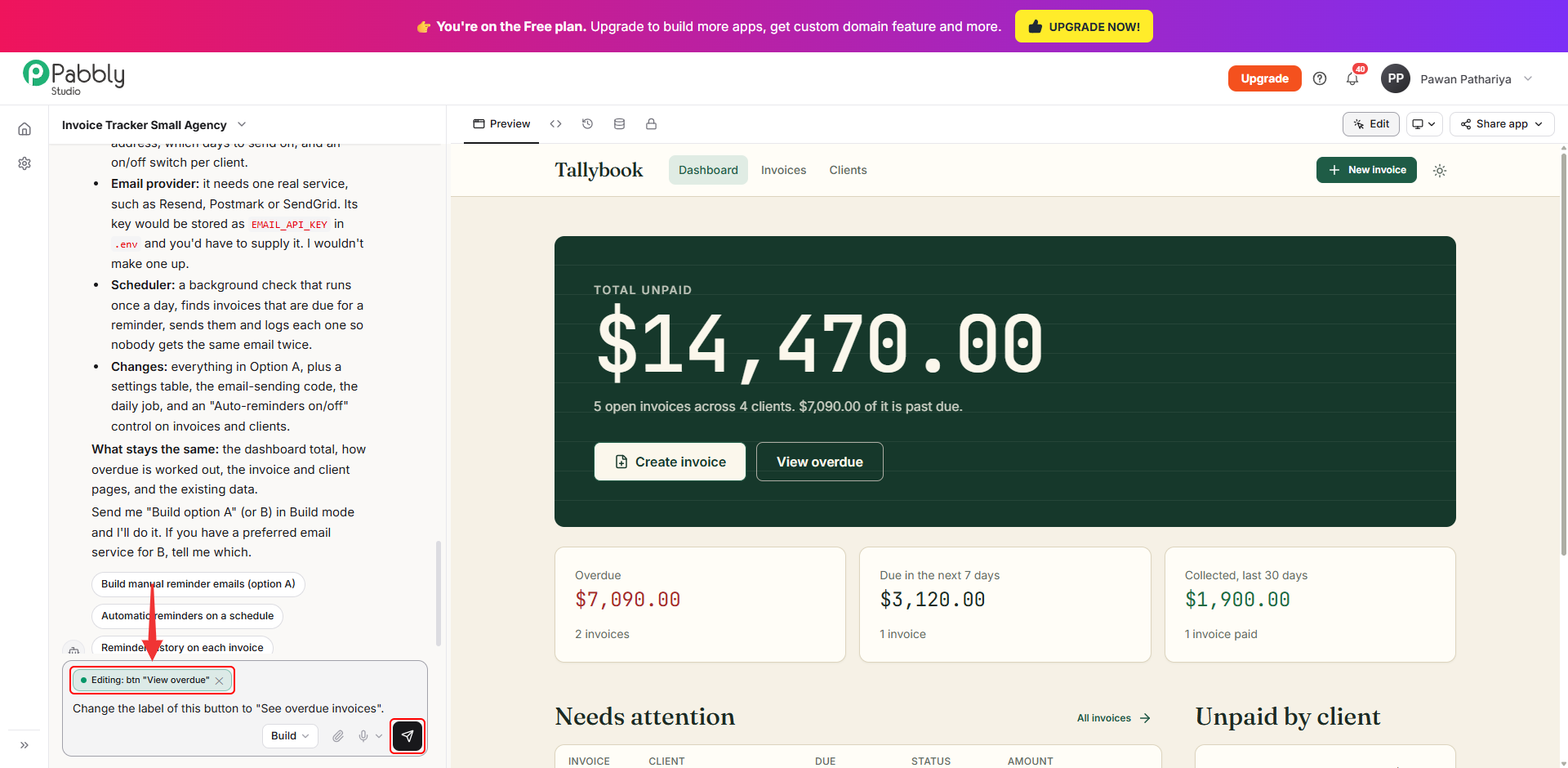
2. Click it, then describe the change. Click the part you want to change. It appears above the message box as an Editing tag, for example Editing: btn "View overdue". Now type the change you want, for example Change the label of this button to "See overdue invoices", and click Send.
If you picked the wrong part, click the ✕ on the tag and pick again.
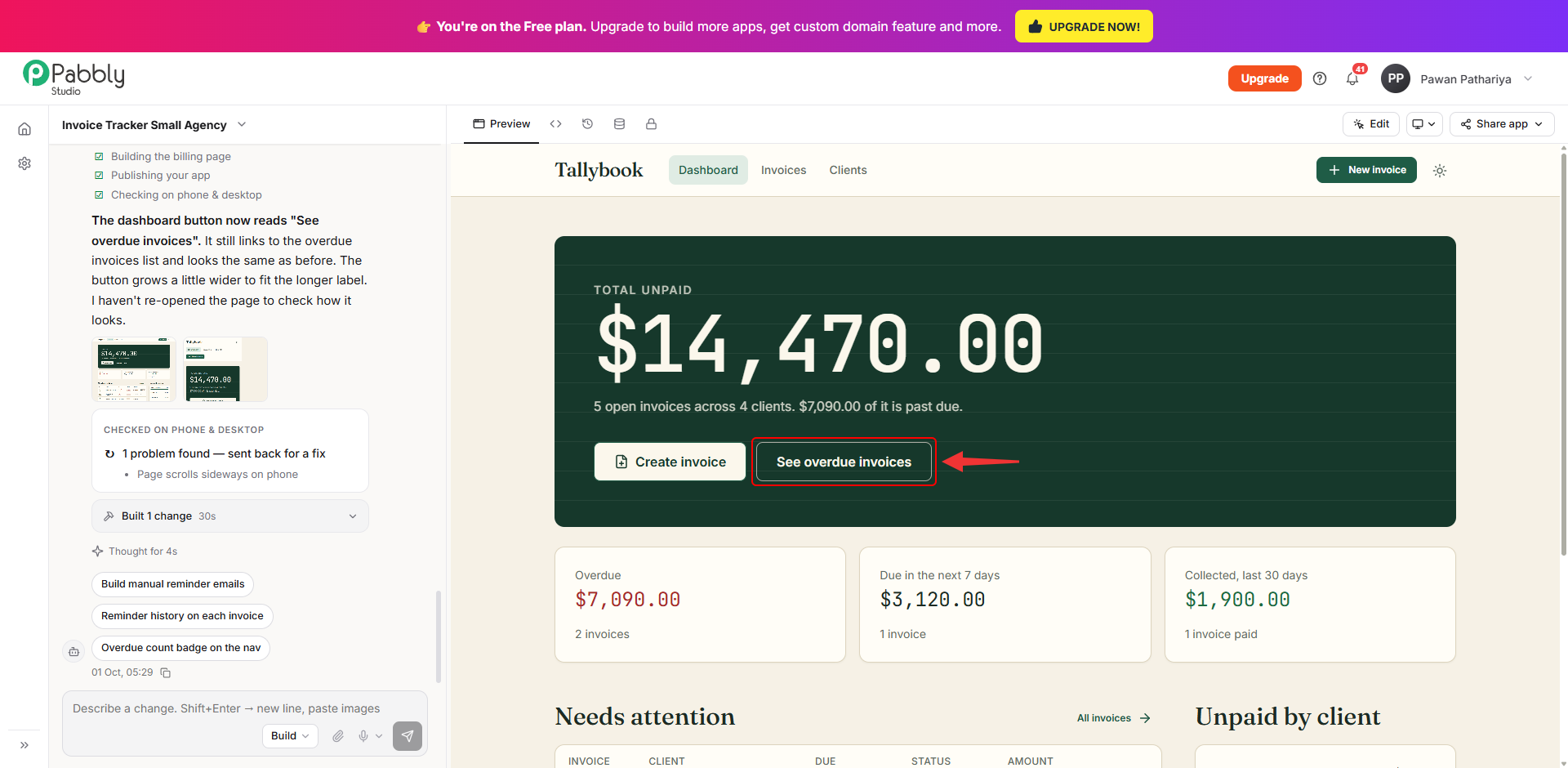
3. See the change in your app. Pabbly Studio changes the part you picked, saves a new version and updates your app. When it finishes, the preview shows the change and the reply explains what was done.
Tips:
This is how you can change a specific part of your app with Point and edit. If you still have any questions, feel free to reach out to us.
