Building Your App
 Pabbly Studio Team•Updated Oct 1, 2026•2 min read
Every message you send in Pabbly Studio is sent in one of two modes:
Use Plan mode when you want to understand your app, compare options, or check what a change would involve before you ask for it. Plan replies are quick and usually use fewer credits than a build.
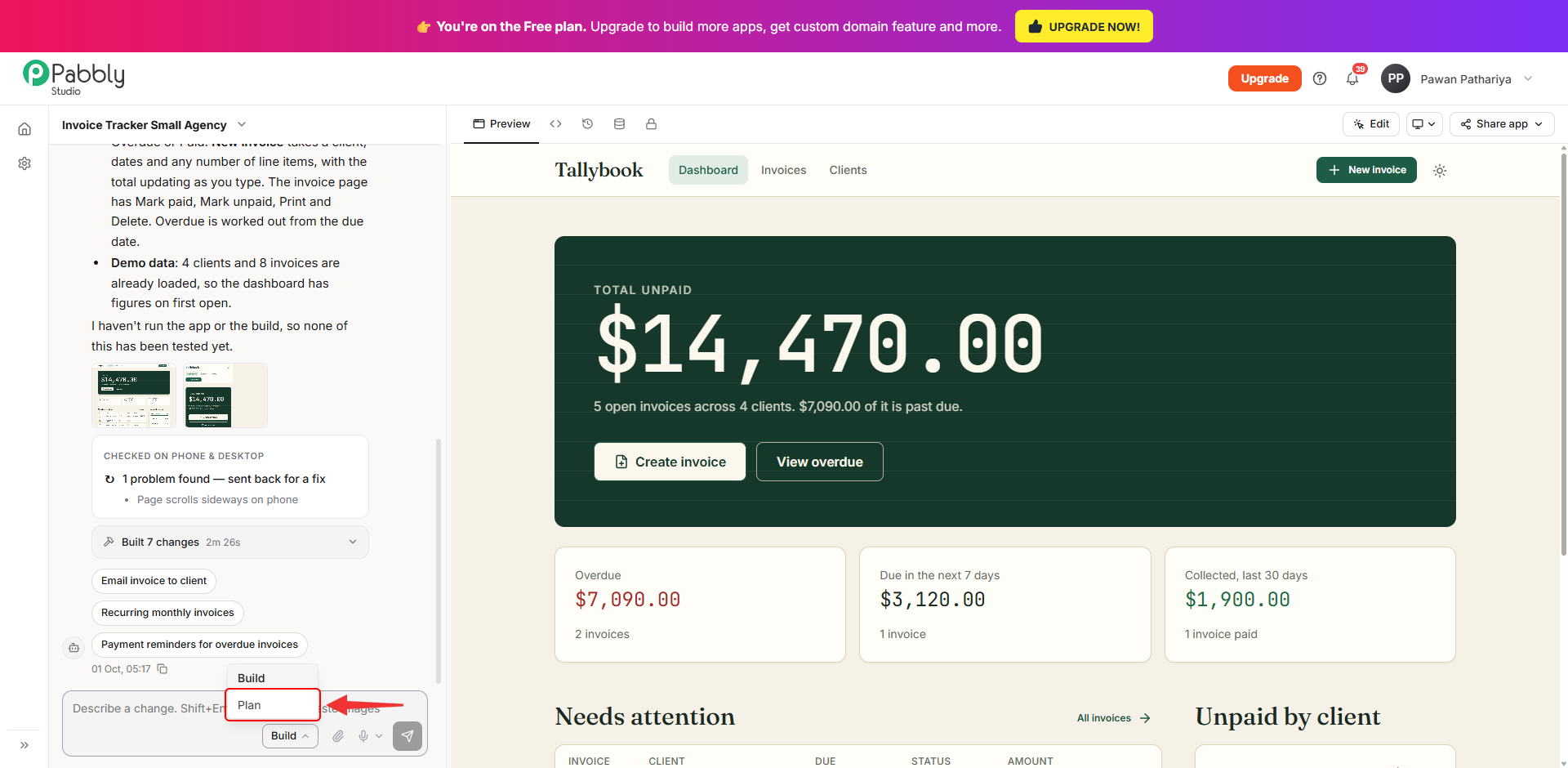
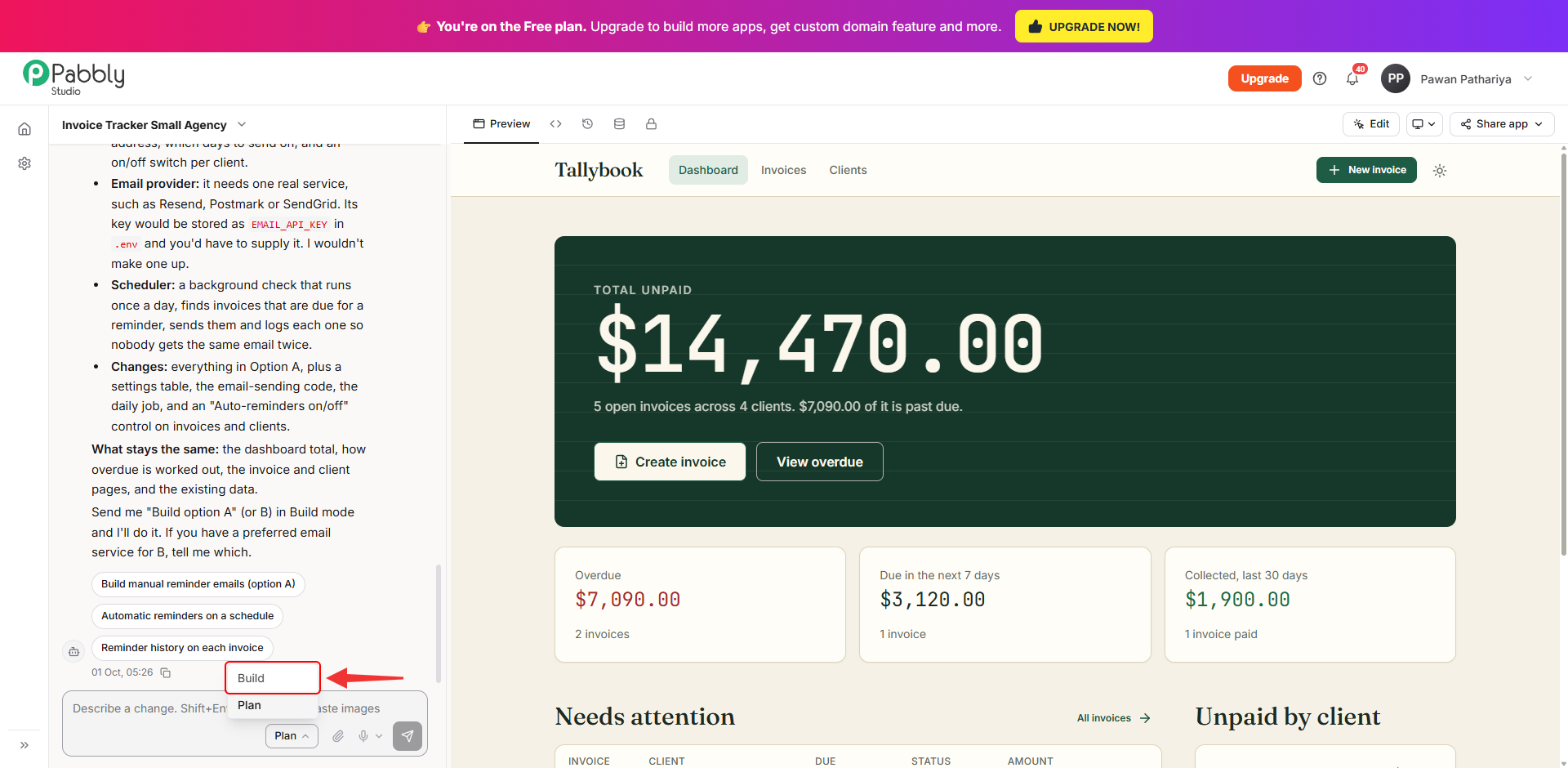
1. Switch the message box to Plan. Open your app in the builder. In the message box at the bottom of the chat, click the Build button and choose Plan from the list.
2. Type your question and send it. The button in the message box now shows Plan. Type what you want to know, for example "How could I add payment reminders for overdue invoices? What would change in the app?", and click Send.
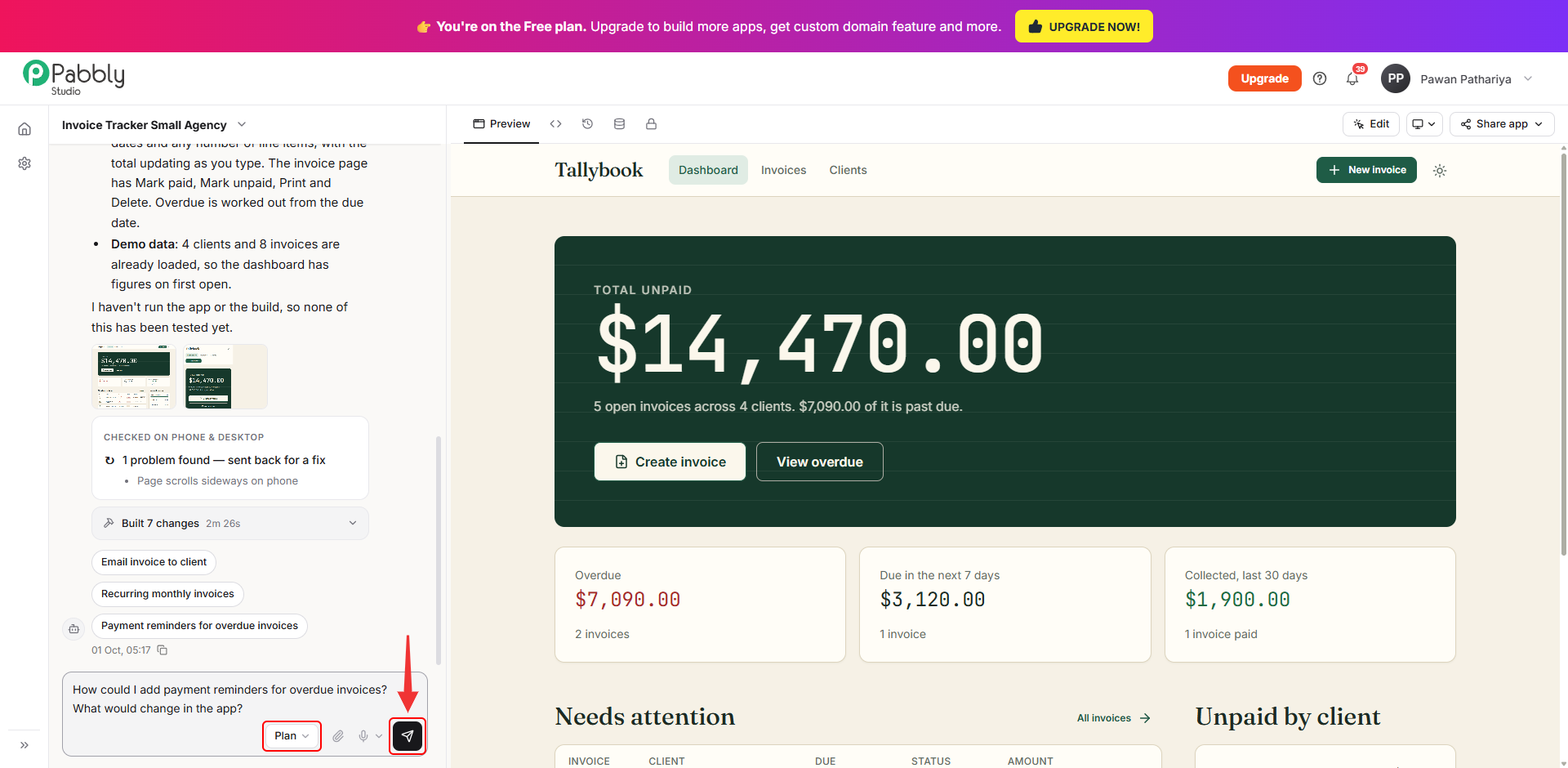
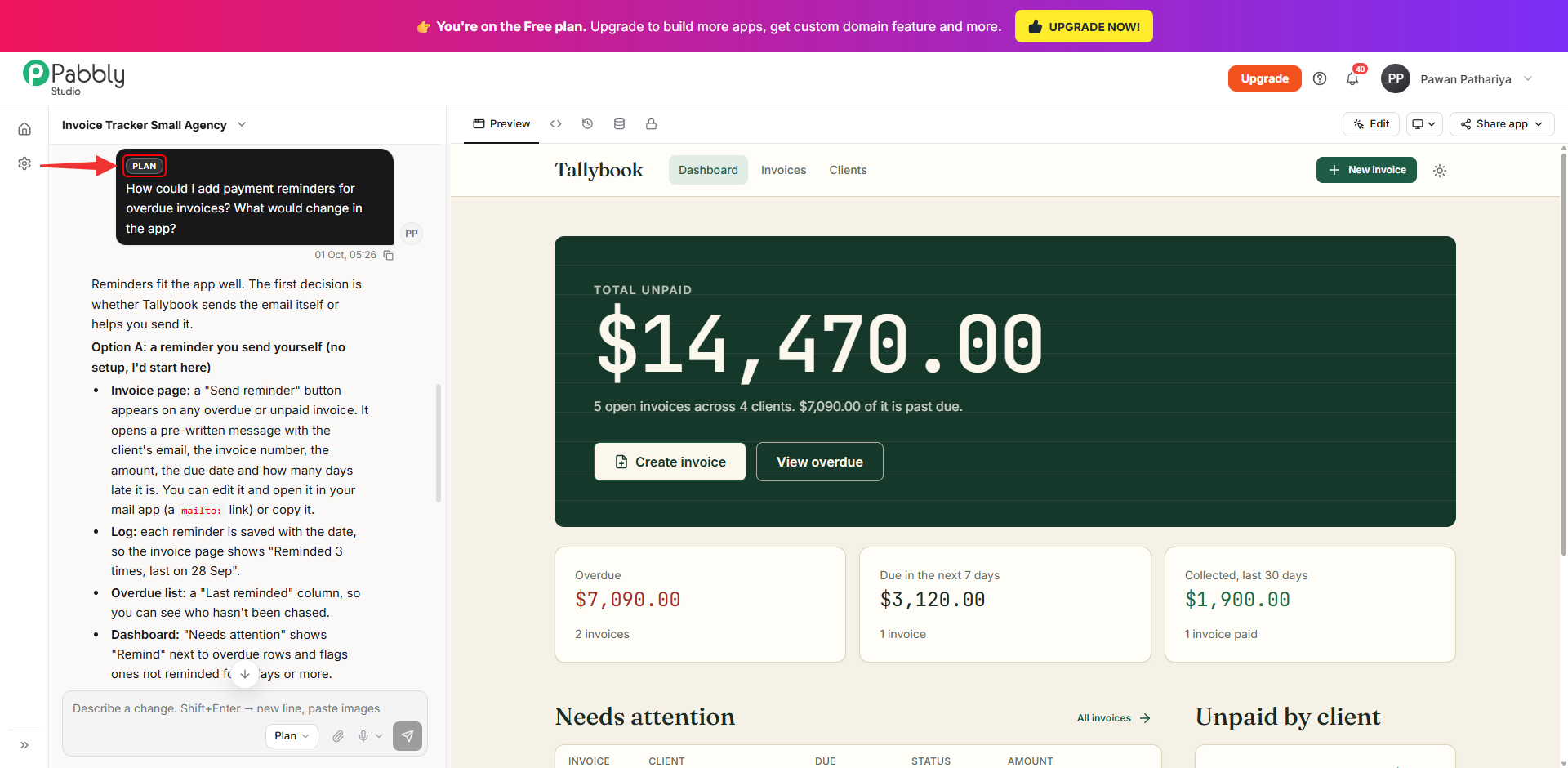
3. Read the answer. Your message is marked with a PLAN tag, so you can always tell which messages changed the app and which did not.
Pabbly Studio replies in words. It explains how it would approach the idea, what options you have, and what would change in the app. Nothing is built, and no new version is saved.
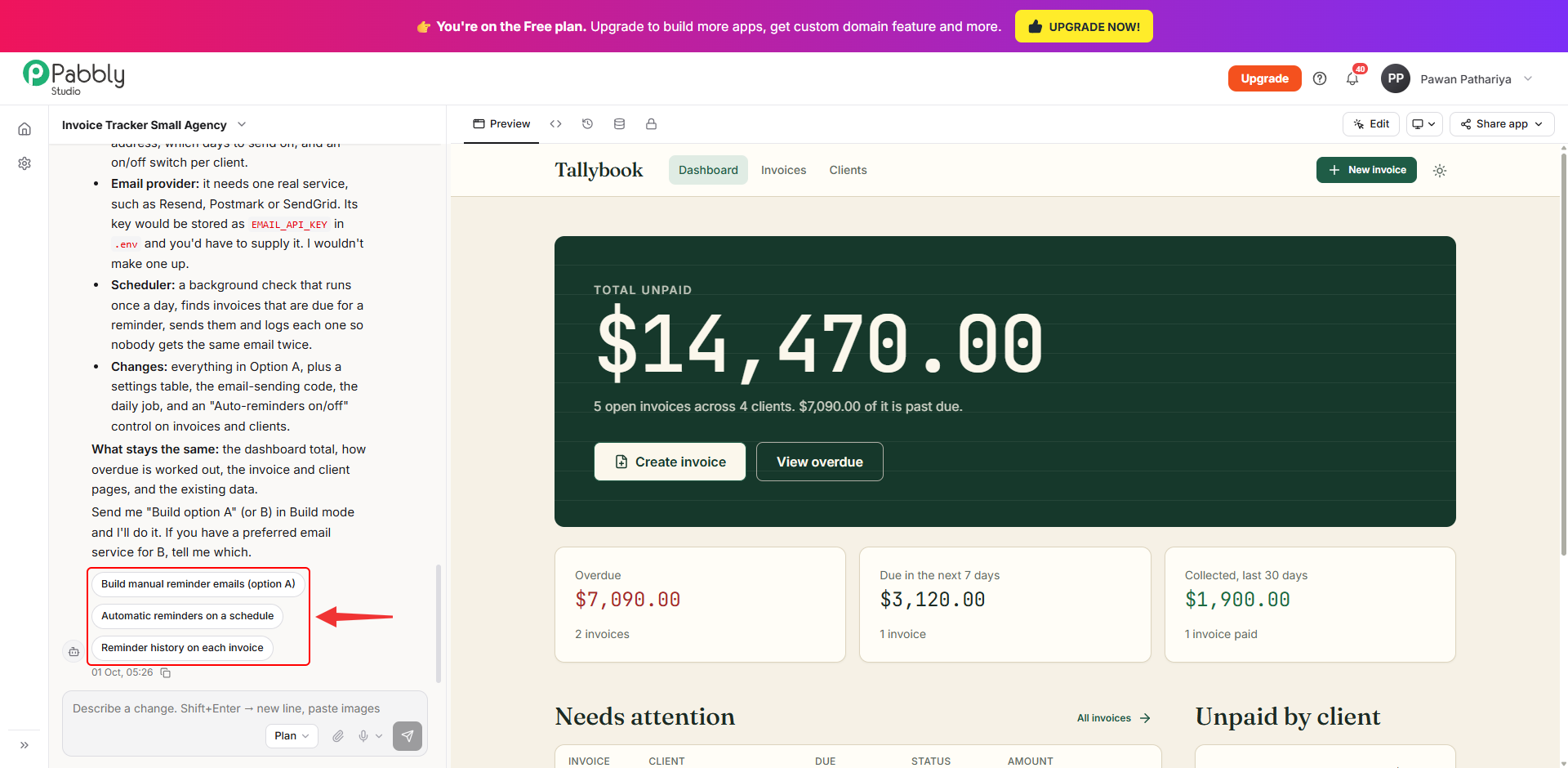
4. Pick a suggestion or ask a follow-up. At the end of a Plan reply, you will usually see suggested next steps as buttons. Clicking one sends it right away as your next message, in whichever mode the message box is set to. You can also keep asking questions in Plan mode for as long as you like.
5. Switch back to Build when you are ready. When you have decided what you want, click Plan in the message box and choose Build. Then describe the change, or ask Pabbly Studio to build the option it suggested, for example "Build option A".
Note: Pabbly Studio remembers the mode you last chose for each app on this browser. If a message did not change your app when you expected it to, check that the message box says Build, not Plan.
To see how many credits a Plan reply used, hover over the timestamp under the reply.
This is how you can use Plan mode and Build mode in Pabbly Studio. If you still have any questions, feel free to reach out to us.
