Building Your App
 Pabbly Studio Team•Updated Oct 1, 2026•3 min read
When you open an app in Pabbly Studio, you work in the builder. The left side is a chat where you tell Pabbly Studio what to build or change. The right side shows your app and everything behind it.
This guide explains each part of the builder screen, so you know where to find things.
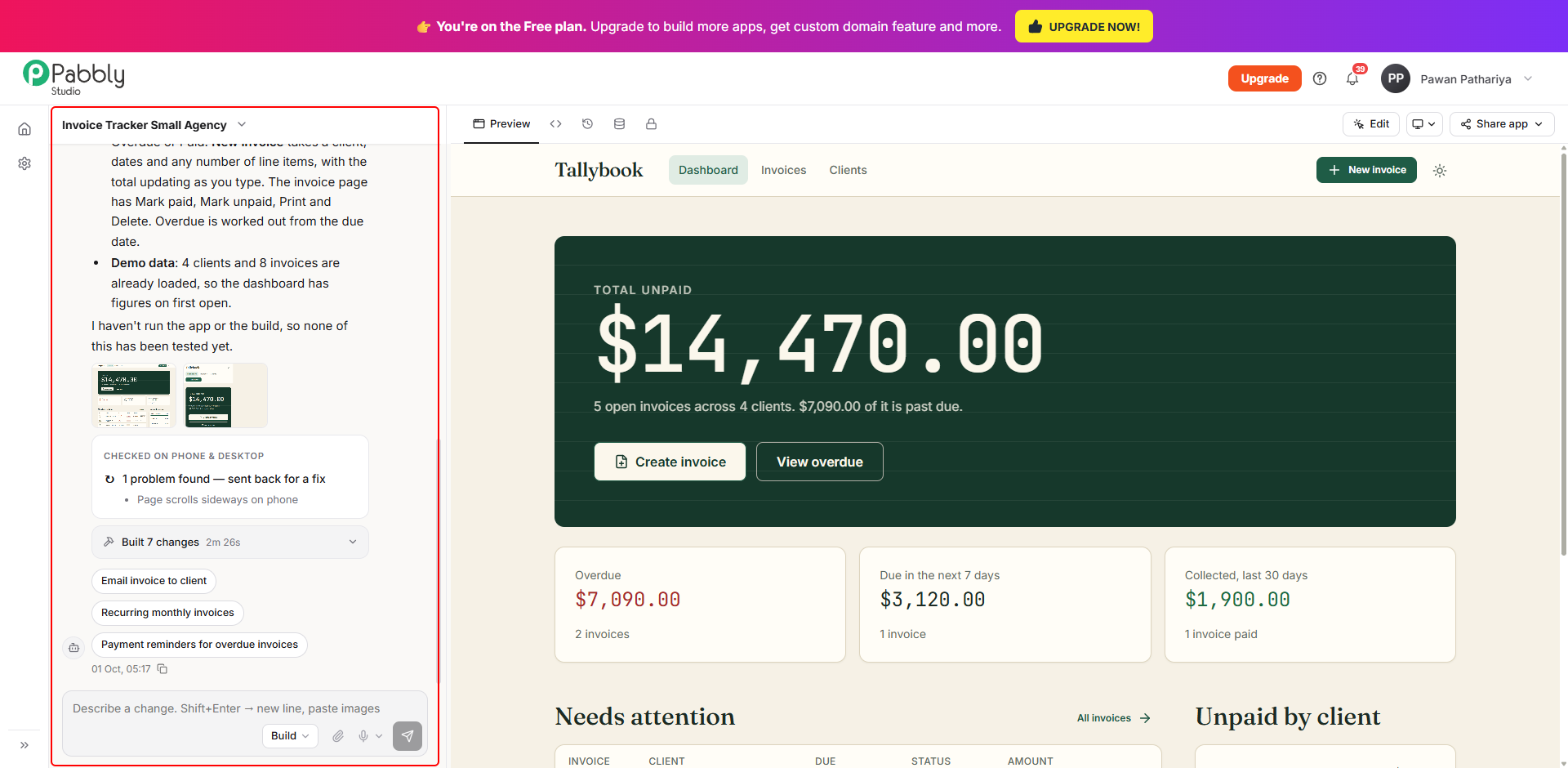
1. The chat panel. The left side of the screen holds the conversation for this app. Your messages and Pabbly Studio's replies stay here, with the newest at the bottom. Each reply explains what was built or changed, shows the plan it followed, and lists anything it checked on phone and desktop.
Below a reply, you may see suggested next changes, such as Email invoice to client. Clicking a suggestion sends it right away as your next message. This starts a new change and uses credits.
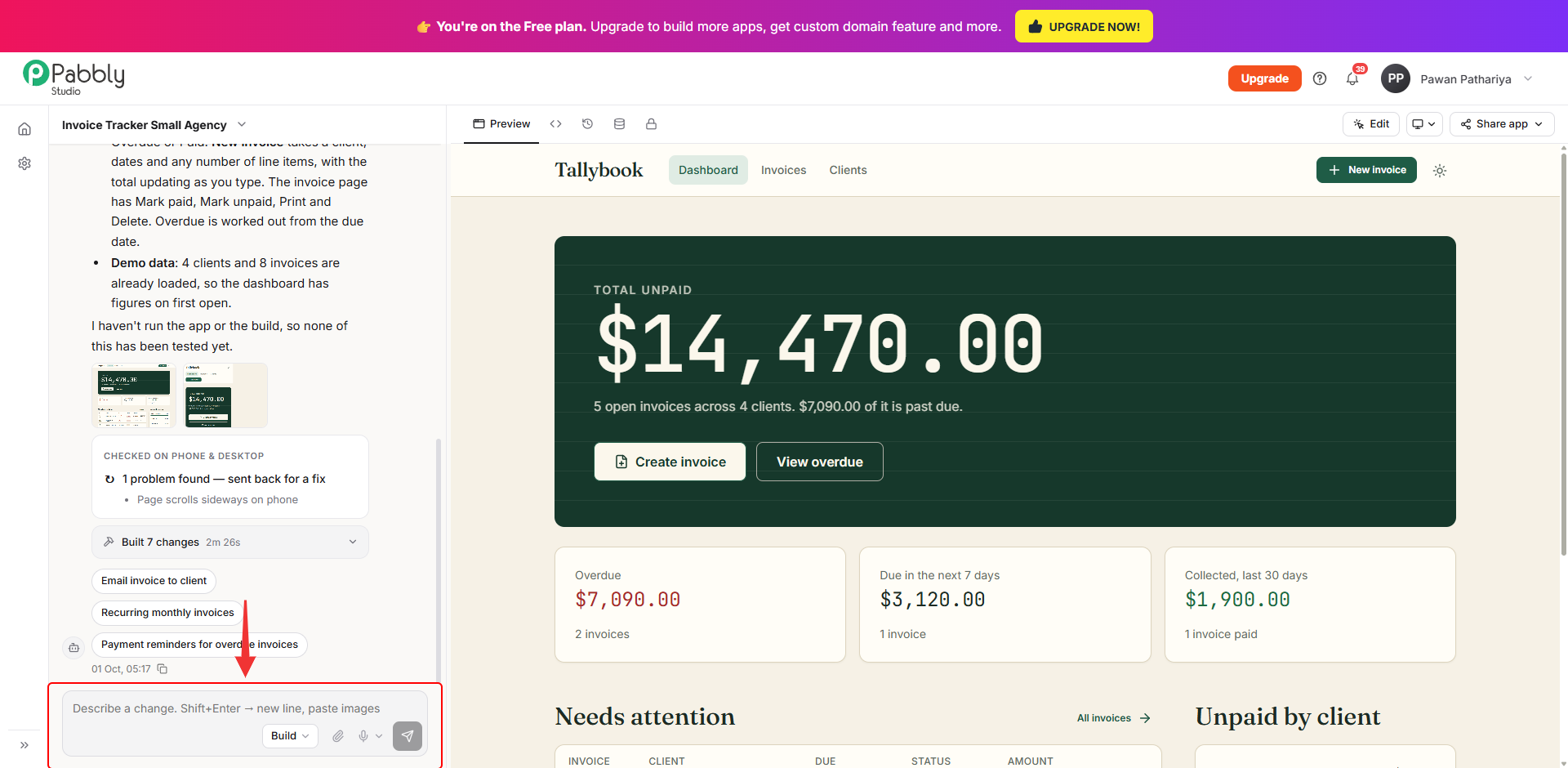
2. The message box. At the bottom of the chat is the box where you describe a change. Press Enter to send, or Shift + Enter to start a new line. The buttons inside the box are:
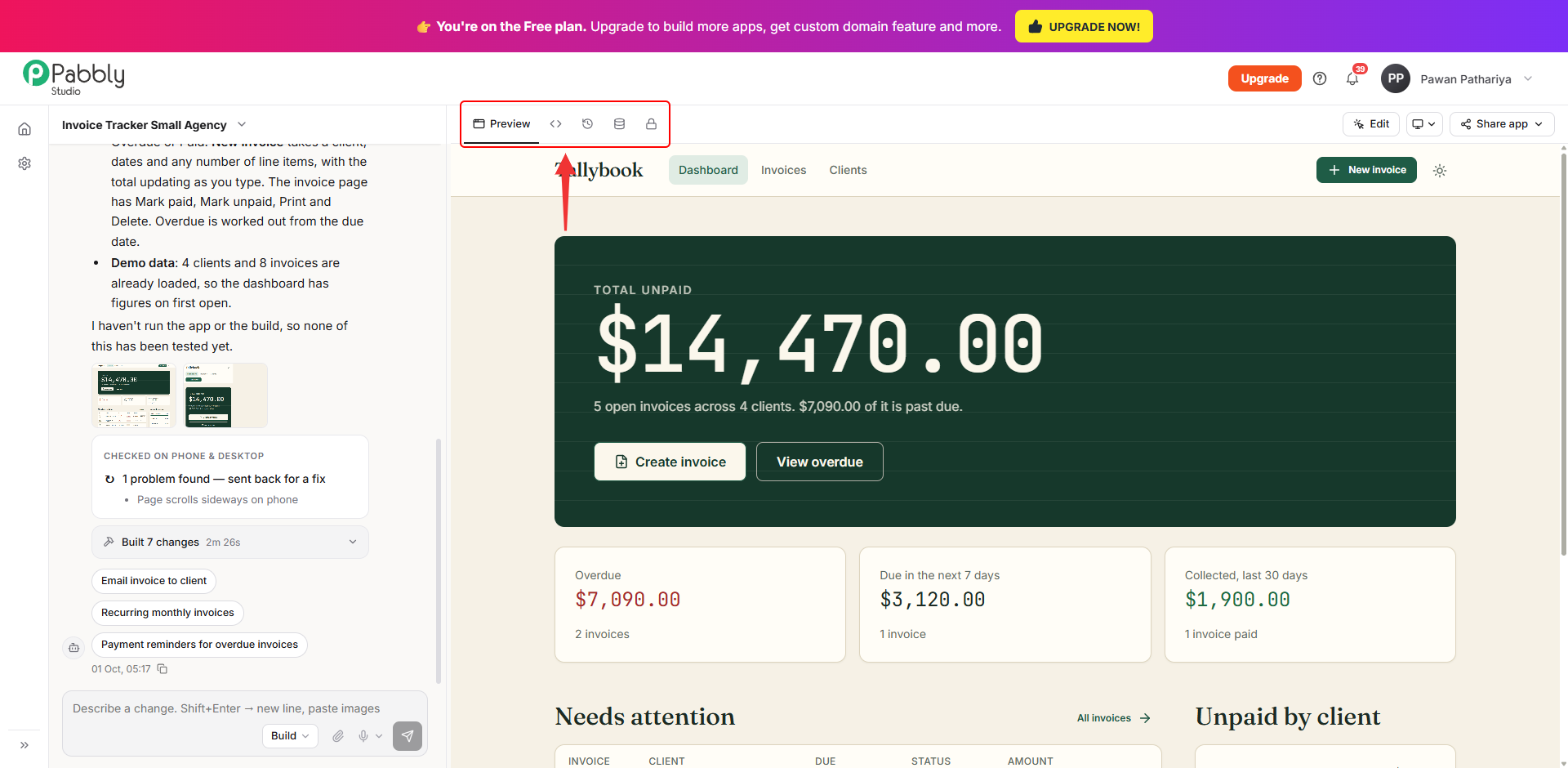
3. The tabs above your app. The right side has five tabs:
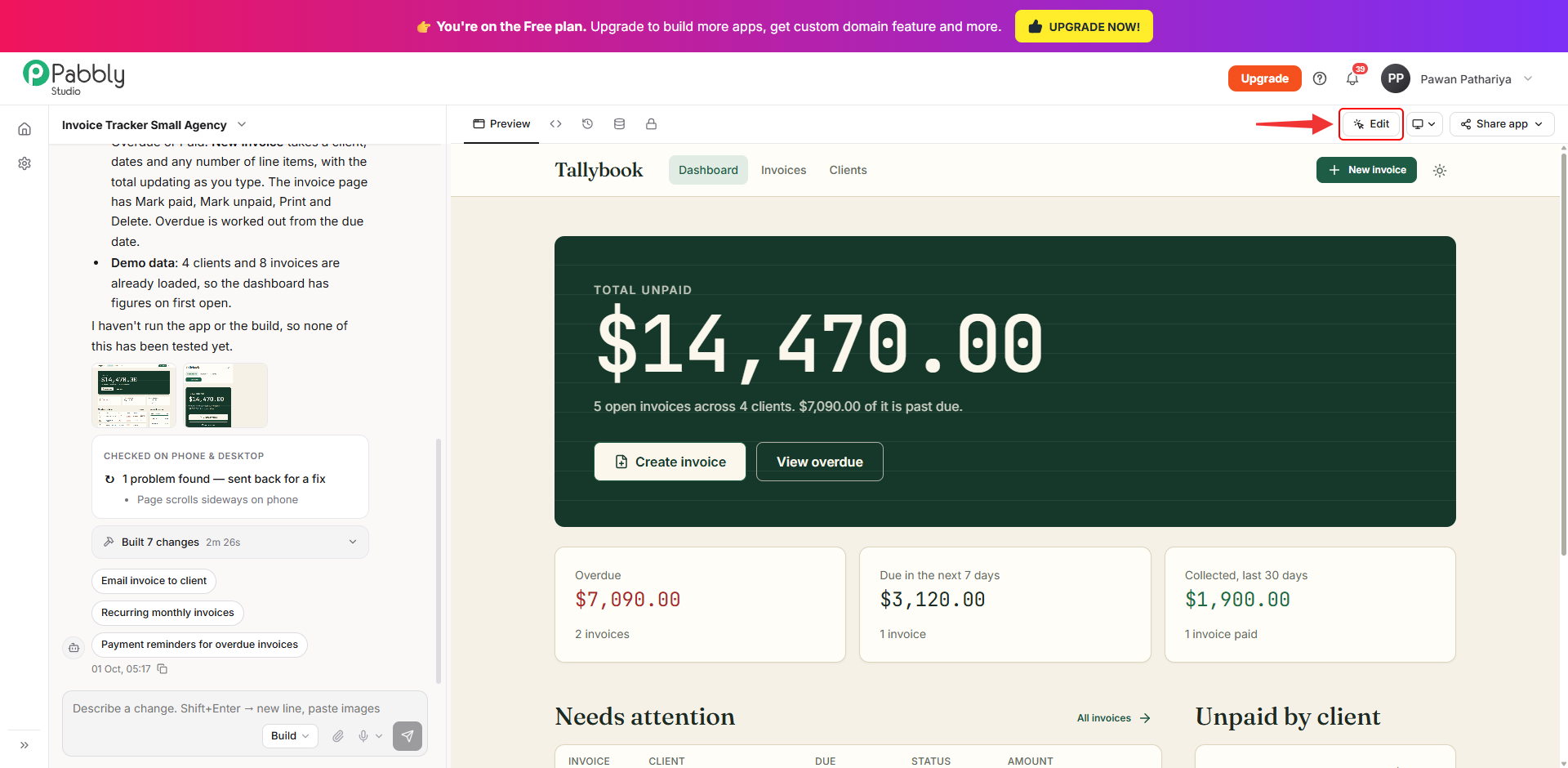
4. Edit (point and edit). Click Edit, then click any part of your app in the preview and describe the change you want. Pabbly Studio will know exactly which part you mean.
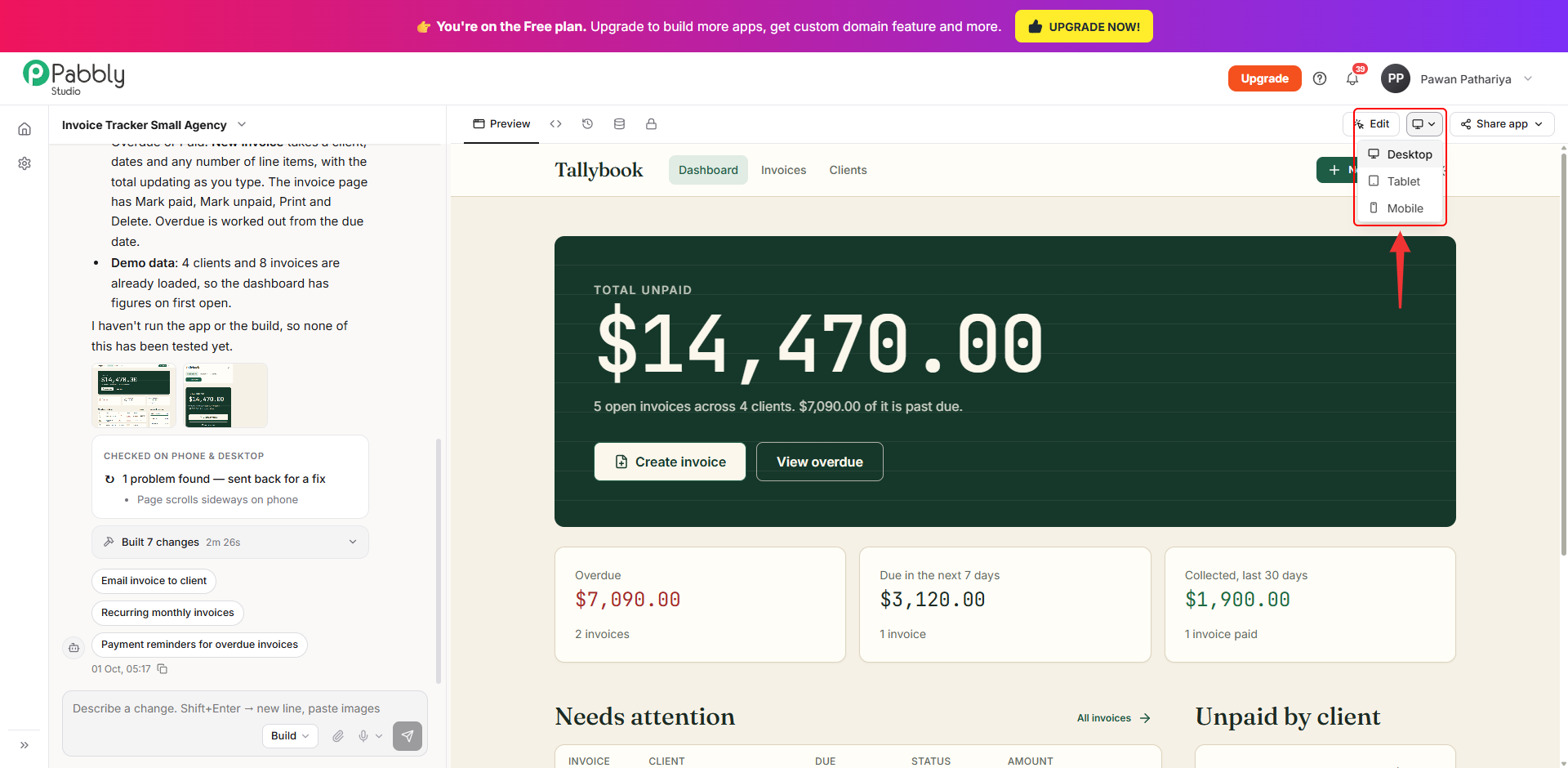
5. Screen size. Use the screen size button to see how your app looks on a Desktop, Tablet or Mobile screen. This changes only the preview. Your app itself is not changed.
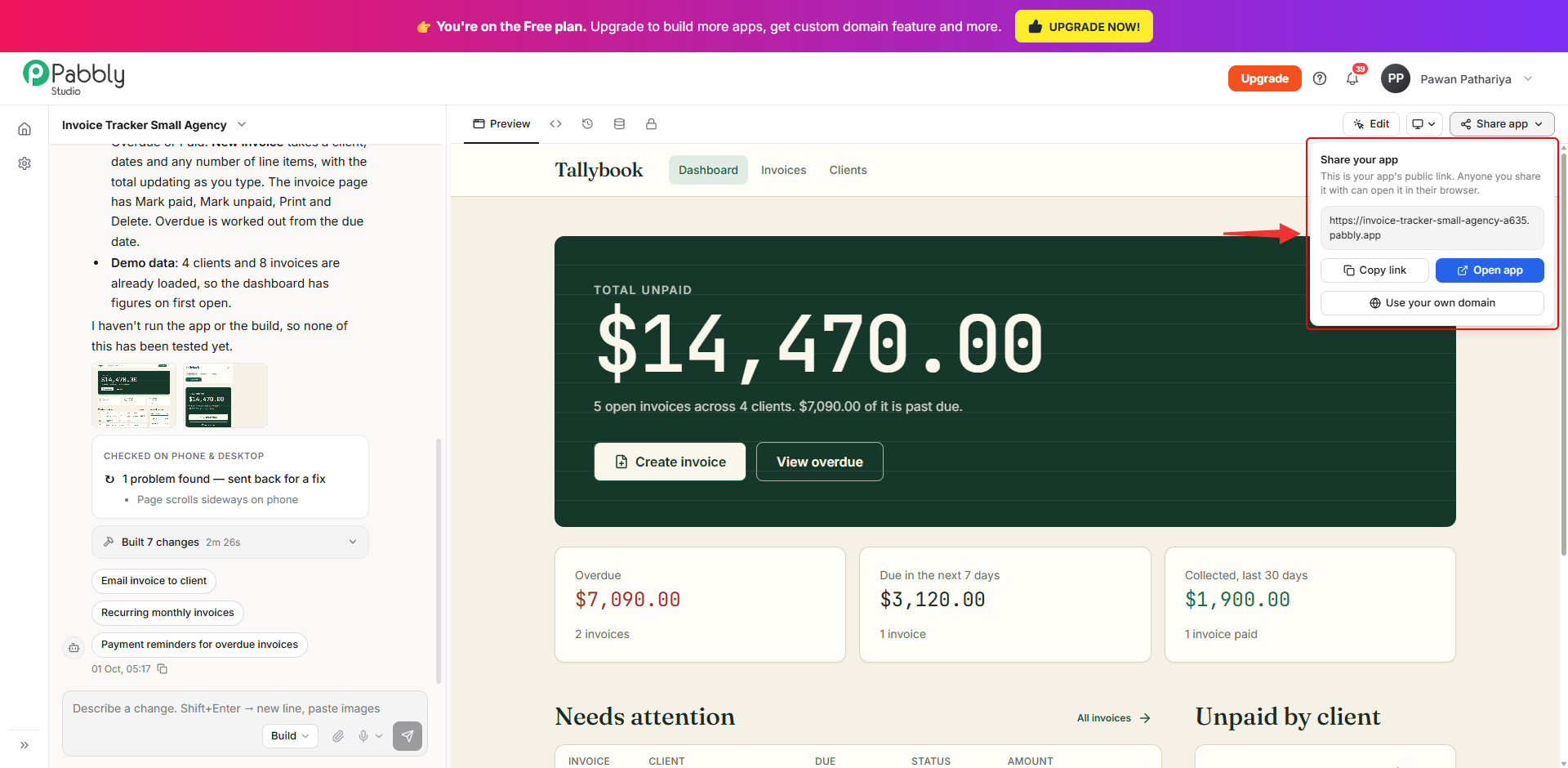
6. Share app. Click Share app to see your app's public link. Anyone you share it with can open it in their browser. From here, you can Copy link, Open app in a new tab, or Use your own domain to put the app on your own web address.
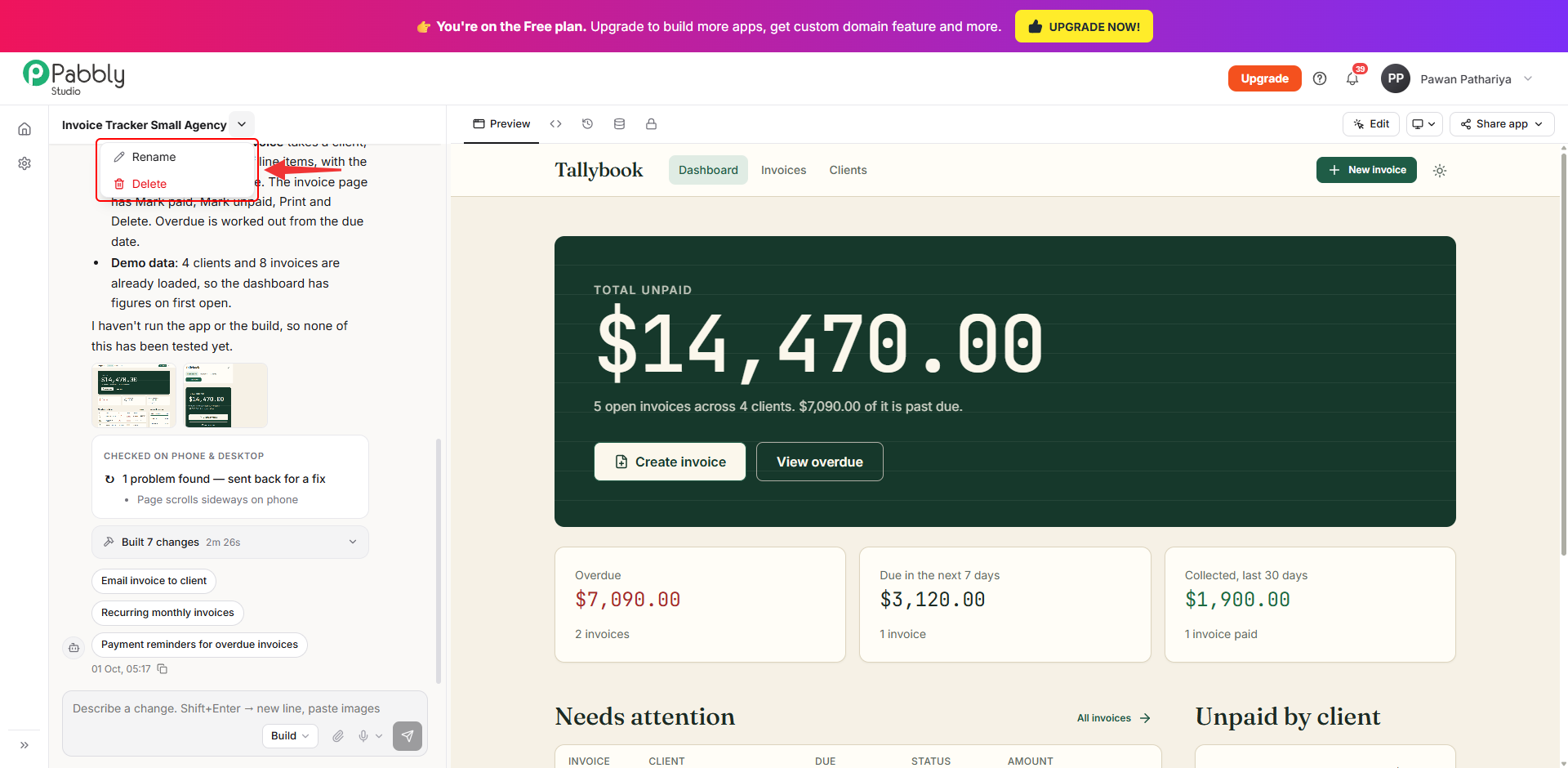
7. App actions. Click the arrow next to your app's name at the top of the chat to Rename or Delete the app.
This is how the Pabbly Studio builder screen works. If you still have any questions, feel free to reach out to us.
