Publishing & Domains
 Pabbly Studio Team•Updated Oct 1, 2026•2 min read
Every app you build in Pabbly Studio goes live on the internet as soon as it is built. Each app gets its own public link ending in .pabbly.app, and this link works on every plan.
Anyone you send the link to can open your app in their browser, on a computer or a phone. They do not need a Pabbly account.
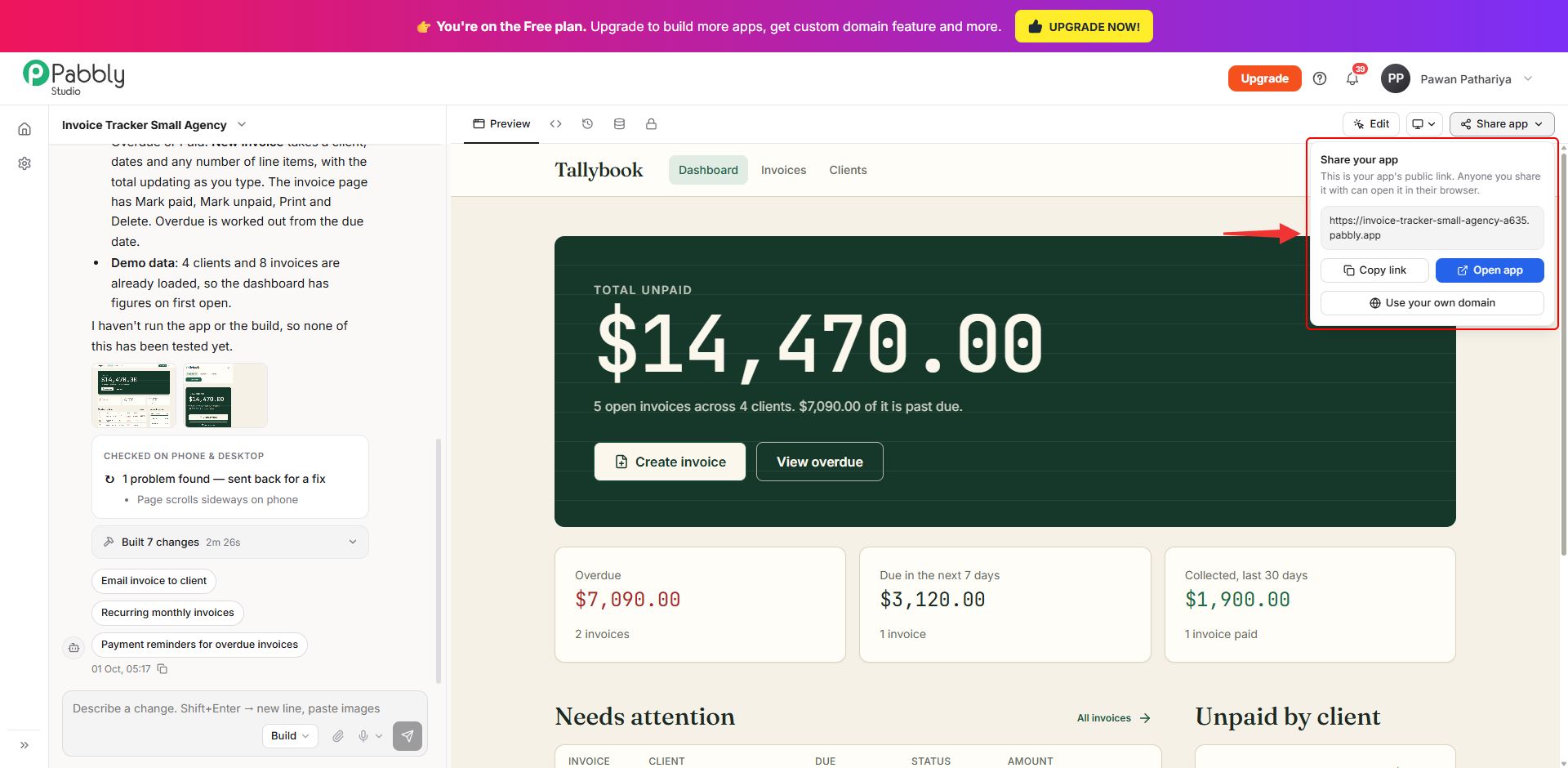
1. Open the Share app panel. Open your app in the builder and click Share app at the top right. The panel shows your app's public link, for example https://invoice-tracker-small-agency-a635.pabbly.app.
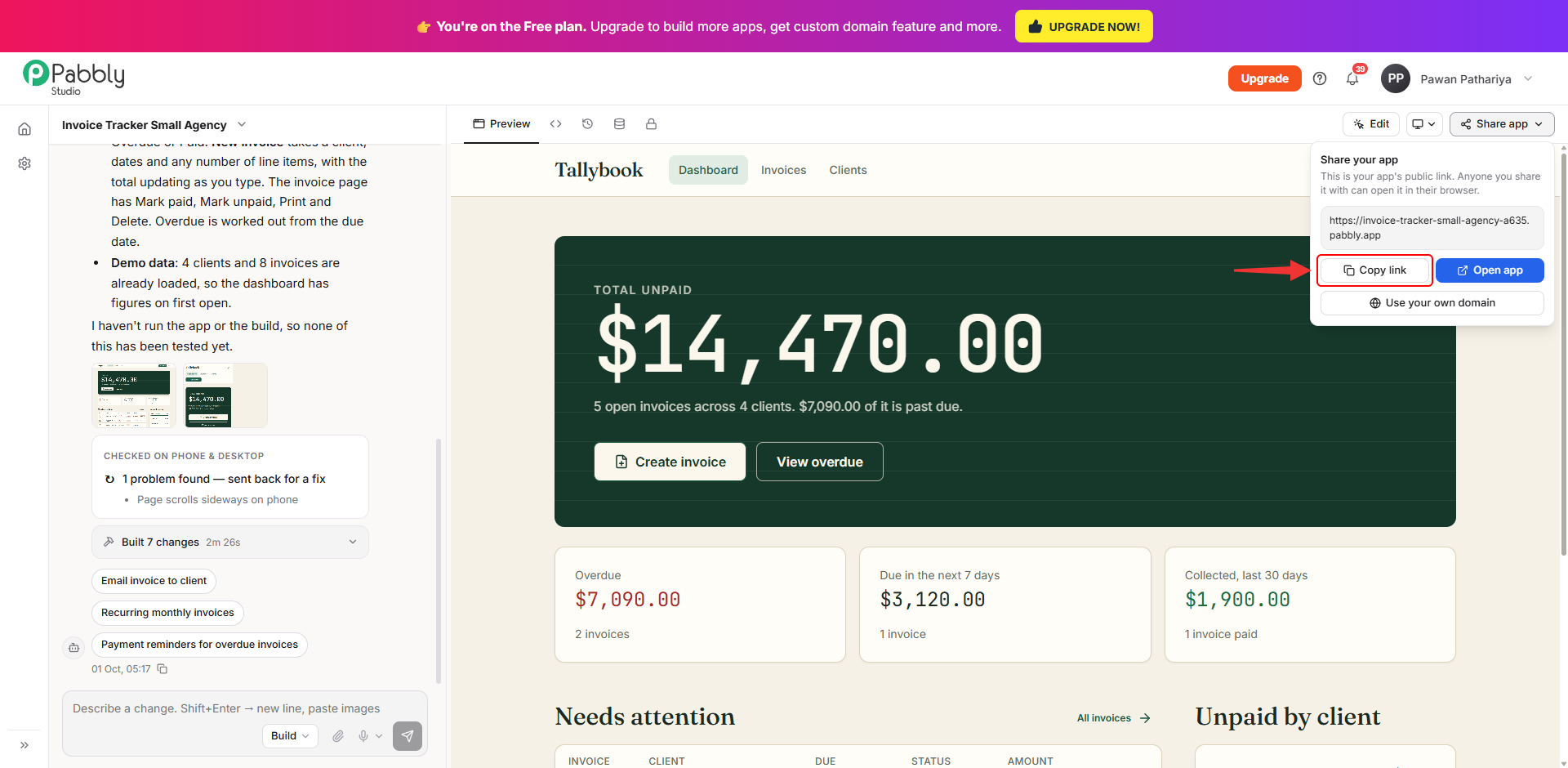
2. Copy the link. Click Copy link. The link is copied to your clipboard, ready to paste into an email, a chat message or your website.
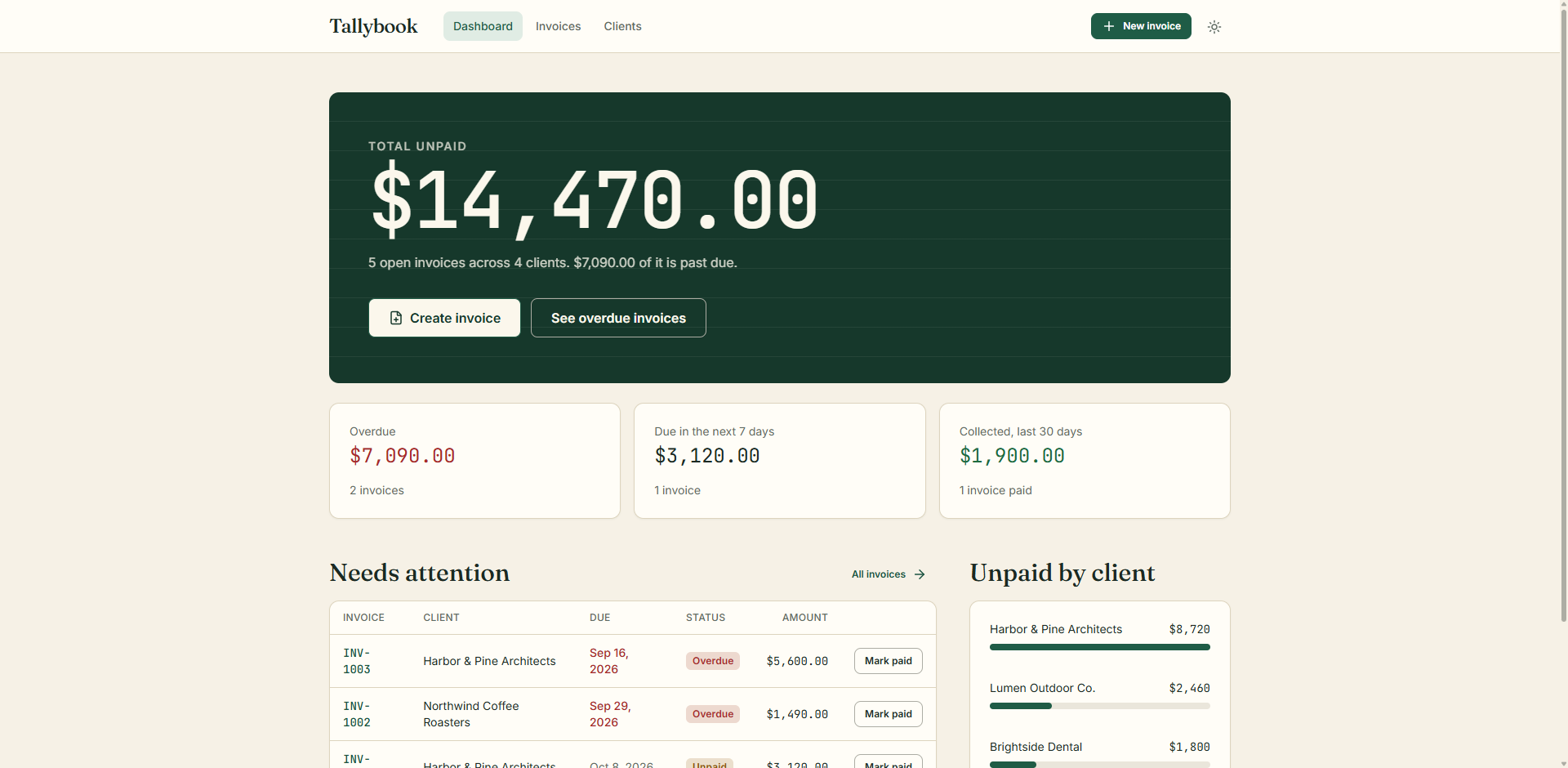
3. Open your live app. Click Open app to open your app in a new tab, exactly as your visitors will see it. This is the real, live app, so anything you or your visitors save here is saved in your app's data.
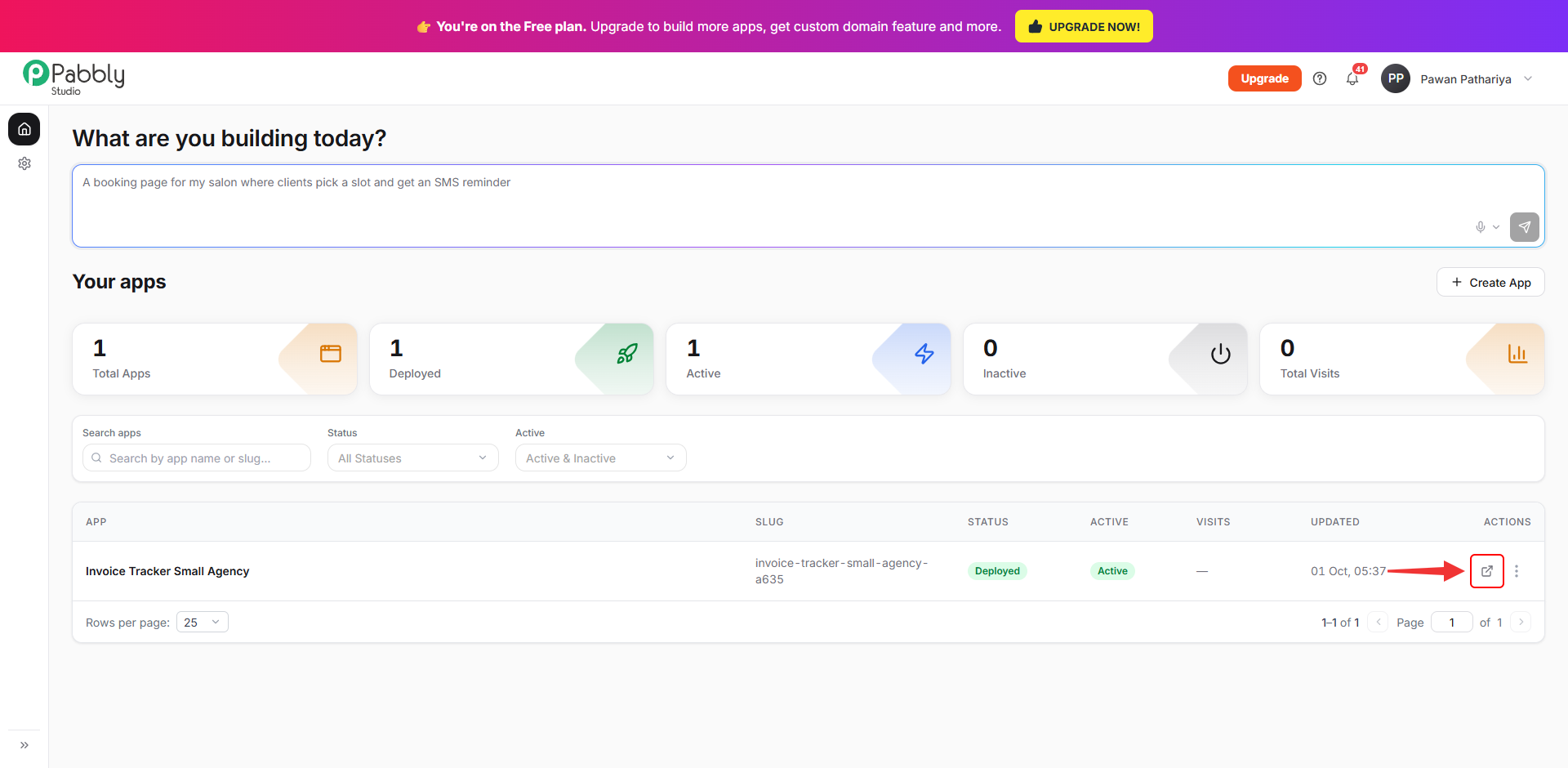
Open the live app from the dashboard. You can also open any app's live link from the Pabbly Studio dashboard. Just click the arrow icon at the end of the app's row in Your apps.
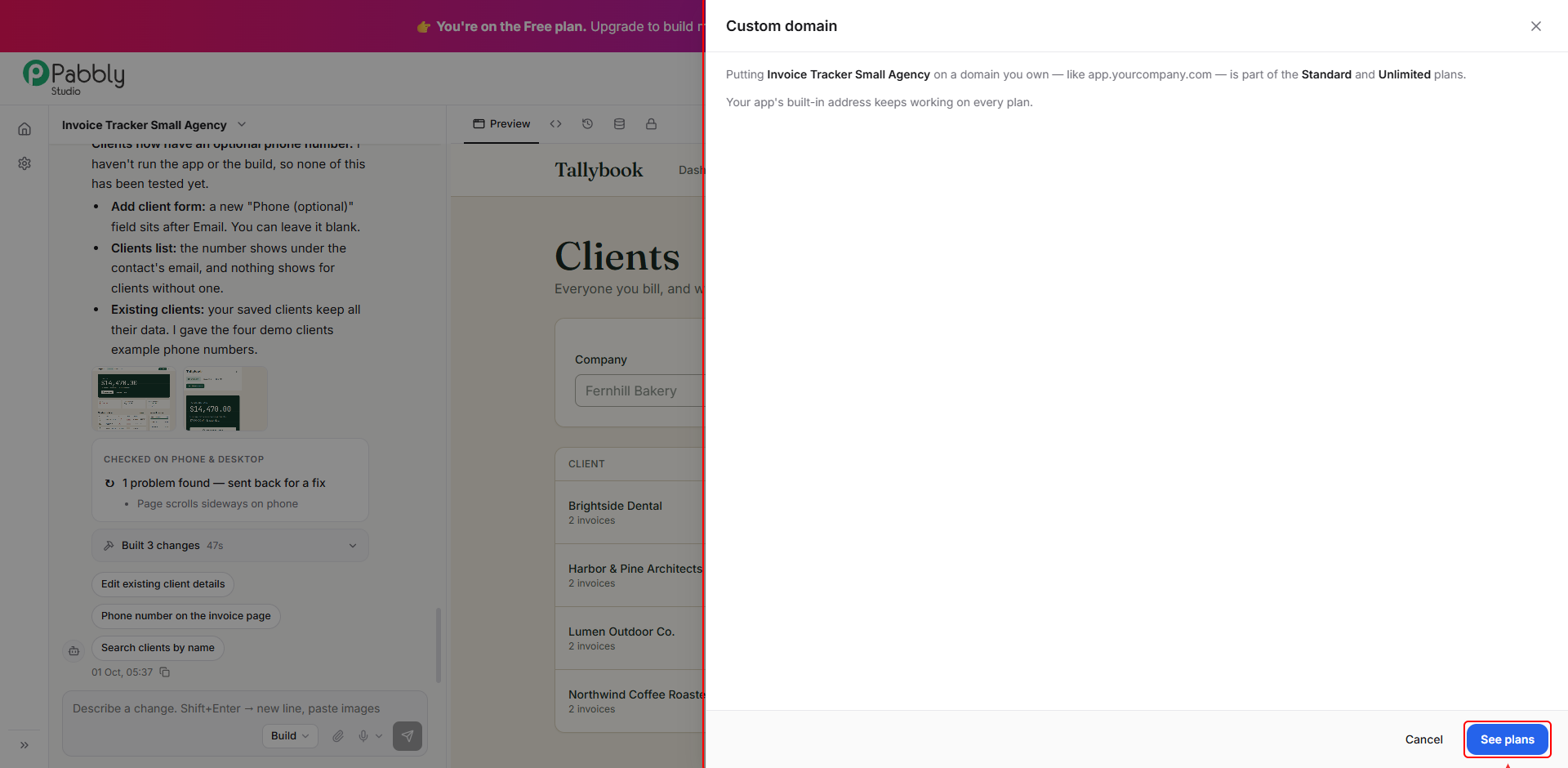
To put your app on a web address you own, such as app.yourcompany.com, click Use your own domain in the Share app panel. Custom domains are available on the Standard and Unlimited plans. On the Free plan, you will see the See plans option to upgrade. Your app's built-in .pabbly.app link keeps working on every plan.
This is how you can share your app's public link in Pabbly Studio. If you still have any questions, feel free to reach out to us.
