Xero is cloud-based online accounting software that helps small businesses to Keep track of their bank account balances, unpaid and overdue invoices, profit and loss, bills to pay, and more.
Prerequisites
Connecting Xero to Pabbly Connect
To connect your
Xero account to
Pabbly Connect you need to create an app in the
Xero Developers Center to obtain the
Client ID and
Client Secret.
1. Log in to the
Xero Developer Center at
https://developer.xero.com/ using your Xero credentials.
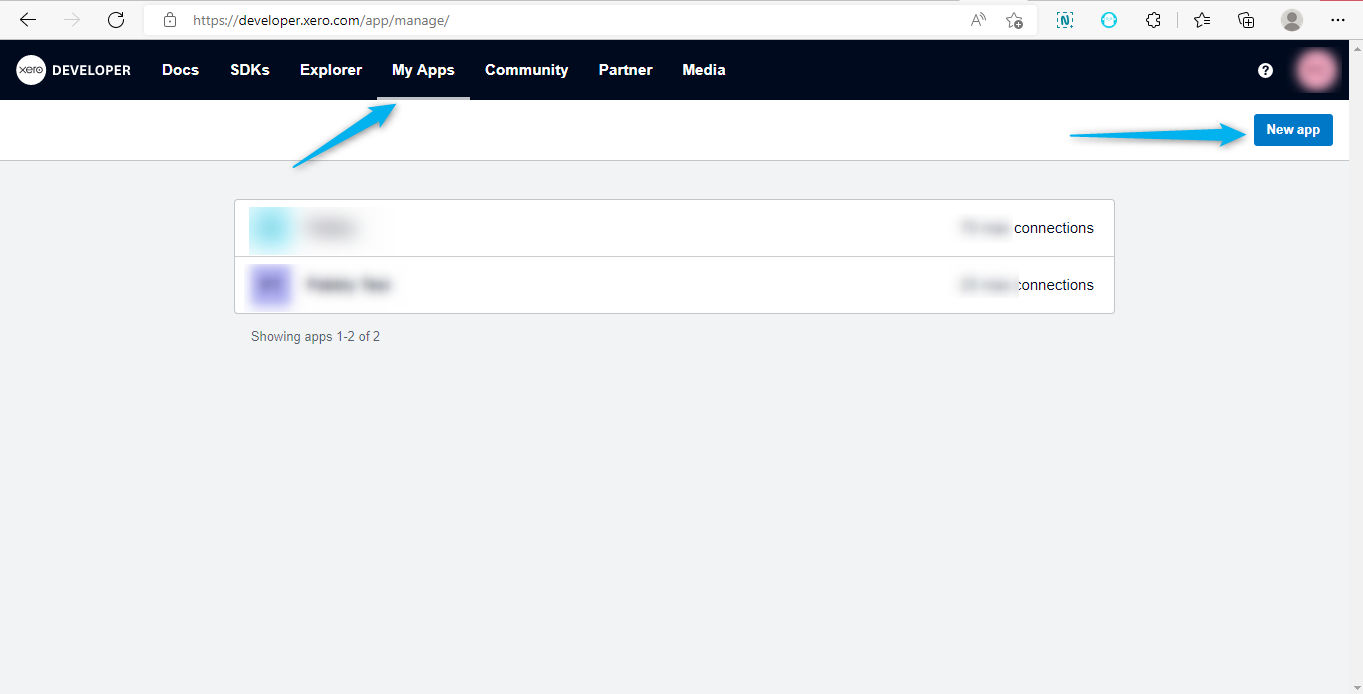
2. Navigate to the
My Apps Section & Click the
New App button.
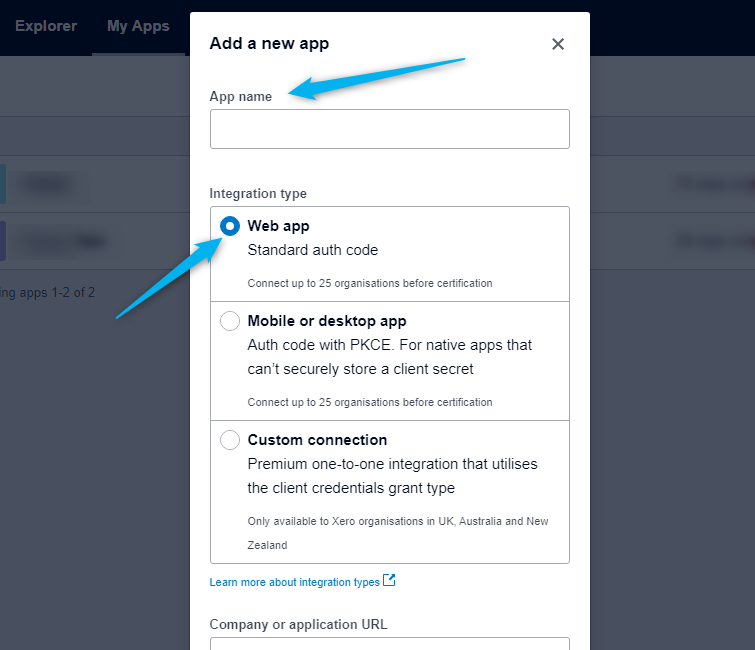
3. Enter the
App Name & Choose Integration Type as
Web App
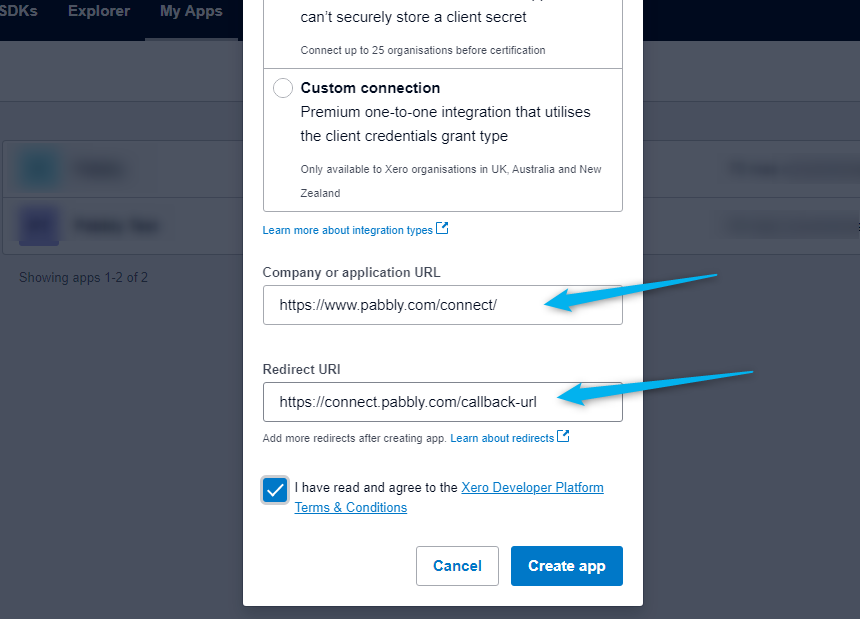
4. Enter
Company or Application URL as
Pabbly Connect

www.pabbly.com
5. Enter
Redirect URI as
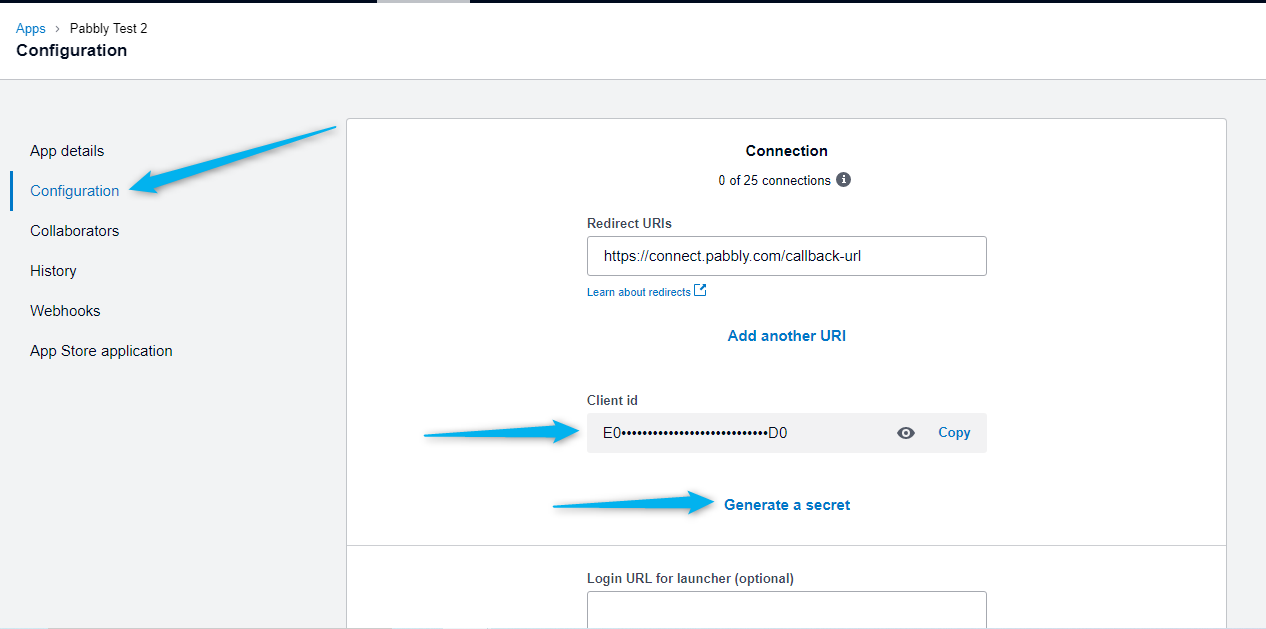
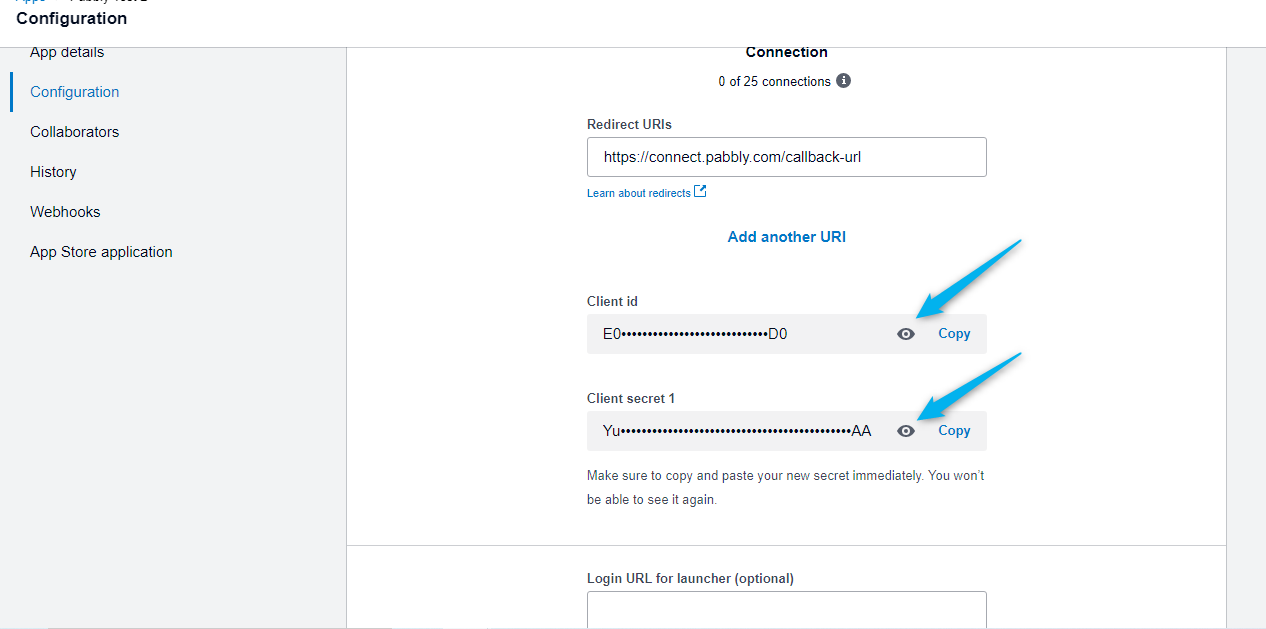
6. Navigate to
Configuration Section & view the
Client ID.
7. Click on
Generate a Secret link to generate a
Client Secret Key view this key & paste it somewhere in a safe place because you won't be able to see it again.
8. After generating the
Client ID &
Client Secret of your
App you can connect to Xero Actions in Pabbly Connect.
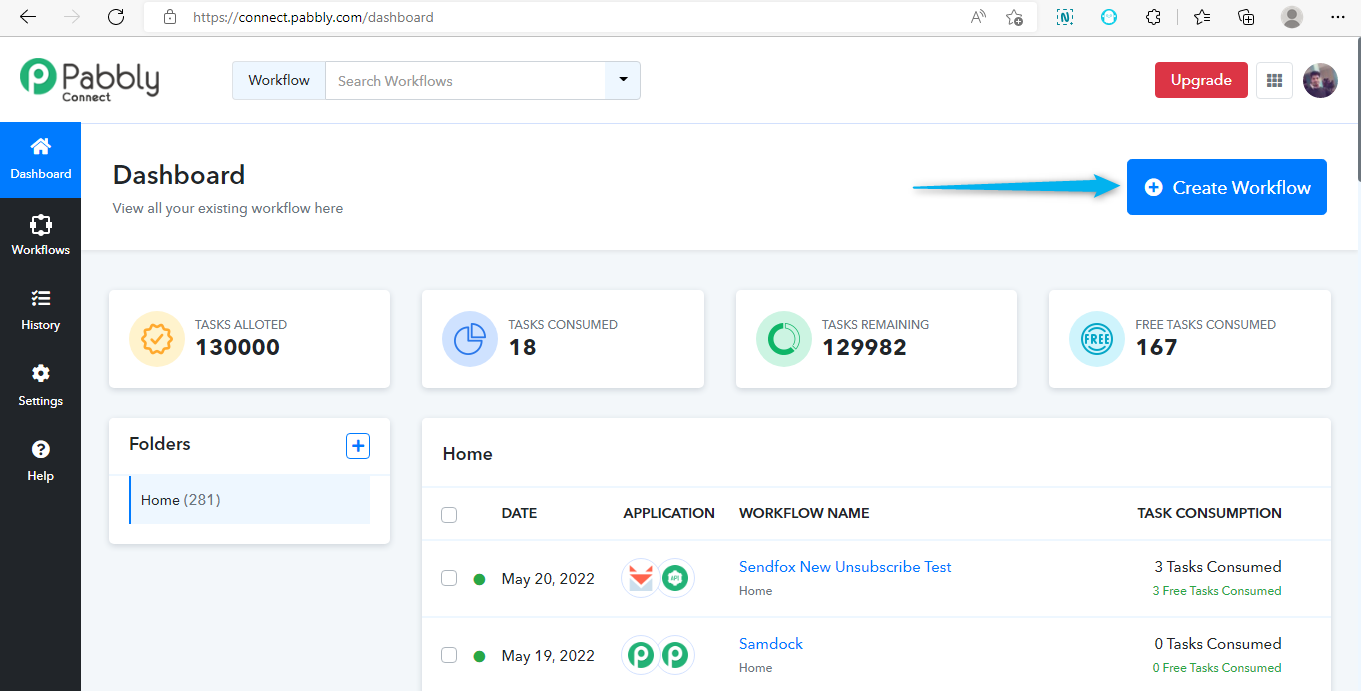
9. To Connect the Xero Actions in Pabbly Connect login to your Pabbly Connect account.
10. Click on
Create Workflow button
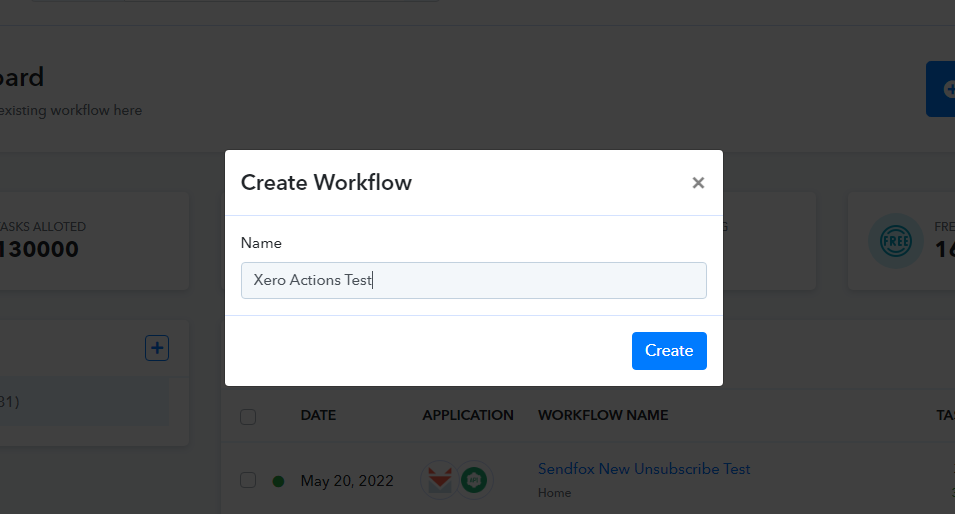
11. Enter the workflow name & click create.
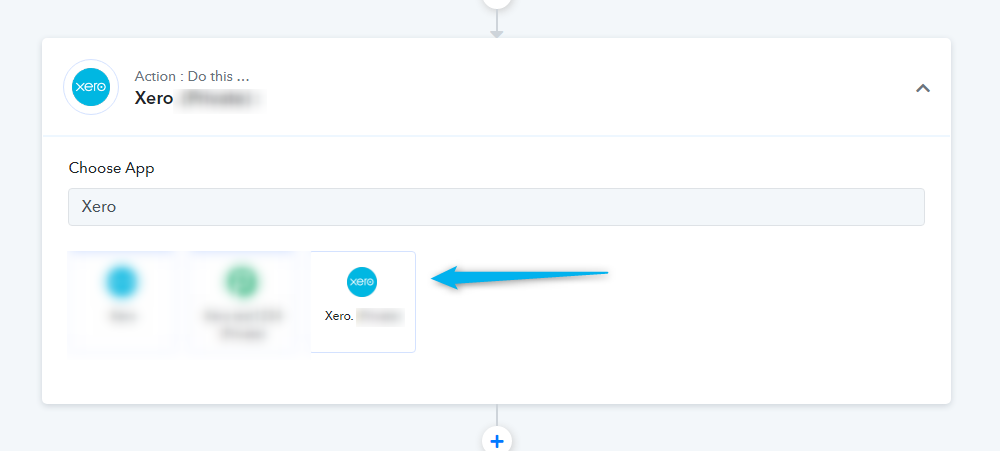
12. Choose
Xero as an option from Action Module.
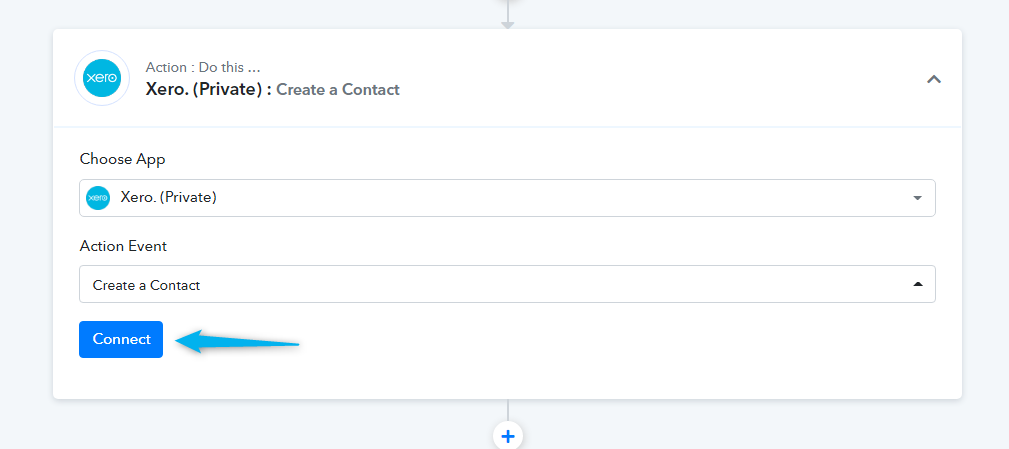
13. Choose the action event from the dropdown and then click on
Connect button.
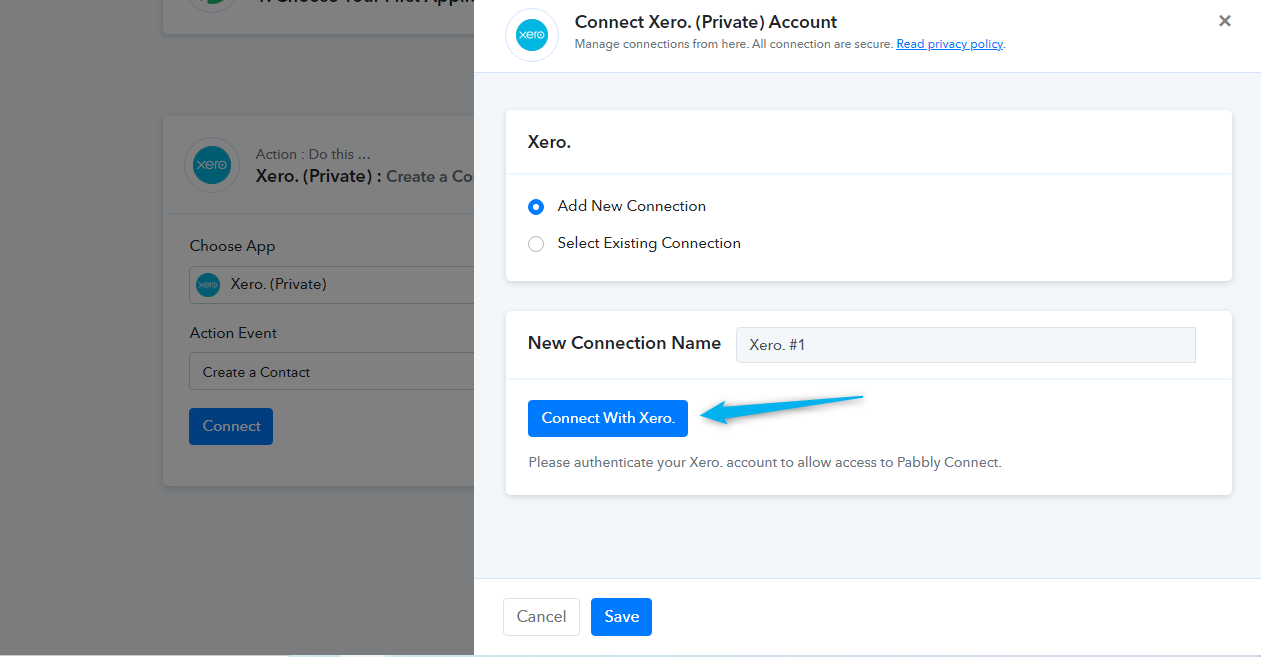
14. To add a new connection click on
Connect with Xero button
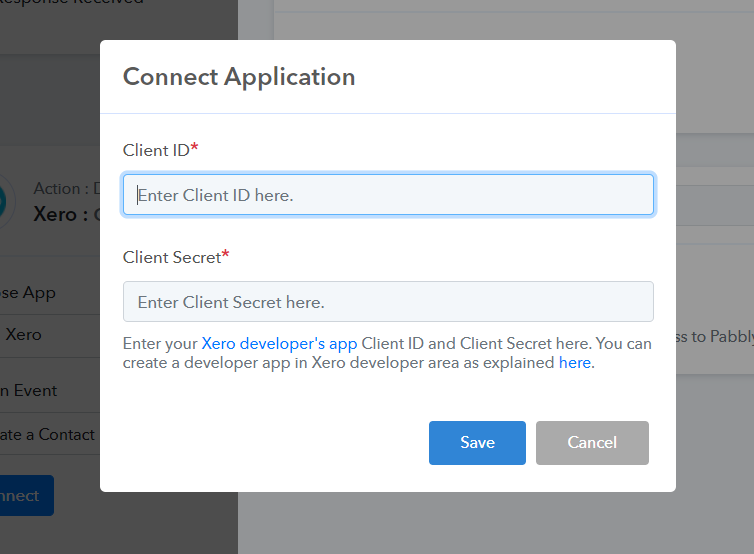
15. Provide
Client ID &
Client Secret as mentioned in the 7th step above then click on the save button to establish a connection.
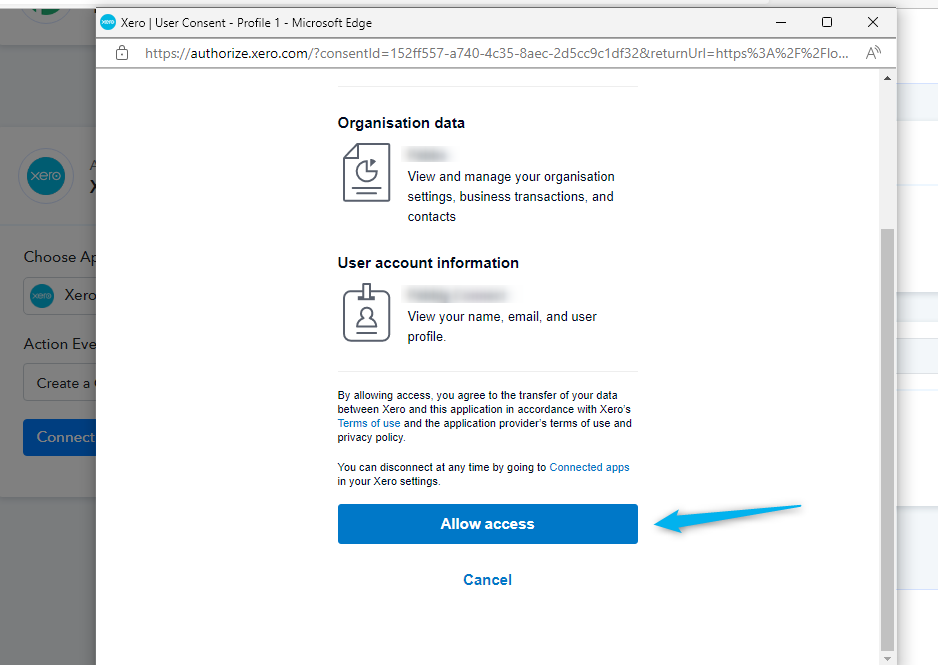
15. Click
Allow access to establish a Connection.
16. After a successful connection you can configure the actions of Xero inside Pabbly Connect as per your requirement.
 Pabbly Connect Team•Updated Jul 25, 2026•2 min read