Help and Guide
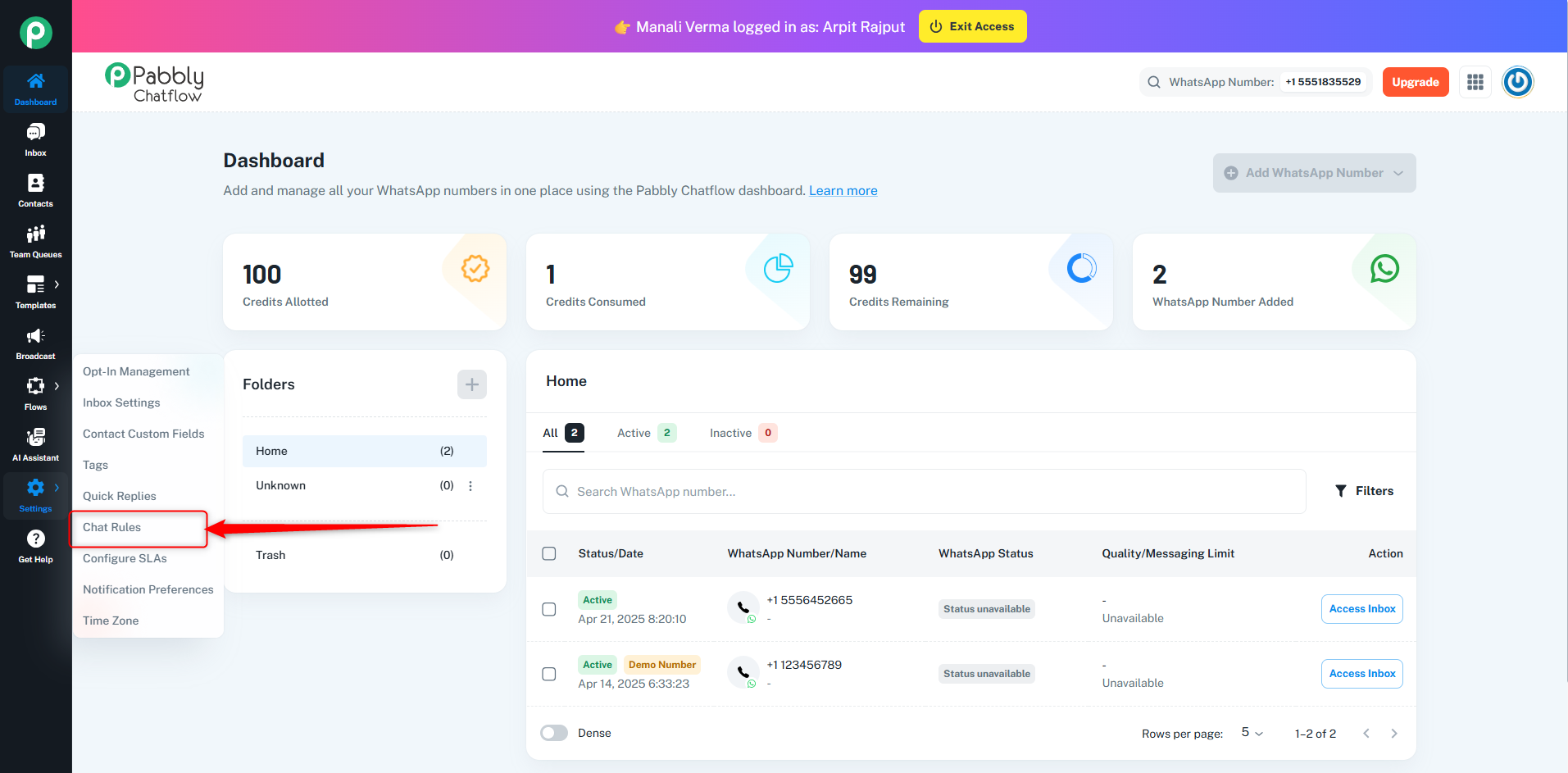
Chat Rules in Pabbly Chatflow help you control how customer chats are managed. Inside the Chat Rules module, you’ll find two main sections: Chat Assignment Rules and Chat Status Rules.
Follow these steps to configure Chat Assignment Rules and Chat Status Rules inside your Chat Rules settings to streamline and automate customer conversations.
Access your Pabbly Chatflow dashboard by signing in with your credentials.
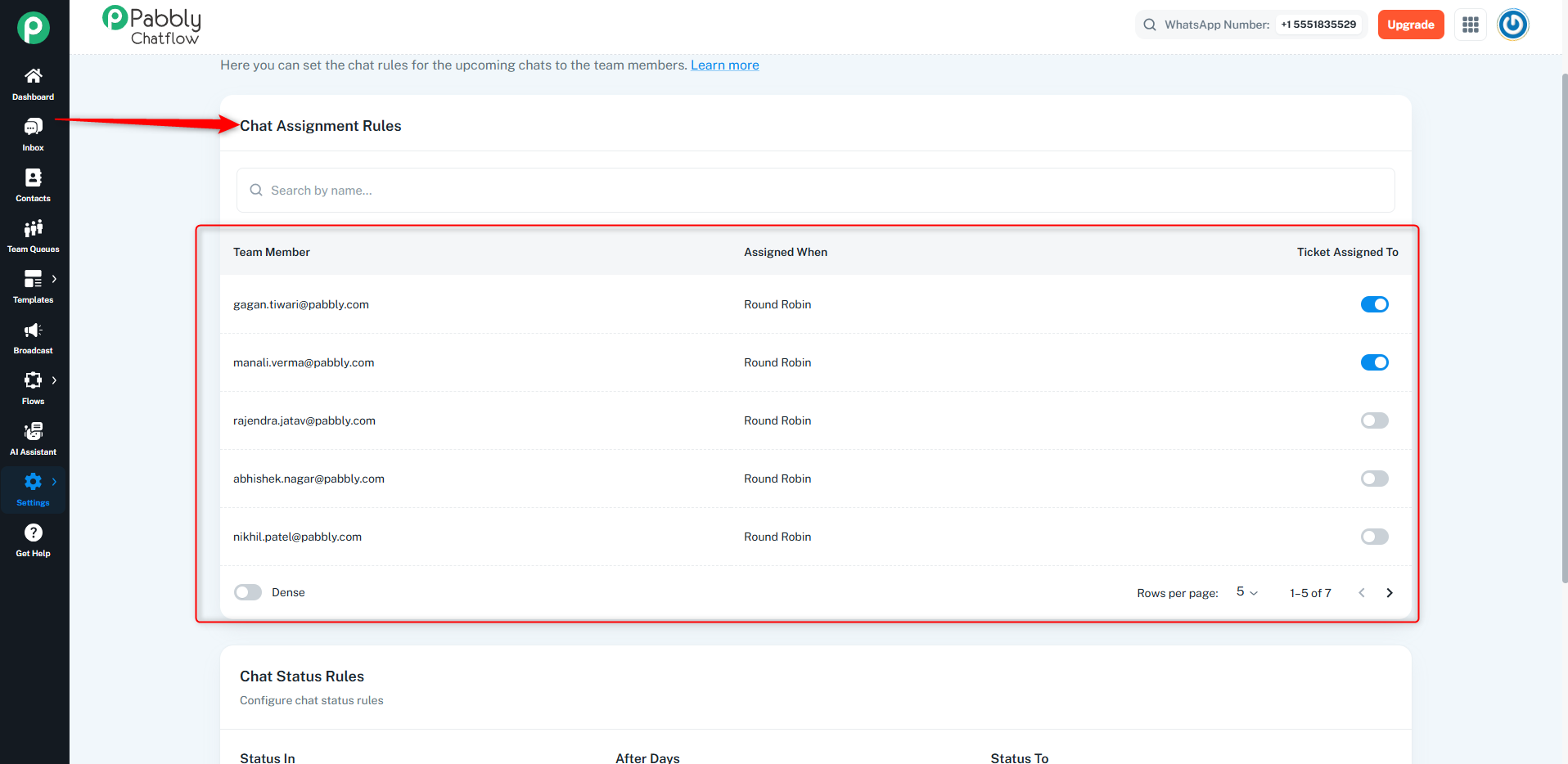
Chat Assignment Rules help you assign incoming chats to the right team members — either automatically (Round Robin) or manually. This prevents delays and balances workload across your team.
Before assigning chats, ensure that the required team members are added to your account.
If you do not manually assign a chat, the system will automatically distribute incoming chats among available team members based on the Round Robin method. This ensures fair and even workload distribution without needing manual intervention.
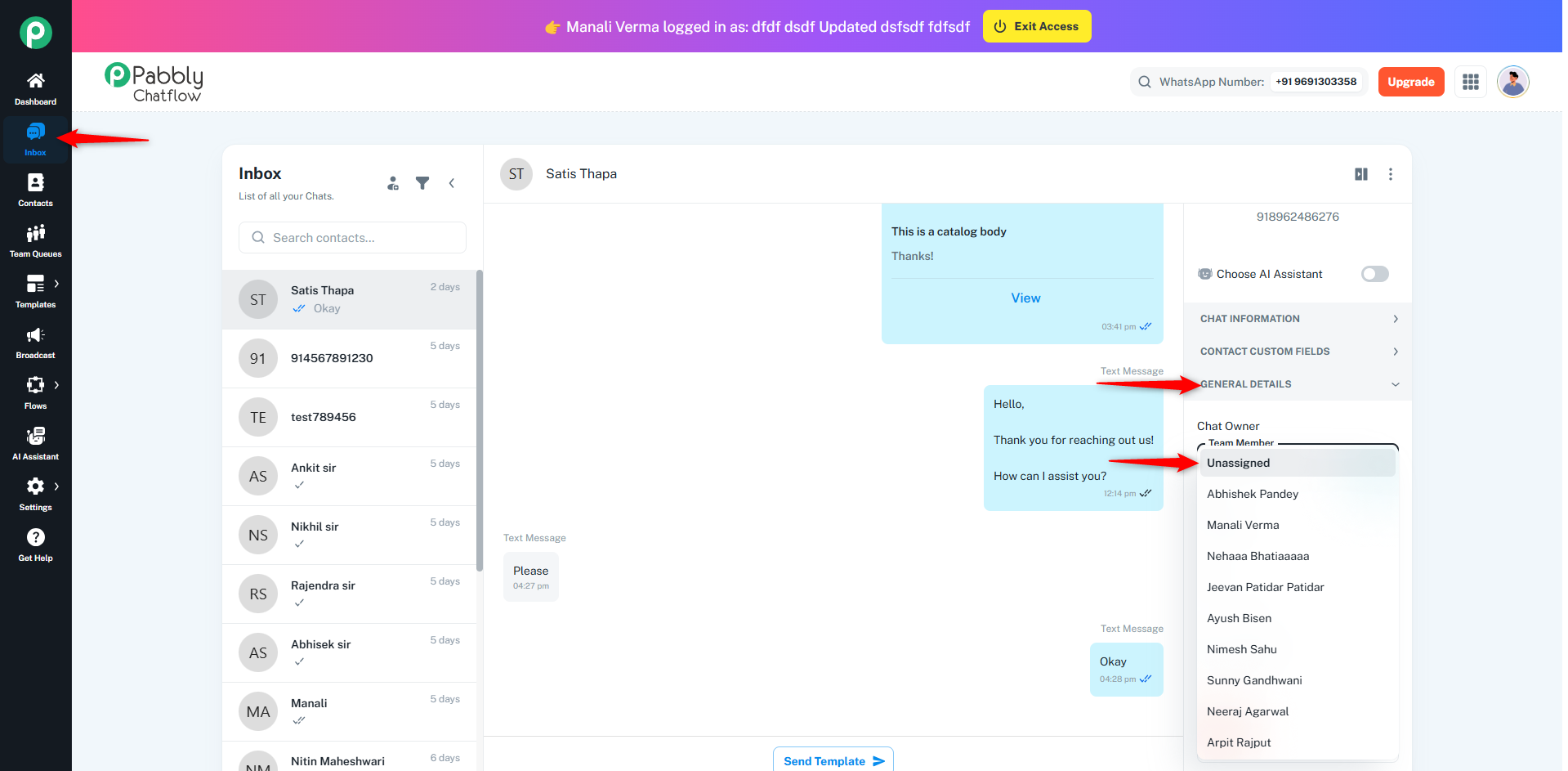
From the Inbox :
Chat Status Rules let you automatically change the status of a chat based on how long it has remained in a particular state.
1. Scroll to Chat Status Rules Section:
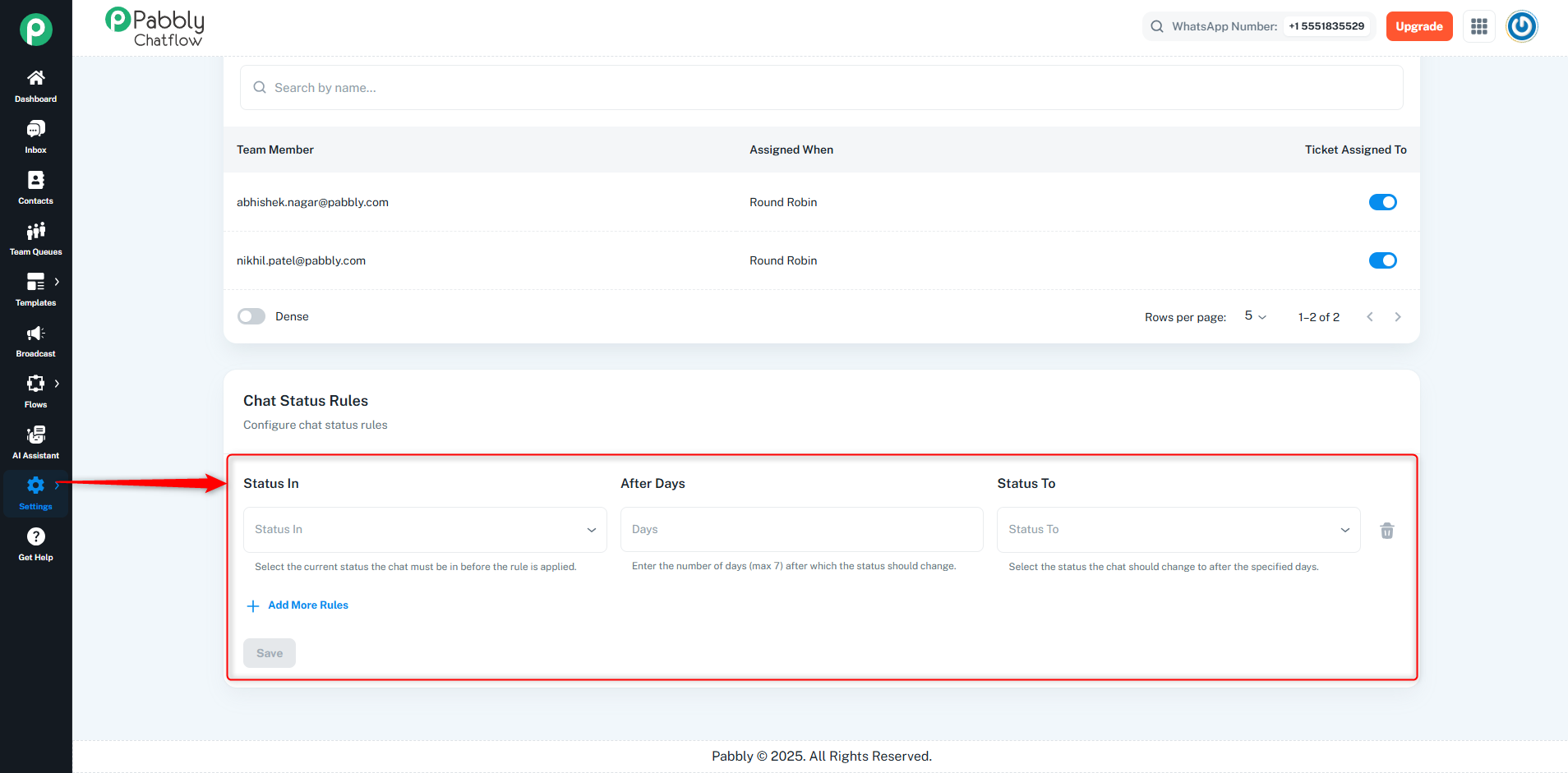
2. You will see a table with the following columns:
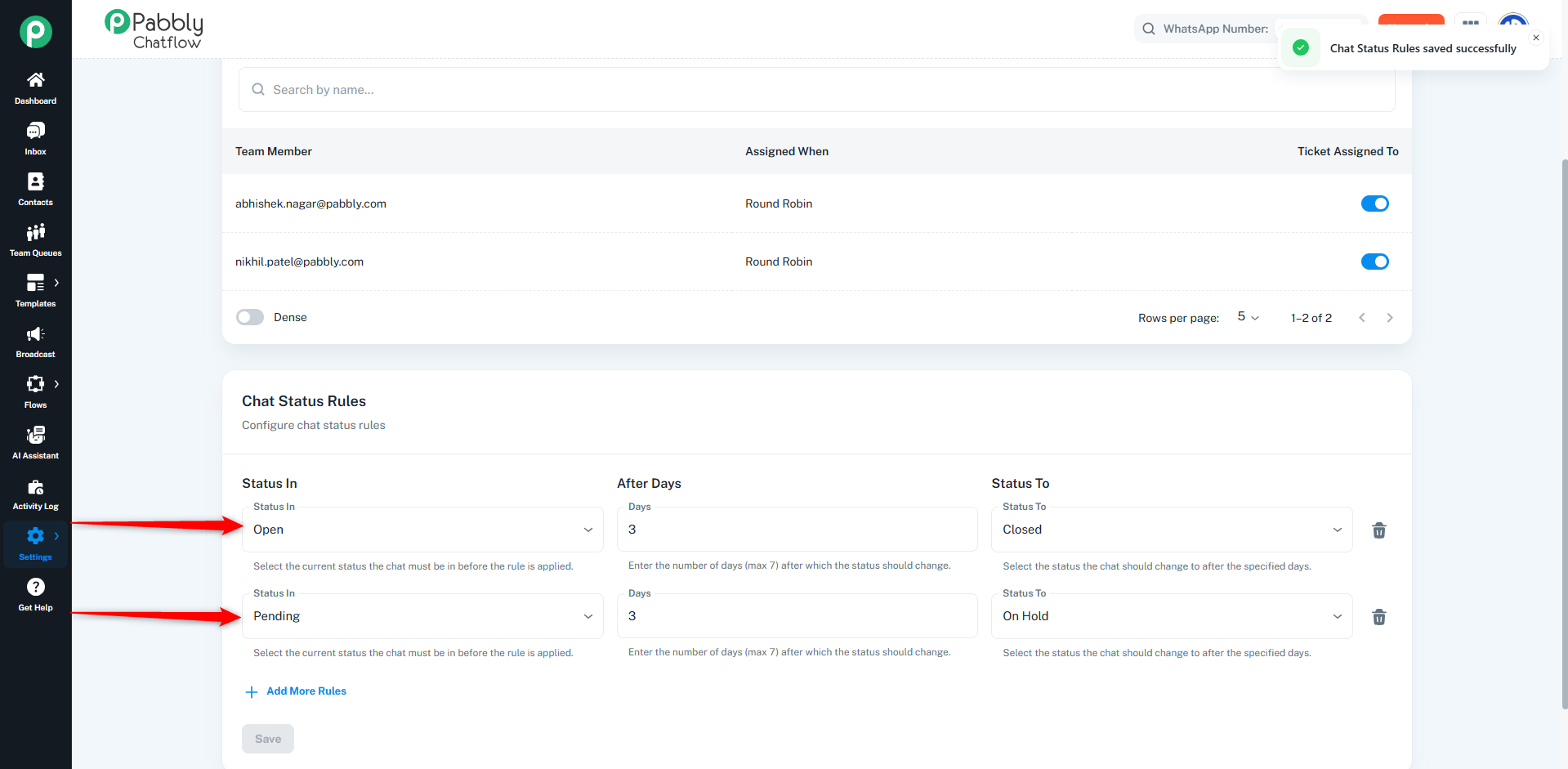
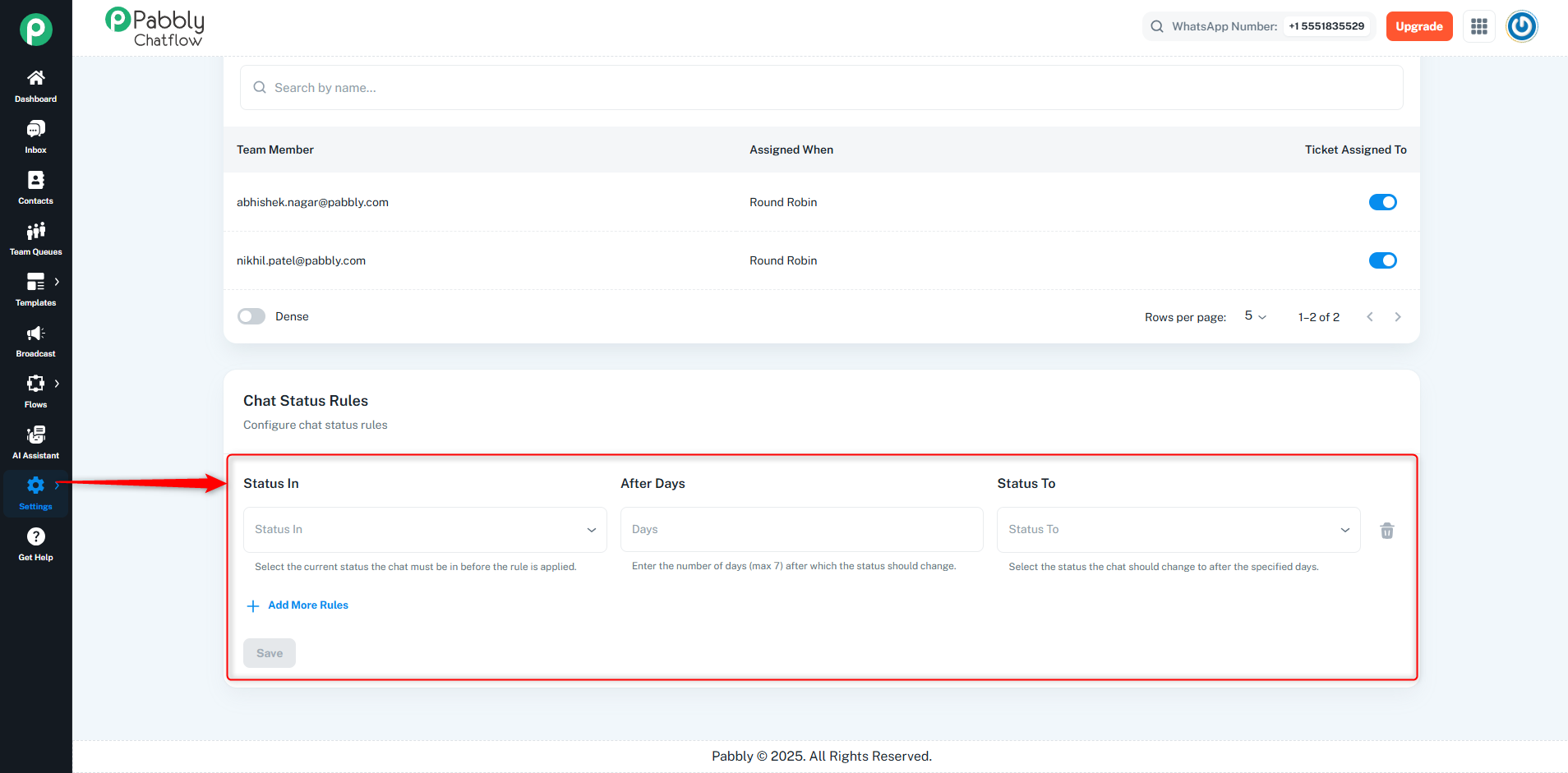 3. You can add multiple rules to manage different scenarios. For example:
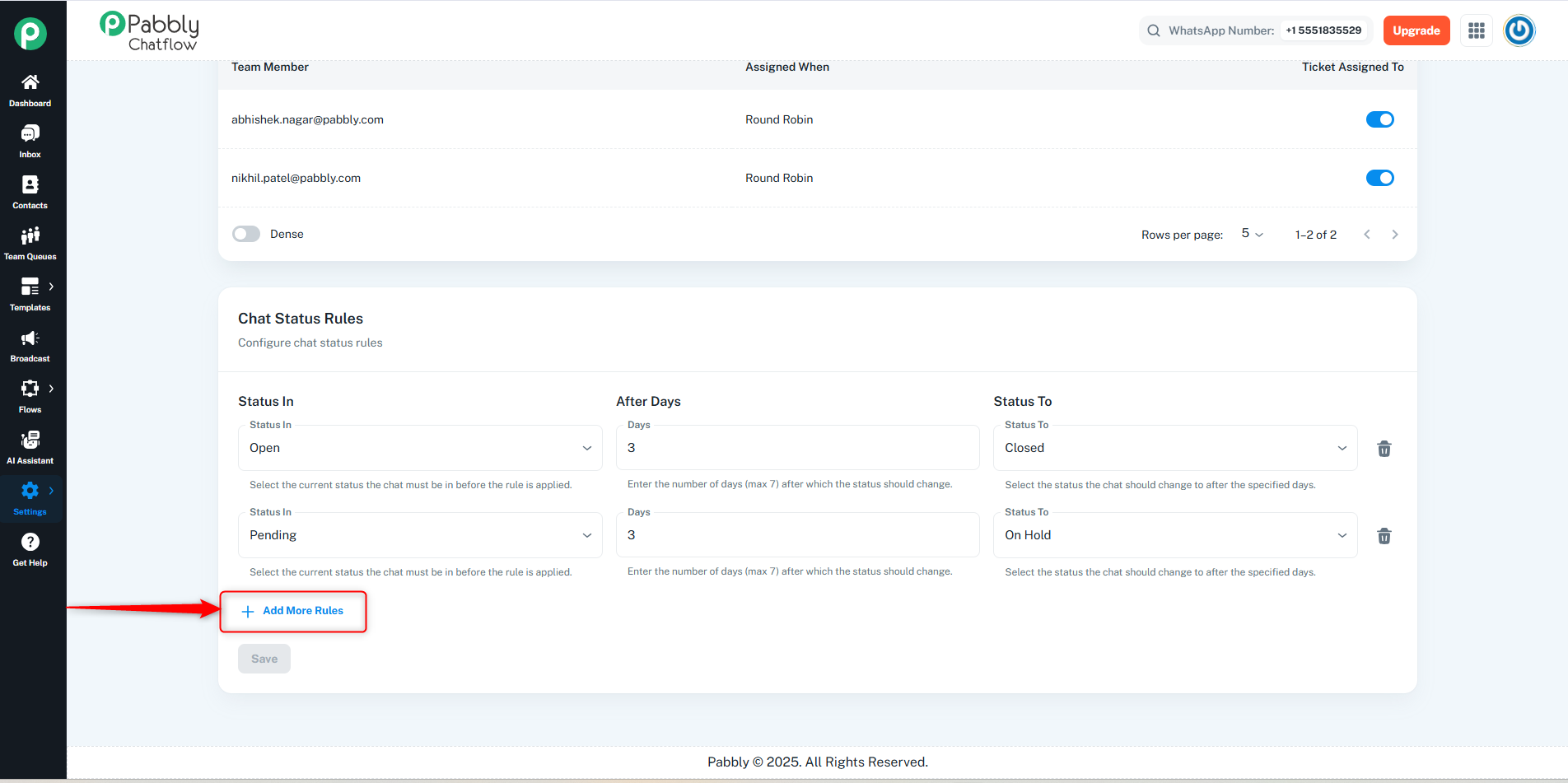
4. Click Add More Rules to set additional conditions.
5. Once all rules are defined, click Save to activate them.
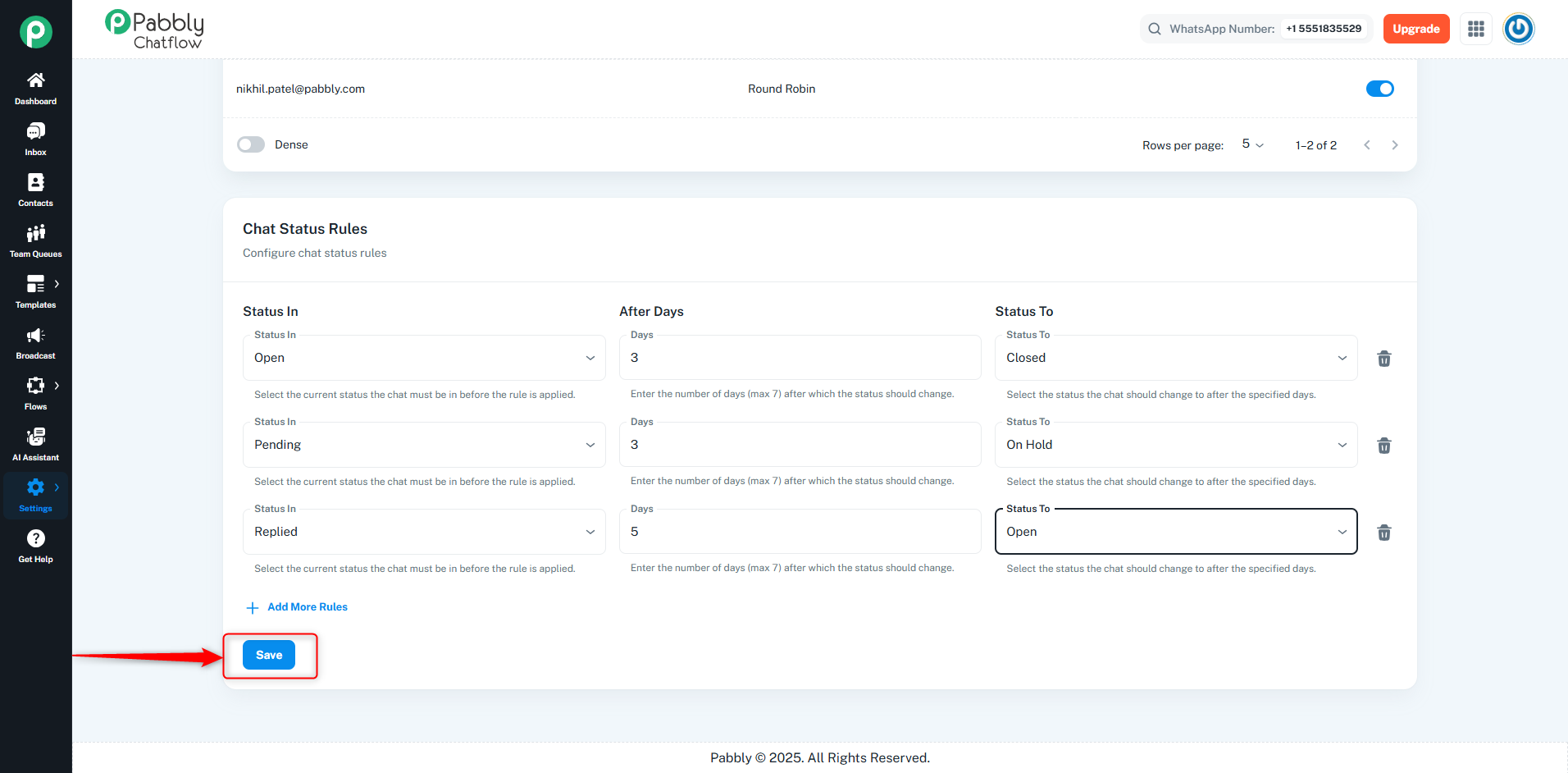
These rules help automate chat handling by ensuring chats don't get stuck in one status for too long, keeping your workflows efficient and responsive.
Important Note : ❗You cannot set a status update to AI Assistant through Chat Status Rules. While you can manually assign the AI Assistant status from the inbox, it cannot be set automatically using status rules.
Originally posted by Manali Verma on 2025-04-28 (forum thread #28682).
